Unity AI, step 4: diagnose missing tools, connection failures, and Console errors
Use a real success:false response to distinguish transport success, Editor access, project errors, and safe rechecks.
Last updated
Menus and supported features can change. Compare the source-check date below with your current app version.
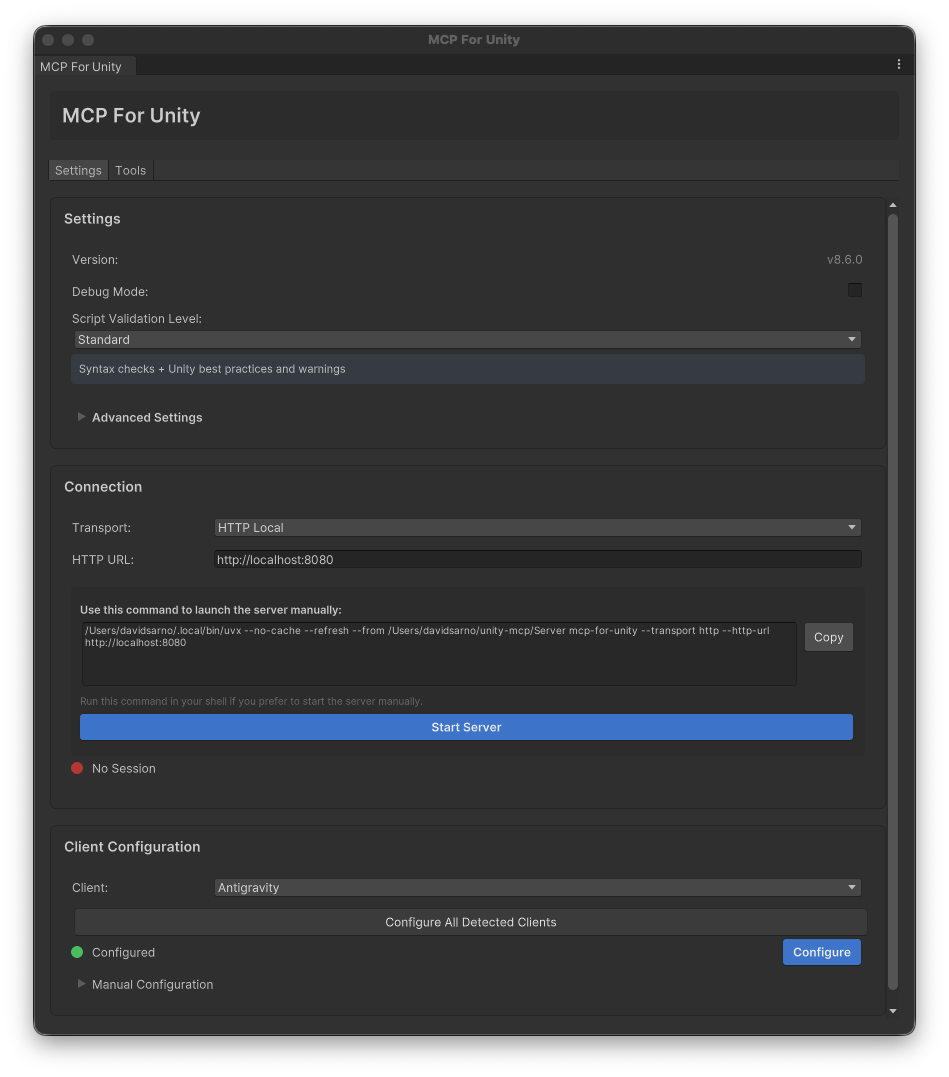
The cover is the repository’s developer example from v8.6, not our capture of the current 10.3.0 interface. MIT · Media credits
The assistant says a task is complete, but nothing changed in Unity. First identify the last step that actually succeeded. Package installation, server startup, tool discovery, scene inspection, modification, and saving have different acceptance criteria. The goal here is to locate a failure and choose one meaningful recheck.
This guide combines the 10.3.0 documentation and tool definitions with our limited Linux server probe. It is not a record of reproducing and repairing errors inside Unity. Mark the last successful step in the connection guide or scene task.
1. Read the operation result, not only a status light
Our MCP initialization and tools/list request succeeded and returned 48 tools. A subsequent read-only get_active call failed because no Unity Editor was running:
{
  "success": false,
  "message": "...No Unity Editor instances found. Please ensure Unity is running with MCP for Unity bridge..."
}
This is a shortened excerpt, not the complete response shape. The outer MCP response also contained isError:false. Receiving a transport-level response therefore did not establish success of the requested operation. Read the internal success state and inspect the actual scene before reporting an object created.
2. Is the package installed successfully?
Where did it stop? Check Package Manager for installation errors, then the server and session in the MCP window, the tool list in Cursor, and finally the actual active-scene response. Record the last successful screen and retry the next step.
For Package Manager’s Error when executing git command, first check git --version in a new terminal. After installing Git, restart Unity so the Editor can receive the updated PATH. Compare repository, package subdirectory, and tag with the installation guide.
For ownership or DLL errors, preserve the exact message and affected paths. Do not start by trusting every directory or deleting all libraries, DLLs, and lock files. Use a practice copy and follow the cause-specific official guidance. Rewording the AI prompt cannot resolve an outstanding package compilation failure by itself.
3. Separate the server process from the Editor session
If uv --version fails, the server’s launch tool is not ready. If it works in a terminal but Unity cannot locate it, check its executable location and whether the Editor was restarted. Keep the dependency status and server log. For an occupied port, choose another local port and update both sides rather than killing an unidentified process.
After starting the server, verify the Unity session in the MCP window. Check whether the client URL includes /mcp rather than only the server base address. This course uses HTTP Local on one computer. Windows-to-WSL and remote hosting introduce different network boundaries and require their own investigation.
4. Inspect tool visibility and target selection
Check that unityMCP is enabled and the conversation has loaded the new configuration. Starting a new conversation after changing configuration helps distinguish a stale session. If only particular operations are missing, inspect groups through manage_tools; functions such as testing can depend on group visibility.
With multiple connected Editors, select the intended instance before changing anything. Supply a real identifier from the instance list to set_active_instance, not an invented example name. Repeat get_active and compare the returned path. Multi-instance documentation
5. Read Console before clearing it
When connectivity works but the project reports errors, query recent entries using the get action of read_console. This example requests five errors with stack information. Reading diagnostics is not the same as completing a repair.
Diagnostic arguments and task brief
{"action":"get","types":["error"],"count":"5","include_stacktrace":true}Read the five recent Console errors without clearing them.
Explain the first error's file, line, and related change, and show a repair plan first.
After an actual repair, repeat the relevant check and distinguish remaining errors from save status.Compare the affected file with the preceding change and Editor version. Fixing the first error may remove secondary errors, but that is not guaranteed. Record one cause and one focused change before rechecking instead of changing several unrelated files together.
6. Decide what can be retried
In Console: Select the first red error to inspect its details and any file and line information. Keep the message before clearing anything; after a targeted fix, check whether that same error returns. This is documentation-based guidance, not a claim that we reproduced it in Unity.
If object-creation status is unclear, search Hierarchy before repeating the request: the object may already exist. If saving is uncertain, inspect the scene path and file before deciding to save again. Deletion and replacement need a separate review of the proposed change and backup.
A useful note separates the last success from the first failure: “10.3.0 / HTTP Local / tools visible / active-scene query failed / Editor connection requires checking.” Our probe did not treat server responsiveness as completed Unity work. Once the cause is resolved, return to the inspection step of the scene guide and recheck the same objective.
Sources & further reading
- https://github.com/CoplayDev/unity-mcp/blob/aa5fc638d623f56178d50329d9ad8c541a57fe66/MCPForUnity/package.json
- https://github.com/CoplayDev/unity-mcp/blob/aa5fc638d623f56178d50329d9ad8c541a57fe66/website/docs/getting-started/install.md
- https://github.com/CoplayDev/unity-mcp/blob/aa5fc638d623f56178d50329d9ad8c541a57fe66/website/docs/getting-started/clients.md
- https://github.com/CoplayDev/unity-mcp/blob/aa5fc638d623f56178d50329d9ad8c541a57fe66/website/docs/getting-started/first-prompt.md
- https://github.com/CoplayDev/unity-mcp/blob/aa5fc638d623f56178d50329d9ad8c541a57fe66/website/docs/reference/tools/core/manage_scene.md
- https://github.com/CoplayDev/unity-mcp/blob/aa5fc638d623f56178d50329d9ad8c541a57fe66/website/docs/reference/tools/core/manage_gameobject.md
- https://github.com/CoplayDev/unity-mcp/blob/aa5fc638d623f56178d50329d9ad8c541a57fe66/website/docs/reference/tools/core/read_console.md
- https://github.com/CoplayDev/unity-mcp/blob/aa5fc638d623f56178d50329d9ad8c541a57fe66/website/docs/guides/troubleshooting.md
- https://github.com/CoplayDev/unity-mcp/releases/tag/v10.3.0
- https://cursor.com/docs/mcp
- https://github.com/CoplayDev/unity-mcp/blob/aa5fc638d623f56178d50329d9ad8c541a57fe66/LICENSE