Your first Midjourney game background: account checks to a downloaded file
Follow a documented web workflow with a full prompt, candidate checks, variation choices, downloading, and a working record.
Last updated
Menus and supported features can change. Compare the source-check date below with your current app version.
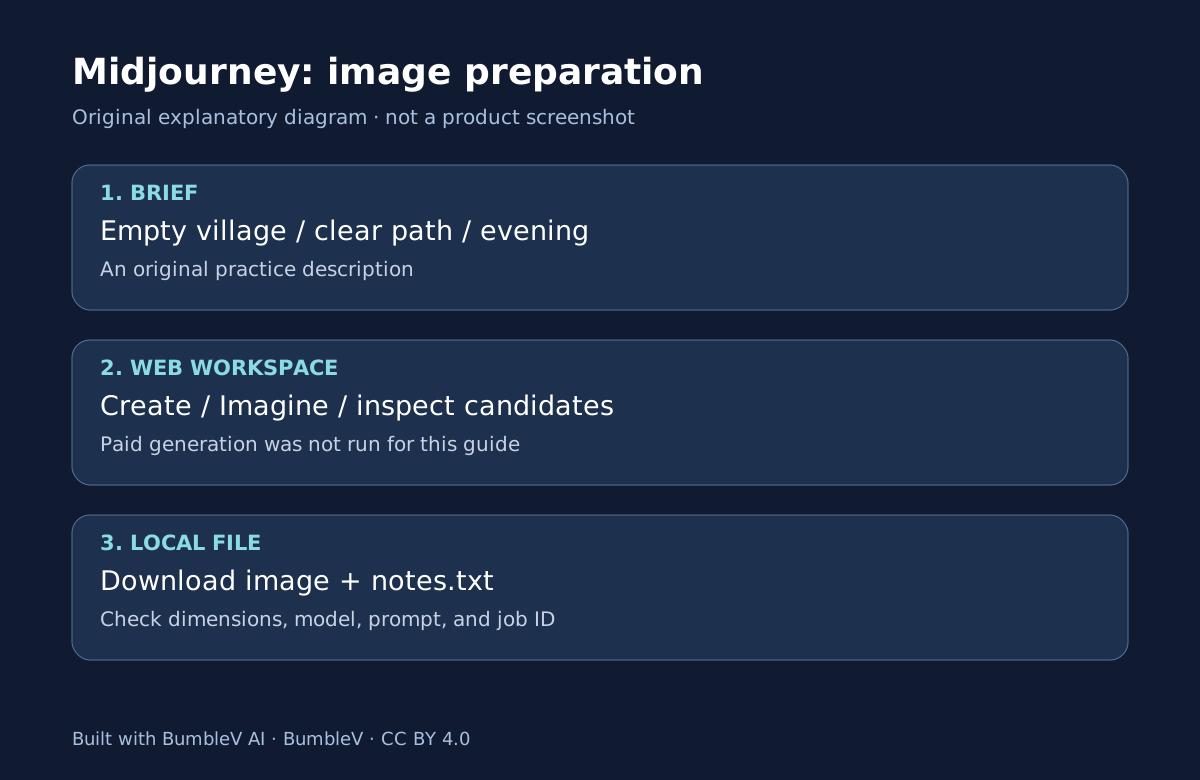
This walkthrough aims at one empty coastal-village background and a local record of how it was made. It does not create a playable scene or character behavior. We are preparing a small, inspectable output for another editing or engine task.
The procedure is based on Midjourney’s official web documentation, using V8.2 as the checked model reference. We did not submit a paid generation, variation, or download in a signed-in account. The prompt is an original practice example, not a tested output. Check the expected states below against your own screen.
1. Check the account and billing choice
Start at the official Midjourney website. Sign Up uses Google or Discord account connections. If you previously used Discord, first sign in through that existing account and check its subscription and history, rather than purchasing again under a different identity. Account connections
Generation requires an applicable subscription. If purchasing, inspect Monthly Billing / Yearly Billing: the subscription guide warns that yearly billing may be selected by default and charges the annual amount upfront. Do not read a monthly-equivalent figure as a monthly charge. Reading this guide does not require purchasing; payment is a separate decision after checking the terms. Subscription guide
2. Define what the picture must contain
Use four checks: a wide composition, an empty village, a clear central path, and evening lighting. A candidate with a blocked central path or a large person remains a revision candidate. These are visual selection criteria, not proof of a walkable game navigation area.
Create a local folder named village-background and a notes.txt file. Keeping the original picture and its record together makes later comparisons easier. Check your account’s available usage before repeating paid work; this article does not predict consumption or completion time.
3. Enter a prompt in Create
Open Create and put your description into the Imagine bar. The example below describes a generic scene rather than copying a particular game’s artwork. --ar 16:9 selects the aspect ratio and --v 8.2 identifies the model. Check the syntax, then press Enter or the send control. Getting started
Complete practice prompt
An empty coastal village at dusk, a clear wide path through the center, small weathered houses on both sides, soft warm window lights, readable silhouettes, painted adventure game background, no people, no lettering --ar 16:9 --v 8.2This is a starting brief, not a promise that every candidate will obey every condition.
The documented basic workflow shows four candidates and progress. Completion of processing is different from satisfaction of your brief. Avoid adding settings simply because an old tutorial used them: check version compatibility before mixing Quality, Draft, or reference parameters from other models.
4. Inspect a candidate before varying it
Click an image to open it larger. Inspect the central path, unwanted people, edges, and accidental lettering. Details that seemed acceptable in a thumbnail may not work at full size. Your favorite aesthetic candidate and the candidate that satisfies the task may differ.
For a close candidate, inspect the Vary options in Creation Actions. Subtle is the closer variation option; Strong explores a larger change. A variation is another generation task, so compare it with the original instead of repeating indefinitely. If controls are missing, inspect additional options and the model’s supported features. Modification overview
5. Download and reopen the file
Use the download icon while viewing the selected image. Find the file in your browser’s download location and give it a recognizable name such as village-background-v01, preserving its actual extension. Open it in your computer’s image viewer. A screenshot of a small web preview is different from downloading the image file. Web controls and downloading
Inspect the file’s dimensions and format. A 16:9 prompt does not guarantee a 1920-by-1080 file. Record the actual result in notes.txt. If you have not imported it into an engine, do not mark engine integration complete: the current objective is a locally readable picture that meets your visual brief.
6. Preserve the record and isolate problems
Save the full prompt, selected version, work date, job ID from the image details where available, original filename, actual dimensions, and remaining concerns. Mark an unavailable job ID as unconfirmed instead of inventing one. Confirm you can find the job again in Organize. If a download appears missing, inspect the browser’s download list and destination folder first.
For a blocked generation, check the subscription, remaining allowance, and supported syntax in that order. Do not repeatedly send a prompt to fix a billing problem. For a ratio error, check the colon in --ar 16:9; for an unsuitable scene, change one requirement in the description. Continue with new prompt versus variation and editing, then read the Echoes production analysis to understand what remains after a background image exists.
Sources & further reading
- https://docs.midjourney.com/hc/en-us/articles/33329261836941-Getting-Started-Guide
- https://docs.midjourney.com/hc/en-us/articles/33390732264589-Creating-on-Web
- https://docs.midjourney.com/hc/en-us/articles/33390994570509-Logging-In-Connecting-Accounts
- https://docs.midjourney.com/hc/en-us/articles/27870484040333-Comparing-Midjourney-Plans
- https://docs.midjourney.com/hc/en-us/articles/31974654274573-How-to-Subscribe
- https://docs.midjourney.com/hc/en-us/articles/31894244298125-Aspect-Ratio
- https://docs.midjourney.com/hc/en-us/articles/32199405667853-Version
- https://docs.midjourney.com/hc/en-us/articles/33329329805581-Modifying-Your-Creations
- https://docs.midjourney.com/hc/en-us/articles/32083055291277-Terms-of-Service