vidIQ for beginners: research keywords and choose your next video topic
Open Research → Keywords, compare related terms and questions, then leave with three candidates and one realistic video title. Includes official interface examples.
Last updated
Menus and supported features can change. Compare the source-check date below with your current app version.
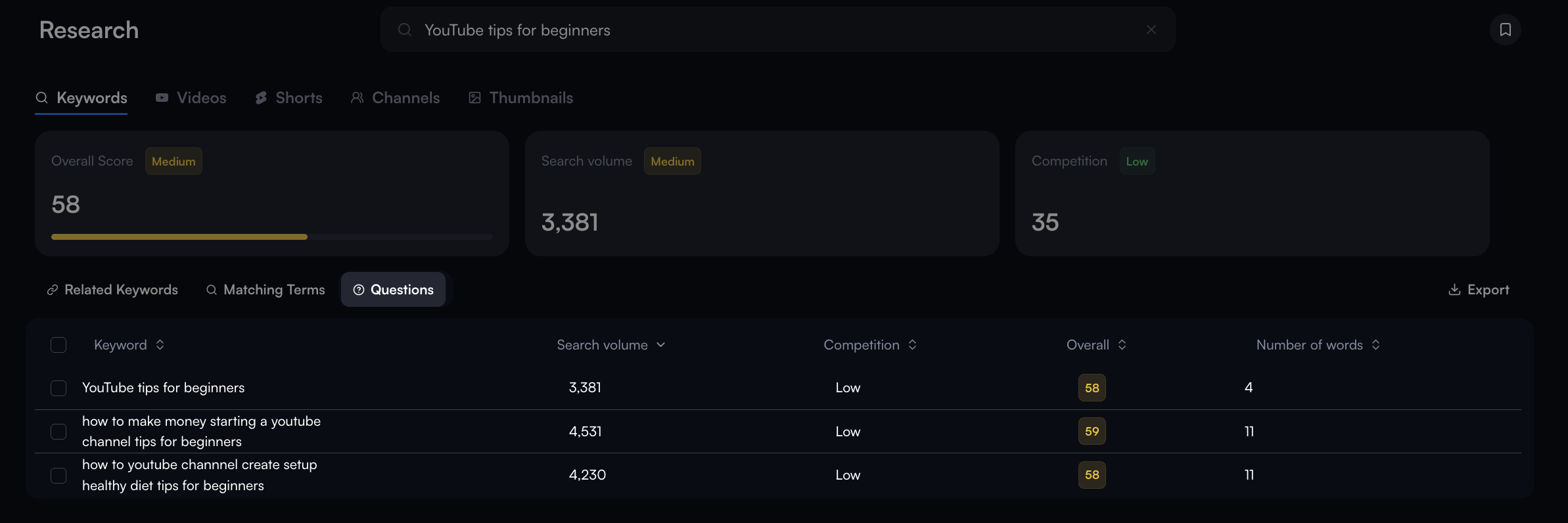
Use this exercise to collect three relevant topic candidates, choose one you can actually demonstrate, and write a clear draft title. It follows the desktop web app rather than the mobile app or browser extension.
The animated example and screenshots are provided by vidIQ’s official Help Center. We checked the documentation on October 26, 2026, without connecting a channel or measuring live search results. Scores and volumes in the images belong to the provider’s examples. They are not current measurements for your topic, and an English example does not establish demand in another language.
1. Open Research → Keywords
Sign in to the vidIQ web app. If channel setup is requested, choose the Google account managing the intended channel and check the selected channel. An existing connection does not need to be created again. Open Research in the left sidebar, then Keywords. Some older official images call this area Search; the current getting-started instructions use Research.
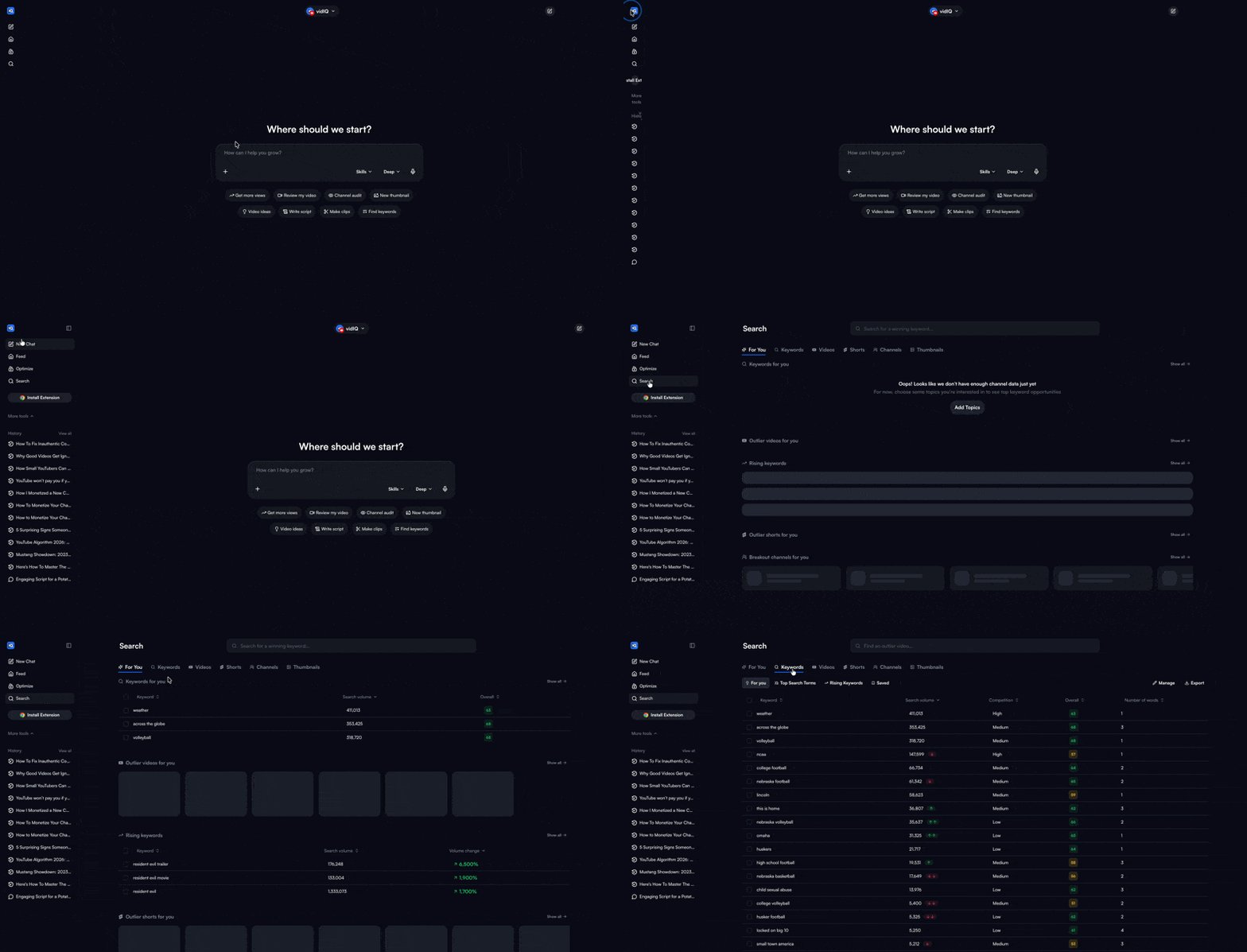
Write one sentence describing your intended viewer and task. For example: “Help a first-time video creator add and correct automatic captions.” This is our planning example, not a measured demand claim. It gives you a reference when deciding which suggestions to keep.
2. Search a topic and press Enter
Enter a phrase describing the video, such as automatic subtitles, and press Enter. This is an example input, not a claim that the phrase is currently popular. Look for Overall Score, Search volume and Competition in the result.
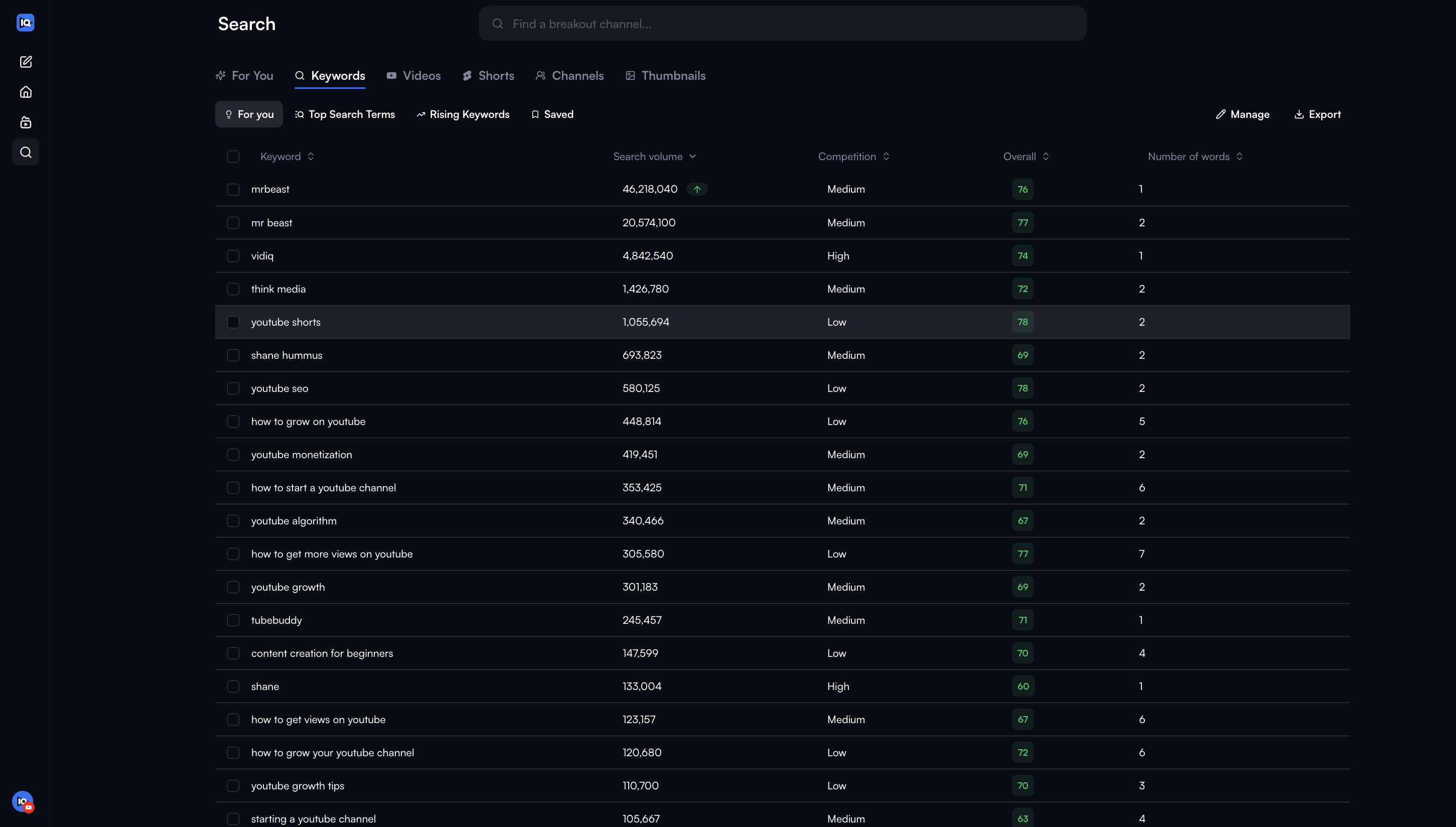
Before copying a score, confirm that the displayed query is the one you intended to research. When switching between candidates, it is easy to attach the previous query’s number to the new idea. Note the search date and language as well.
3. Read the metrics as comparison signals
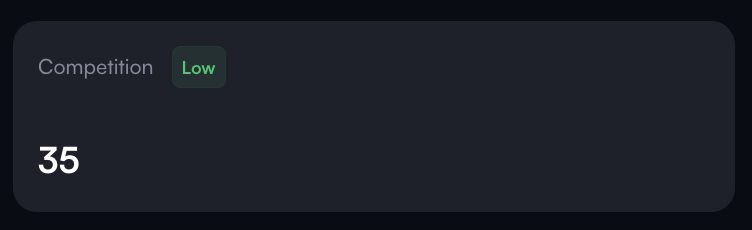
Search volume is an estimate; Competition is a competition indicator. Neither is a forecast of views for your video. Do not choose a topic on Overall Score alone. A promising number is less useful when you cannot provide a clear demonstration or answer.
For the caption example, consider what material you can show. If you have not used the editor yet, prepare a short practice clip and capture the steps before promising a walkthrough. If you already edited a video, a specific correction or output check may be a stronger subject than a broad overview.
The purpose is to connect research with a video you can finish. It is reasonable to choose a modest topic with a useful demonstration rather than an unrelated phrase with a more attractive score. The official keyword tool page also describes scores as directional signals rather than a prediction of individual video performance.
4. Compare three tabs
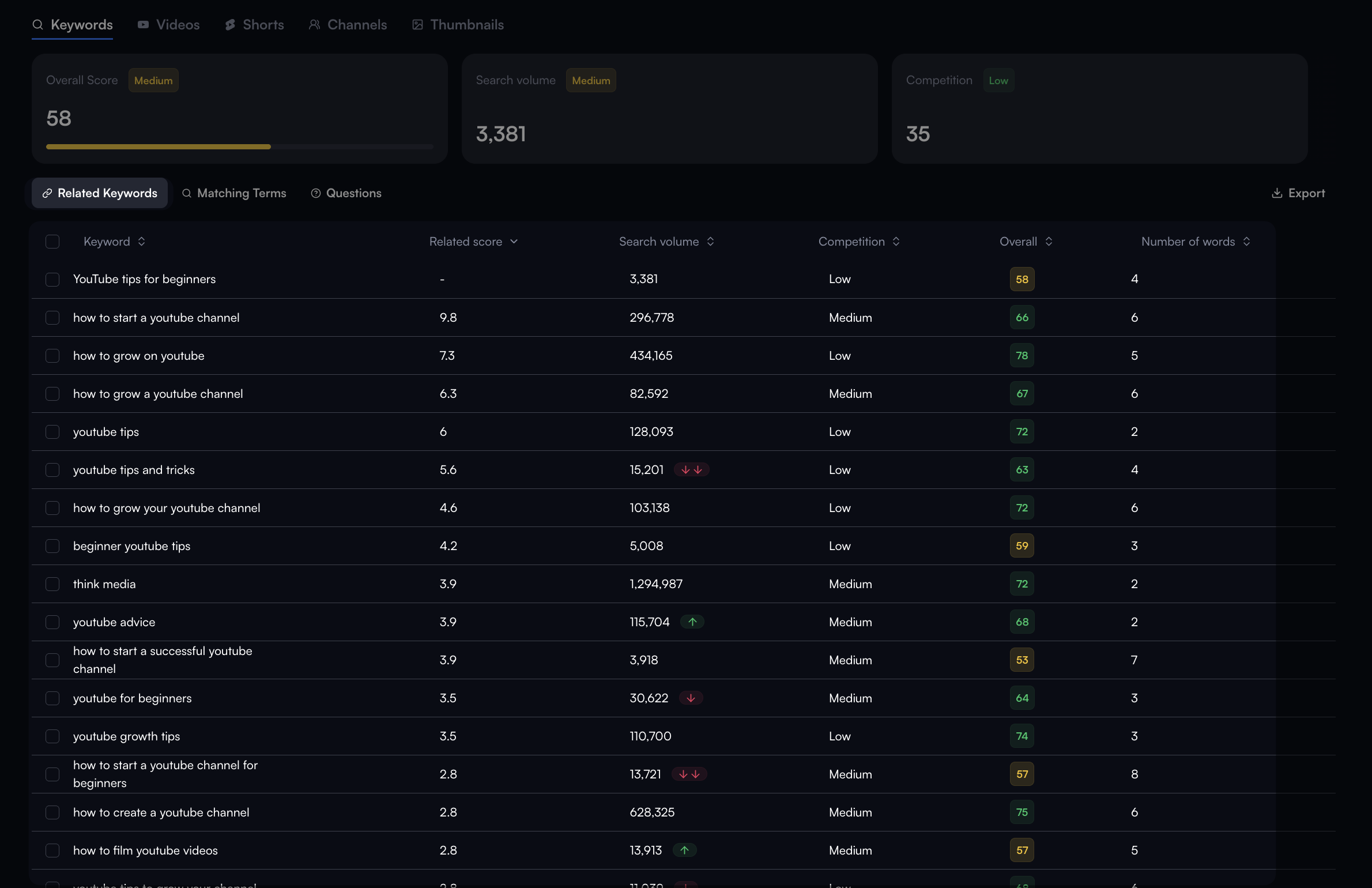
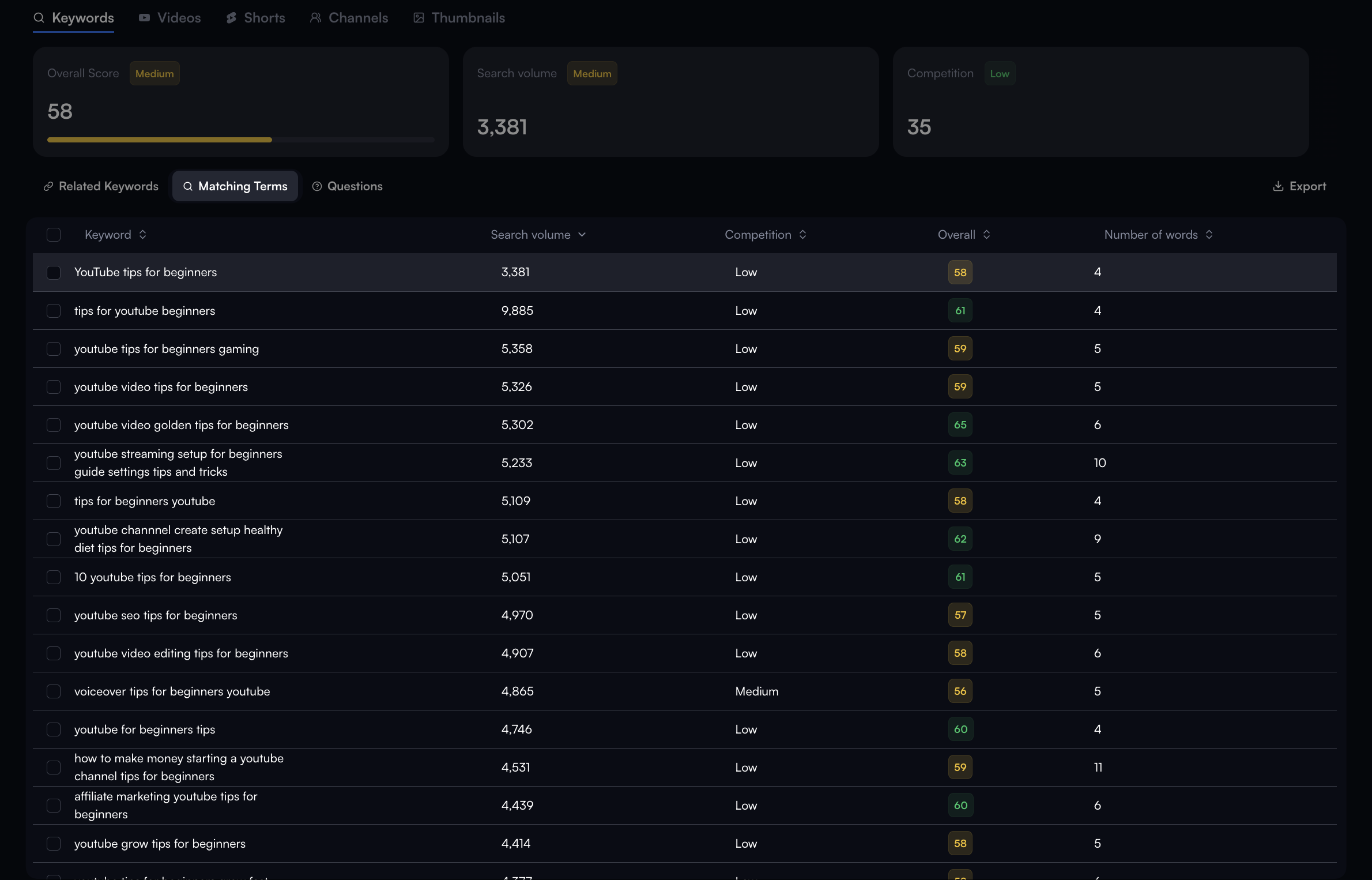
Open Related Keywords for nearby topics, Matching Terms for phrases containing the original term, and Questions for question-shaped ideas. Keep candidates you can answer. The official examples below show how the lists differ.
5. Leave with one topic and a draft title
Fill out this short research note. If a value is unavailable, write “not checked” rather than inventing a number. Free-account result counts and features can be limited; check the app and current plans for your available access.
| Note | What to record |
|---|---|
| Three candidates | Terms you actually found |
| Viewer’s task | One outcome the video will explain |
| Demonstration | Screens or footage you can prepare |
| Observed data | Query, date and displayed measurements |
| Draft title | The outcome your footage really delivers |
Our example title is “VEED automatic subtitles: correct mistakes and save an MP4.” This is an editorial example, not a title returned by our own keyword search. If your video does not show the saving process, remove that promise from the title.
Stop at research and a draft title for this exercise. There is no need to open Optimize, alter an existing video or publish anything to YouTube. You are finished when you have three candidates, a one-sentence reason for your choice, a list of scenes to prepare and a title matching those scenes.