What is vidIQ? Research a topic before choosing a video title
Separate keyword research, wording suggestions and changes to an existing video, with clear limits on what scores can tell you.
Last updated
Menus and supported features can change. Compare the source-check date below with your current app version.
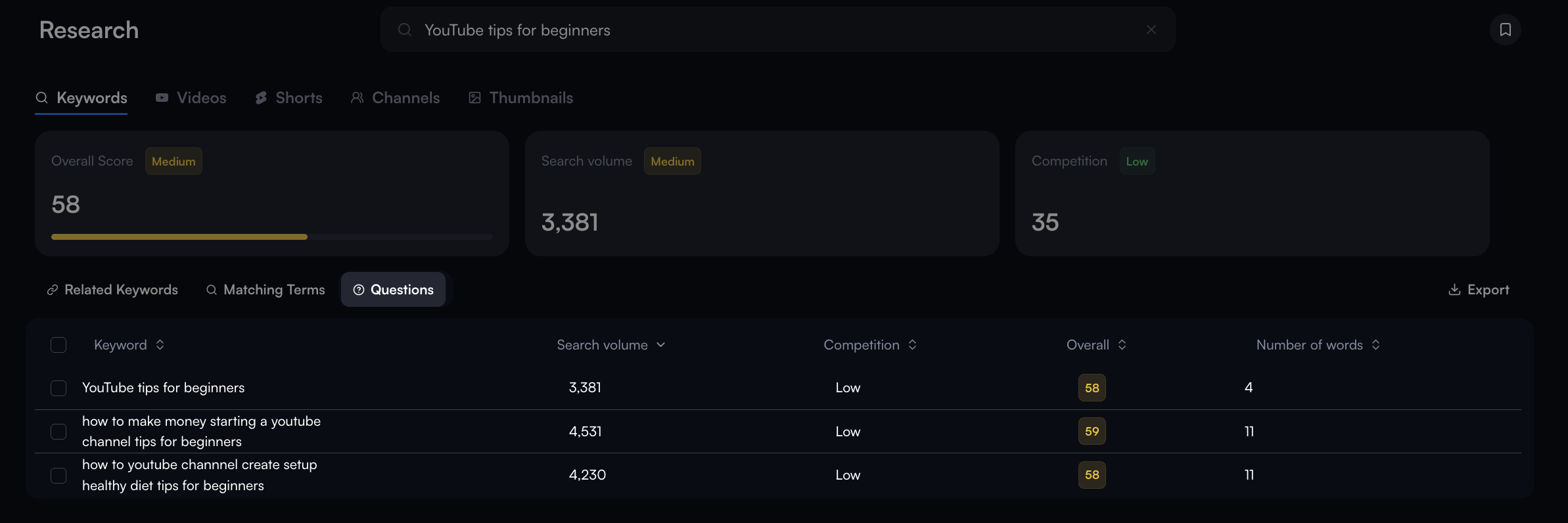
When planning a video, it can help to inspect search phrases and title ideas in a structured way. vidIQ offers tools for YouTube research and content planning. This series begins with a web workflow for finding a topic you can demonstrate and drafting its title, rather than learning every feature at once.
This introduction uses official help checked on October 26, 2026. We did not connect our channel, measure performance or collect current topic demand. English keywords and figures in the screenshots are provider examples, not evidence about your intended audience.
Separate research, suggestions and applied changes
The official getting-started guide distinguishes Research for topic investigation, AI Coach for wording and idea feedback, and Optimize for work on an existing video’s title, thumbnail and description. Planning a new recording does not require changing a published video.
Start by describing the intended viewer and task. For a caption-tool tutorial, that could be a first-time editor adding text, correcting it and receiving a file. This is our editorial planning example, not a returned recommendation or a proven popular topic.
Treat measurements as questions, not promises
The documentation describes search volume as estimated and scores as comparison signals. They do not guarantee views or income. Consider audience fit and whether you can prepare the required footage before following an attractive number.
A broad phrase may be difficult to cover in one video. A specific question can make the beginning and ending easier to define. Without observations we cannot claim which performs better; we can use research to clarify what the video promises to explain.
Give the first session a small outcome
Collect three candidates rather than an endless list. For each, note the viewer’s question, scenes to prepare, actual observed data and the date. Leave unavailable measurements marked as unchecked instead of filling them with guesses.
Our task guide follows Research → Keywords through related expressions and questions to a draft title. The useful result is a video you can make. Identifying the required demonstration helps filter out ideas that sound attractive but have no supporting material.
Match the account, audience and language
If setup requests a channel connection, check the selected Google account and channel. An existing connection need not be repeated. Do not treat another channel’s data, a different language or an old sample screen as your own audience’s behavior. Web, mobile and extension layouts can also differ.
For a later comparison, retain the query, date and what you actually observed. This article explains the tool; it is not an analysis of our channel. Any future performance review needs a consistent period and conditions.
Define the decision before considering an upgrade
Check current account limits and official plans for access. More results are not automatically the answer to the current task. Clarifying an existing video’s promise may require a different step from collecting more search phrases.
Finish with three candidates, a reason for the choice, planned scenes and an accurate title. Check that the title’s promise is supported by the footage. Whether the tool helps produce that concrete next video is a better first criterion than the number of features you opened.
Continue with the step-by-step task guide for the interface instructions.