ChatGPT Images 2.6 tutorial: Turn one drawing into a looping GIF sticker
Attach a still image in ChatGPT, request a simple waving GIF, then save, reopen, and check the loop in the downloaded file.
Last updated
Menus and supported features can change. Compare the source-check date below with your current app version.
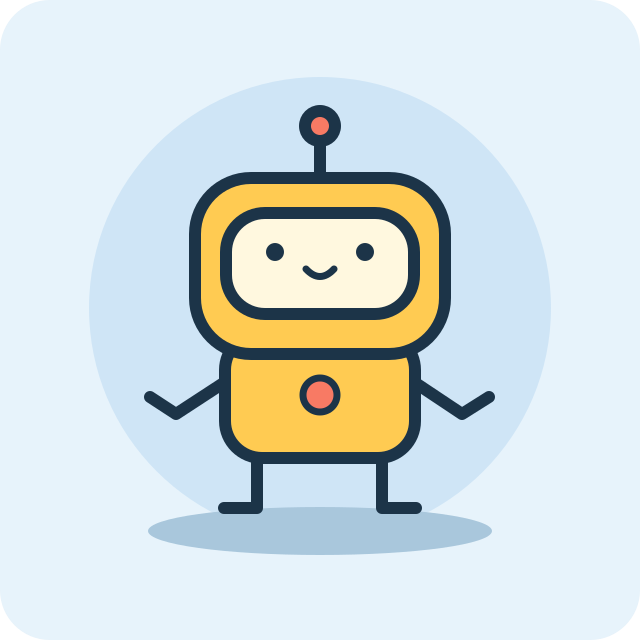
Let’s take a drawing of a character, make it wave once, and bring it back to its starting pose. The goal is to use one still image, request a looping GIF, and confirm that the downloaded file actually plays. Here, a sticker means a small reaction animation. Submitting a sticker pack to a messaging service or exporting a transparent background is outside this exercise.
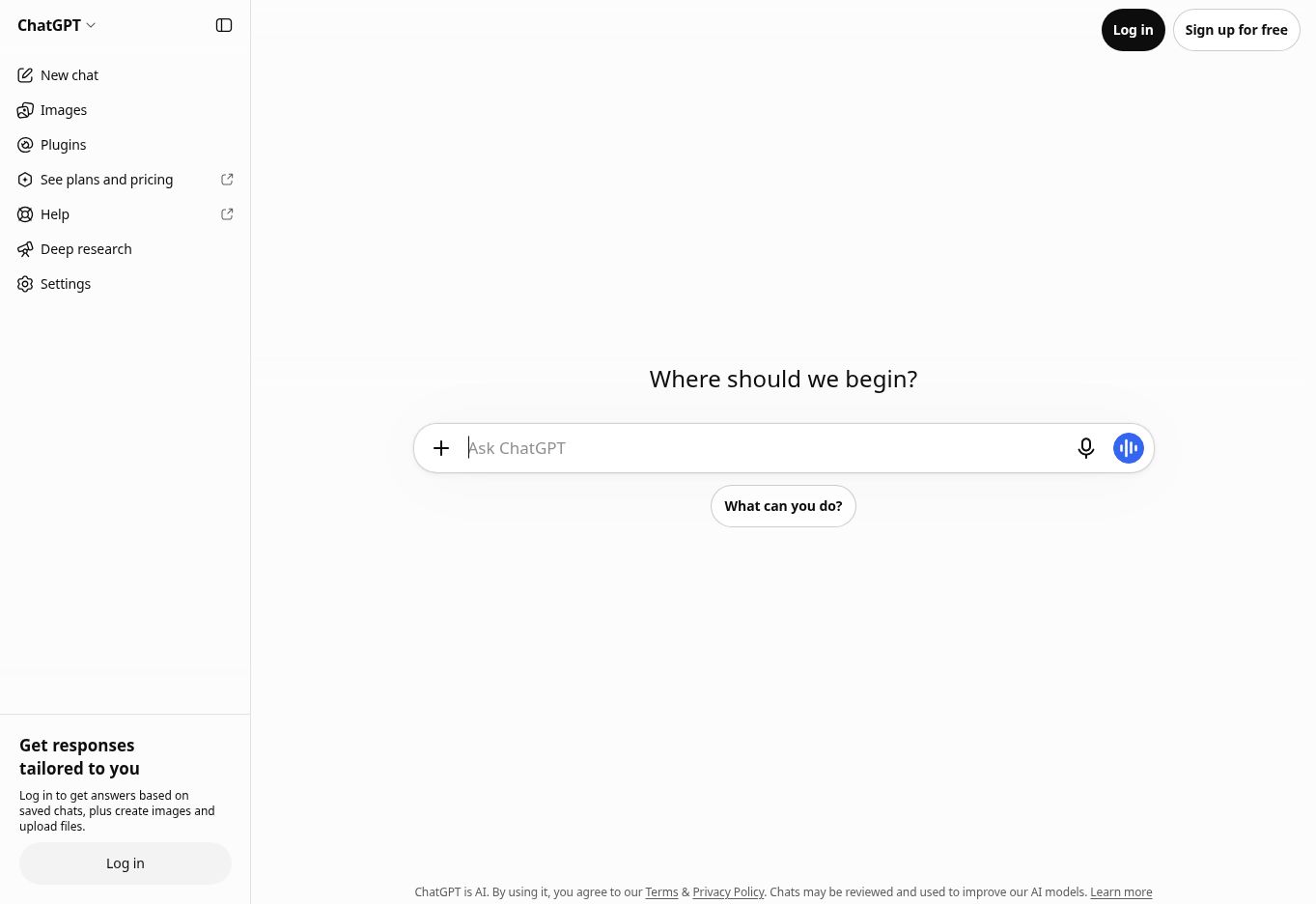
On November 5, 2026, I checked OpenAI’s November 4 Images 2.6 announcement and the ChatGPT Images help page. The screenshot shows the signed-out web entry I inspected. The signed-in GIF generation and saving steps come from the official documentation. I did not run this example or measure generation time.
1. Open ChatGPT and prepare a still image
- Go to ChatGPT in your browser. Select Log in for an existing account or Sign up for free if you are new, and follow the instructions shown. If you are already signed in, open New chat.
- Prepare a still PNG or JPEG that you drew or have permission to use. To follow the exact same exercise, open and save the BumbleV practice PNG as
wave-reference.png. - Pick a drawing with room around the character and both hands inside the frame. A hand at the edge has less room to move, and a busy background makes unwanted changes harder to spot. This is an editorial suggestion for the practice file, not an input requirement.
2. Attach the drawing and request one movement
In the new chat, open the + control beside the message field and add the image. On the signed-out English web entry, the accessibility label for this control was Add files and more. The upload item and its wording can vary by interface and language after sign-in. Check that the image is visibly attached before sending; typing its filename does not attach it.
Send the prompt below together with the image. “The hand on the right side of the image” describes the viewer’s perspective, which makes the intended side clearer. State the desired file type first, then distinguish the parts that should move from those that should stay put.
Create one short looping GIF from the attached drawing.
Have the yellow robot lift the hand on the right side of the image,
wave once, and return to exactly the starting pose.
Keep the face, body colors, blue background, canvas size, and framing.
Keep the camera still. Do not add text or new objects.
This is a sample input for the exercise, not a verified run. Look for a playable GIF result in the chat. If the reply contains a still image or only describes a prompt in text, the task is not finished. Starting with one motion makes it easier to tell which part of the image is changing before you try a more involved animation.
3. Open the GIF, check its speed, and save it locally
The GIF section of OpenAI’s help page says you can open a created GIF to adjust playback speed, save it to your device, or share it. Open the result and play it first. If you adjust the speed, make sure you can still see both the start of the wave and the hand returning to rest. Use the controls on your screen; I did not inspect the precise positions of the signed-in speed and save controls.
Choose the device-saving option and find the file in your downloads. If you want a recognizable filename, keep the extension and change only the name, for example to robot-wave-v1.gif. Copying a chat link does not save the GIF file. Keep the original wave-reference.png and the downloaded GIF as separate files so you can find the input again when making another version. Renaming a PNG with a .gif extension will not make it animate.
4. Reopen the download and check that the loop works
Drag the downloaded GIF into a browser tab or open it in a viewer that supports GIF animation. Some file-manager previews show only a still thumbnail, so also check in a viewer that can play it. Watch two cycles from the starting pose instead of judging only the middle of the wave.
- File: You opened the local download outside the original chat, and it animates.
- Motion: The intended hand moves and the character returns to its resting pose.
- Loop: The character position, background color, and framing do not visibly jump where the end meets the beginning.
- Use: Check the destination app’s preview separately. A good local download does not mean every app will render the GIF the same way.
Use these checks to decide whether the file suits the intended use. If the face changed or a new color appeared, refine what should be preserved before spending time on playback speed.
Troubleshooting: a still result, a jump, or a missing feature
GIF creation is missing. The November 4 release notes describe a rollout. Access to ordinary image generation does not confirm that GIF creation has reached your account. If it is not available in your signed-in interface, treat availability as unverified. Do not assume that purchasing a plan will unlock it immediately; check official pricing and the access shown in your account.
The attachment fails. ChatGPT cannot edit an animated GIF that you upload through this workflow. See the image input FAQ and the GIF help section, then return to one still PNG or JPEG you are allowed to use. Confirm that the original opens locally so you can distinguish a file issue from an account or interface issue.
The generated GIF jumps at the loop point. You can describe edits to a GIF ChatGPT created in the conversation. Try: “Match the first and last poses, keep the body and background still, and preserve only the waving motion.” Save the next result under a new name instead of overwriting the first version, and compare the same loop boundary in both downloads.