SolidCraft tutorial: a 40 × 30 × 20 block and a STEP check
Plan a simple sketch-and-extrude task from official documentation, then check native saves, height edits and STEP dimensions.
Last updated
Menus and supported features can change. Compare the source-check date below with your current app version.
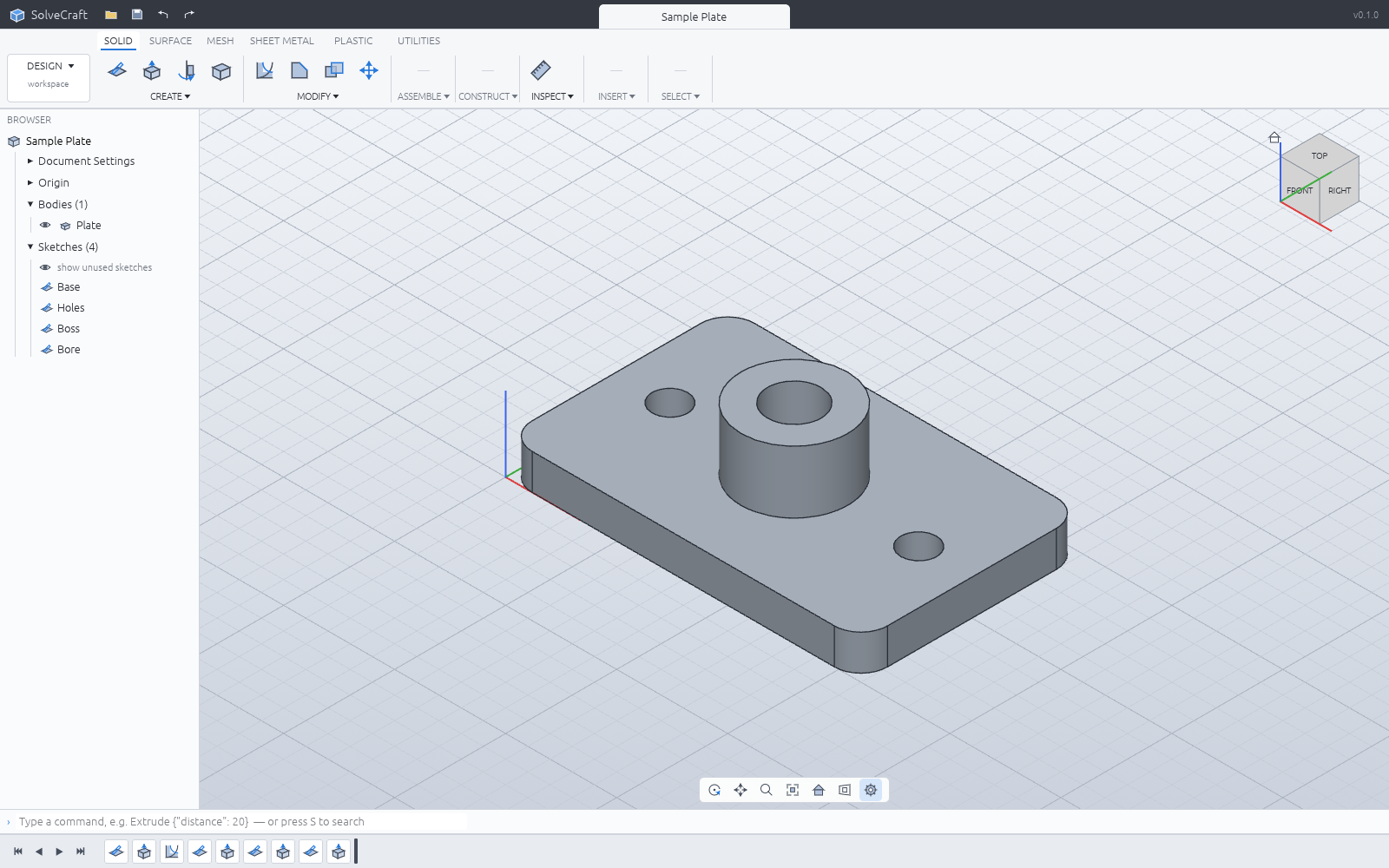
The goal is a plain 40 × 30 × 20 test block, followed by a height change and a STEP check. This is a documentation-derived workflow, not a report that we ran the app successfully.
Prepare the task
Use the official desktop or browser build, a mouse and a folder for downloaded files. Check that the chosen length unit is millimetres before entering values. Keep test-block.solidcraft as the editable source and test-block.step as the exchange file.
Example settings
| Setting | Target |
|---|---|
| Plane | XY |
| Rectangle corners | [0,0] and [40,30] |
| Extrusion | 20 |
| Edit to test | Change extrusion to 25 |
| Saved outputs | Native design and STEP |
1. Choose the sketch plane
Start an empty design and a sketch on XY. Check the origin and axis directions rather than relying on the current camera. The objective is geometry that can be reproduced from numbers, not a rectangle that merely looks the right size on screen.
2. Draw a dimensioned rectangle
Use the two-point rectangle with corners [0,0] and [40,30]. These coordinates appear in the official command example. If using dimensions and constraints interactively, check which values control width and depth and avoid redundant conditions.
3. Finish the sketch and extrude
Confirm that the profile closes, finish the sketch and extrude by 20. Check direction as well as distance. Leave holes and fillets out of this first exercise. If there is no selectable profile, investigate open or overlapping edges before trying more operations.
4. Save and change the height
Save the native design, then edit the extrusion distance to 25 in the feature history. The expected change is height alone; width and depth should stay 40 and 30. Record any rebuild error at the operation where it first appears.
5. Export and inspect STEP
Export a separate STEP file and open it in a new design or another CAD viewer. Check its three overall dimensions and units. Seeing a solid on screen is not enough to establish scale, and an exported solid is not necessarily an editable copy of the original timeline.
6. Reopen the native design
Close and reopen the .solidcraft file. Inspect the original sketch and extrusion and try another height edit. Check whether the saved file represents the state before or after your last change. Keep the delivery file and editable original together.
Reading the command sequence
The official getting-started example expresses this workflow as sketch.create, sketch.rectangle.two_point, sketch.finish and solid.extrude. The rectangle receives the two corners above and extrusion receives a distance of 20. This explains the documented sequence; it is not an execution log from this article.
Expected result and troubleshooting
The target bounding size is initially 40 × 30 × 20, then 40 × 30 × 25. These are expected values from the inputs. Verify them independently in the source and exchange file.
For browser storage problems, check HTTPS or localhost and browser storage access. The official guide describes a WebGL2 fallback where WebGPU misbehaves. Download your design before clearing browser data. When repeating the task through an agent, request dimensions and saved paths at the end and verify those files yourself.
Sources and scope
Checked 19 October 2026. This introduction, tutorial and comparison use the primary sources below. They contain no claim of our own app execution or measured performance. Development builds may differ from the pinned source.
Sources & further reading
- https://github.com/tangency-labs/solidcraft/blob/68c72082030a999c9090c174a571b64e8244f9e8/README.md
- https://github.com/storytold/cadcraft/blob/0b32c2e6a14c761835ea62c01e7b20845971d781/README.md
- https://github.com/tangency-labs/solidcraft/blob/68c72082030a999c9090c174a571b64e8244f9e8/docs/book/src/guide/getting-started.md
- https://github.com/tangency-labs/solidcraft/blob/68c72082030a999c9090c174a571b64e8244f9e8/docs/book/src/guide/sketching.md
- https://github.com/tangency-labs/solidcraft/blob/68c72082030a999c9090c174a571b64e8244f9e8/docs/book/src/guide/features.md
- https://github.com/tangency-labs/solidcraft/blob/68c72082030a999c9090c174a571b64e8244f9e8/docs/book/src/guide/files.md
- https://github.com/tangency-labs/solidcraft/blob/68c72082030a999c9090c174a571b64e8244f9e8/docs/mcp.md
- https://github.com/tangency-labs/solidcraft/blob/68c72082030a999c9090c174a571b64e8244f9e8/LICENSE-MIT
- https://github.com/tangency-labs/solidcraft/blob/68c72082030a999c9090c174a571b64e8244f9e8/NOTICE