NVIDIA PAIR 1.0: Can two home PCs share your AI workload?
A documentation-based look at NVIDIA PAIR's October 13 release, its limits, and how to send a first request and check which computer served it.
Last updated
Menus and supported features can change. Compare the source-check date below with your current app version.
What if your laptop is waiting for an AI task while the desktop beside it is idle? Today’s pick from BumbleV is NVIDIA Personal AI Router, or PAIR. It directs AI requests to computers on the same local network. Its job is deciding where a request goes, while a separate model produces the answer.
This is a documentation-based comparison of version 1.0.0, illustrated with developer-published interface images. I have not installed PAIR or run inference across two PCs. The walkthrough describes expected checks, and I have not measured speed or cost savings.
Why look at it now?
NVIDIA announced PAIR’s move out of beta on October 13, 2026, and published v1.0.0 installers on GitHub that day. That puts this major update within the past seven days. The release adds management of llama.cpp and GGUF downloads from Hugging Face, engine launch options, and a Jobs view in the terminal interface. I checked both the official announcement and the release record.
There is visible community activity behind the product. On October 15, the GitHub API reported 1,604 stars and 277 forks, with documentation and service changes on the public development branch through October 14. The release also credits an external contributor’s merged Anthropic Messages API routing PR #27. These are signs of attention and participation, rather than quality scores or counts of active users.
What kind of AI app is this?
PAIR is inference infrastructure for AI apps and agents. I did not find evidence here establishing that it was developed using AI. It is not itself a language model or a ready-made personal assistant. You prepare an engine such as Ollama, LM Studio, or llama.cpp, make a model available, and point a compatible client at the address PAIR provides.
One limit matters immediately: PAIR does not pool GPU memory. Each request runs in full on one eligible machine. Connecting two computers will not automatically make a model fit if neither machine can hold it. The useful scenario is handling several independent tasks at once.
| Item | What was checked on October 15 |
|---|---|
| Availability and version | Stable v1.0.0, published October 13, 2026 |
| Downloads | Windows installer, Linux Debian package, macOS disk image |
| Platforms | Windows 11, Linux, macOS; x64 and arm64. Windows on ARM remains experimental |
| Requirements | Compatible computers on one LAN, with a working engine and suitable model on each serving machine |
| Cost | PAIR is free, Apache-2.0 open source. Hardware, electricity, downloads, and separate engine/model terms still matter |
NVIDIA’s product page lists validated environments including Windows 11, DGX OS, Ubuntu 24.04, and macOS Tahoe, with hardware such as RTX 20 Series or later and Mac M1 or later. PAIR running successfully does not establish that a particular engine and model have enough memory to work. Downloads need internet access; connecting a client that uses cloud services does not turn that client’s external traffic into local traffic.
One task: send a request and identify the serving PC
The goal is one short answer, with a record of which computer served it. These steps follow the v1.0.0 guide. Starting with one machine makes it easier to diagnose the connection before adding another.
1. Prepare the installer and engine
Choose the appropriate OS and CPU asset from the v1.0.0 release. The Windows x64 installer is NVPAIR-Setup-1.0.0-x64.exe. Open the app and choose an engine during first-run setup. This example uses Ollama only. The documentation also describes detection of existing, separately installed engines.
2. Download a model from Overview
Open Engine settings on your machine’s card, install and start Ollama, then select Add model. Choose a model suitable for that machine. Its exact downloaded name must replace MODEL_NAME in the input below. Check that downloading has finished and the engine is running. Even a small model needs a separate memory check against its engine’s requirements.
3. Copy the address from Endpoints
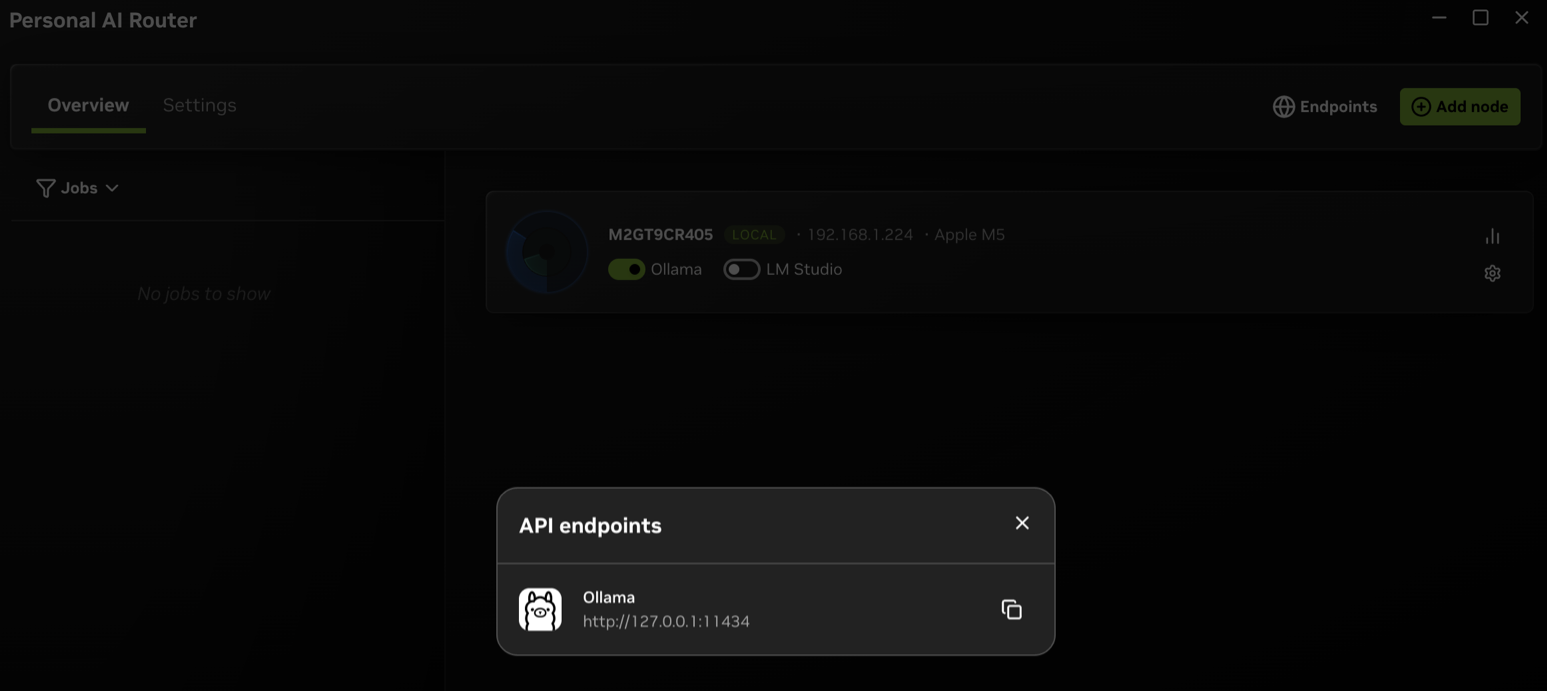
Select Endpoints in the toolbar. In API endpoints, use the copy button beside your engine’s address. Ollama’s default is http://127.0.0.1:11434, but the window is authoritative if you changed settings. This address is PAIR’s entry point on the computer in front of you. Your client does not need a different URL whenever another computer serves the request.

4. Save an input file and send it
Save the following as a UTF-8 file named pair-request.json. This is a reusable request record, rather than a PAIR project format. Replace the model placeholder with the exact entry you downloaded.
{
  "model": "MODEL_NAME",
  "stream": false,
  "messages": [
    {"role": "user", "content": "Explain what a network router does in one short sentence."}
  ]
}
Open a terminal in that folder and run the following, substituting the address copied in step 3. In Windows PowerShell, use curl.exe in place of curl.
curl http://127.0.0.1:11434/v1/chat/completions -H "Content-Type: application/json" --data-binary @pair-request.json -o pair-response.jsonThe expected result is a JSON response. Open pair-response.json in a text editor and look for an answer in choices, under message.content. An error can also be saved as a file, so file creation alone does not mean success. The wording will vary by model. I have not executed this request for the article.
5. Match it to the job record
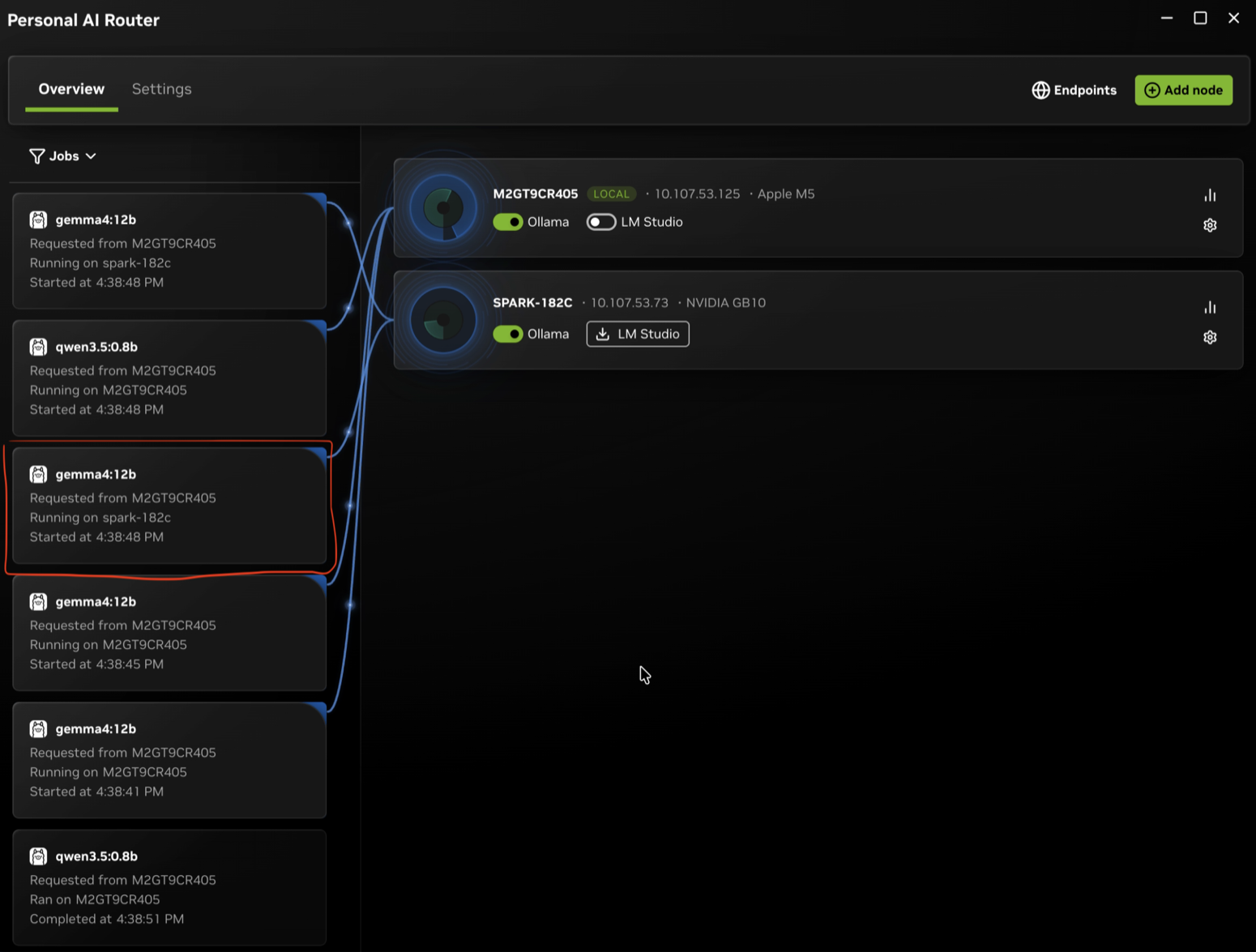
In Overview → Jobs, locate the request and read Running on or Ran on. Sent to identifies a destination before execution starts and can remain on a job that never starts. Check the model and timing against your response record as well as the node name.

6. Pair a second machine and reuse the input
With both computers on a trusted LAN, choose the other machine through Add node or Settings → Cluster. Enter the inviting machine’s six-digit PIN in Cluster invitation on the invited machine, then confirm membership under Connected nodes. Prepare the same engine and exact model on the second PC before repeating the input.
A single request is not guaranteed to run remotely. To observe distribution, send multiple independent requests and inspect their Jobs destinations. The documentation also offers Settings → Service → Test to generate traffic automatically. Reusing your own input file is more suitable when comparing identical inputs.
How does this differ from using Ollama alone?
The baseline is calling the same Ollama engine and model directly, versus calling it through PAIR. A real test needs a fixed engine version; I have no executed comparison version to report here. The table separates documented roles from unmeasured outcomes.
| Item | Direct engine call | Through PAIR | Still untested |
|---|---|---|---|
| Output | The selected model’s response | Forwards the selected node’s engine response | Answer quality and consistency with identical inputs |
| Time | Runs on the addressed machine | Selects a machine for each request | First-answer and completion times, routing overhead |
| Compatibility | Determined by the engine API | Provides an engine-compatible entry point | Your client’s complete feature set |
| Friction | Manage one engine’s setup | Also manage pairing, model inventories, and services | Manual recovery work in practice |
| Automation | A client submits the work | Connects independent requests to serving nodes | Throughput gains and actual recovery behavior |
| Intended user | Someone using one model host | Someone operating simultaneous AI work across PCs | Whether the extra setup helps your workload |
An OpenAI-compatible endpoint does not include OpenAI’s cloud models or subscription. Ollama’s /api/chat style belongs to the Ollama engine. For LM Studio and llama.cpp, use the OpenAI-style /v1/chat/completions route.
Where to look when it fails
If you see No engines are running, start the engine first. If there is no response, copy the address from Endpoints again and match the model name to the downloaded inventory. The router can return 502 when no eligible node has the model. For service or Jobs state that stops updating, the official guidance describes restarting from Settings → Service.
If a terminal call works but a browser app fails, investigate CORS, the browser-origin access policy. Version 1.0.0 follows each engine’s policy; the browser application’s origin needs permission. Engine launch options live under Engine settings → Settings, with Apply to save changes. Allow the specific origin you need rather than broadly opening access to unrelated websites.
Mixed hardware has another limitation. The known-issues document says scheduling does not account for GPU model, available memory, and measured latency in its selection policy. A cluster containing a small GPU and a large GPU will not always choose the faster machine. Some systems also show misleading GPU memory figures, so use the machine’s own tools when deciding whether a large model can fit.
What would count as a completed comparison?
I would first match one request file, its response JSON, and its Jobs destination. Then I would hold the computers, engine version, model, input, and generation settings constant while comparing the direct path with the PAIR path. First model loading and already-prepared runs need separate records. A batch’s total completion time and failure count should also be separate from one request’s response time.
Today’s checks cover the public release, documentation, interface images, license, and GitHub activity. They do not cover installation, model downloads, inference, pairing, or speed tests. PAIR is worth examining if you already have several machines and simultaneous AI work. If your goal is fitting one large model across several GPUs’ memory, its documented design does not serve that purpose.
Menus and images are pinned to v1.0.0 source commit 85f523d3624cf1596bdda6e36c28eb8ad3969737. I have kept later development-branch features separate from the released version. Keep the official getting-started guide and known issues nearby when following the steps.
Sources & further reading
- https://blogs.nvidia.com/blog/local-ai-rtx-spark-laptops-software-updates/
- https://github.com/NVIDIA/Personal-AI-Router/releases/tag/v1.0.0
- https://www.nvidia.com/en-us/ai-on-rtx/personal-ai-router/
- https://github.com/NVIDIA/Personal-AI-Router/blob/85f523d3624cf1596bdda6e36c28eb8ad3969737/README.md
- https://github.com/NVIDIA/Personal-AI-Router/blob/85f523d3624cf1596bdda6e36c28eb8ad3969737/docs/getting-started.mdx
- https://github.com/NVIDIA/Personal-AI-Router/blob/85f523d3624cf1596bdda6e36c28eb8ad3969737/docs/overview.mdx
- https://github.com/NVIDIA/Personal-AI-Router/blob/85f523d3624cf1596bdda6e36c28eb8ad3969737/docs/known-issues.mdx
- https://github.com/NVIDIA/Personal-AI-Router/blob/85f523d3624cf1596bdda6e36c28eb8ad3969737/docs/engine-settings.mdx
- https://api.github.com/repos/NVIDIA/Personal-AI-Router
- https://github.com/NVIDIA/Personal-AI-Router/pull/27