Goose vs Gemini CLI: compare one small task fairly
Goose is an open-source AI agent for desktop and terminal workflows. Start with a documented small browser-game task.
Last updated
Menus and supported features can change. Compare the source-check date below with your current app version.
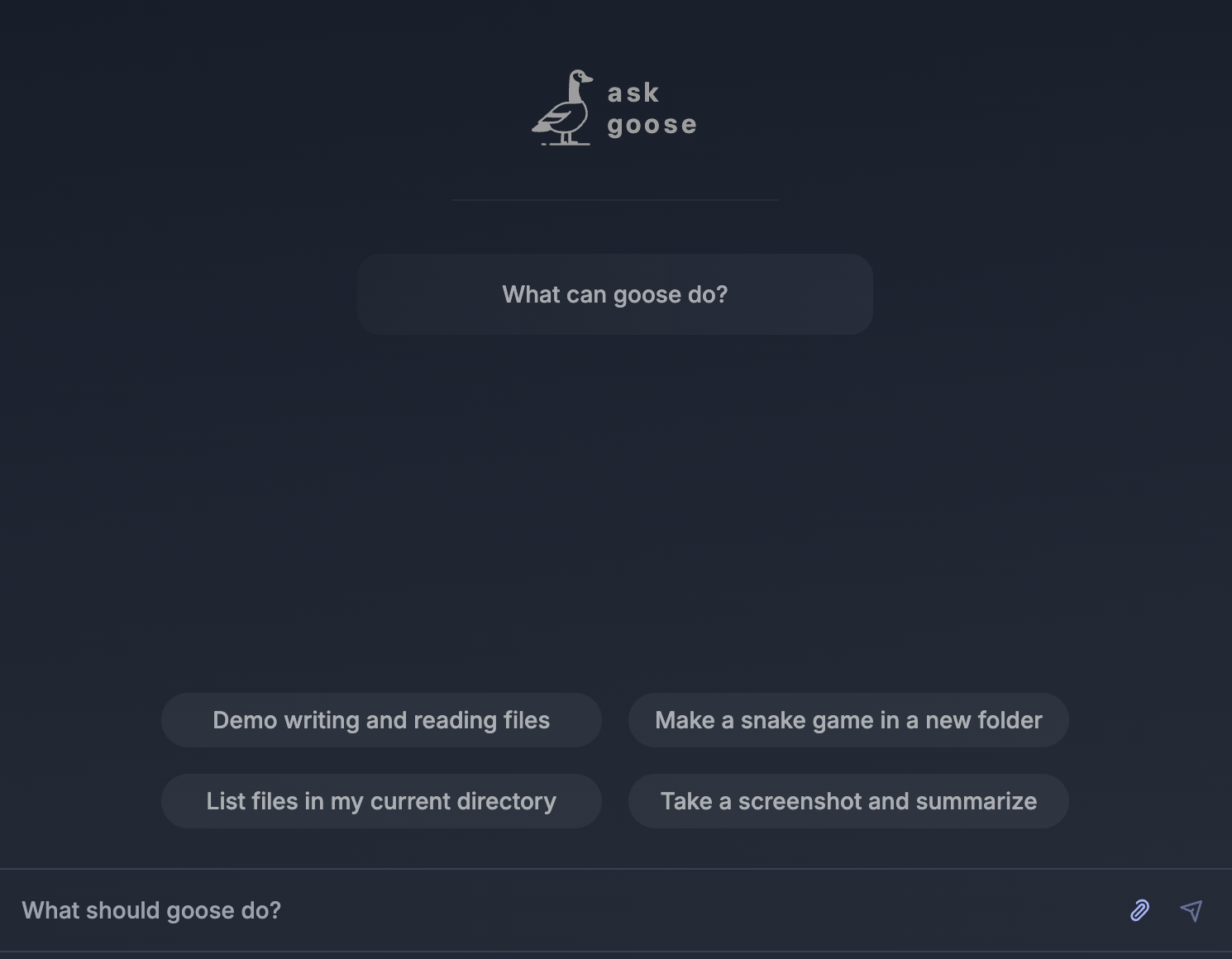
Sometimes you want the conversation with an AI agent to continue into creating files and running commands. Goose and Gemini CLI both offer terminal workflows, but that alone does not establish that they will produce equivalent results. This article uses their official documentation to outline selection criteria and a proposed equal-input comparison. It does not report installation times or measured performance F1, F6.
This article covers the Goose v1.55.0 official release, published on 2026-10-16 (UTC). The source documents were checked on 2026-10-19.
Use the same small task
The reference task is to create a browser-based tic-tac-toe game in an empty folder, with a human playing against a bot. Goose’s official quickstart supplies a concrete prompt and describes an expected HTML page and JavaScript file F7, F9. The proposed comparison gives Gemini CLI the same goal and prompt after preparing it through its own documented route.
A completion response alone would not settle the comparison. For each tool, inspect the generated files, open the HTML page, and check the intended game interaction. These are proposed evaluation criteria, rather than a table of results either tool has already passed.
Compare the documented choices
| Selection point | What Goose documents | What Gemini CLI documents |
|---|---|---|
| Working interface | Desktop apps for macOS, Linux and Windows, a CLI and an API. | An open-source agent bringing Gemini into a terminal. |
| Model connection | Connections to several AI model providers. | Google sign-in, a Gemini API key and Vertex AI authentication. |
| Initial checks | File and command tools and their approval mode. | The chosen authentication method and current model guidance. |
Goose’s interface and provider paths are described in its README D2. Gemini CLI’s terminal focus and three authentication options are described in its own README F6, F8, F14. A feature omitted from this table is not being declared unsupported by the other tool. Similar names also do not establish identical configuration or results.
A CLI is a tool operated by typing commands in a terminal. Decide whether you want to begin in a desktop window or continue working in a terminal. Some readers may want Goose’s documented desktop route, while others may prefer to begin with an existing terminal setup and model account. That is a workflow preference, rather than a score for one interface.
Read Gemini CLI’s current model notice
The Gemini CLI README checked for this article says it is not optimized for the latest Gemini models and recommends Antigravity CLI for that use case F13. This notice is not a benchmark covering every version, and it does not demonstrate an advantage for Goose. It gives readers seeking the latest Gemini models a reason to check the current project guidance and required model support before installing.
The Goose release covered here is v1.55.0. The comparison README is pinned to the Gemini CLI source commit checked during research. That commit is not presented as a separate Gemini CLI release number or proof of its latest version. Recheck the configuration paths and limitations when the projects change.
Review Goose’s approval settings
Goose’s Developer extension documents file editing and shell-command execution and is described as enabled by default F4. The same guide says Autonomous mode can edit accessible files and run commands without approval F5. Identify the working folder and the changes you want to permit when following a first example.
The documentation also provides Manual Approval, Smart Approval and individual tool permissions. The CLI command /mode approve selects Manual Approval during a session F11. In a comparison, record the actions each tool proposes and where the user needs to review or correct them. Fewer approval steps alone would not establish better accuracy or safety.
Separate application access from model usage
Goose includes a provider-configuration step after installation F12. Gemini CLI likewise requires choosing and checking its authentication path and account conditions F8, F14. Installing open-source software does not establish that all connected model usage is free.
This article does not supply account-specific prices, free allowances or actual charges. Check the selected provider’s current conditions and retain actual usage records if you perform the comparison. When the model or account conditions differ, a cost or response difference cannot automatically be attributed to the agent software itself.
Try an equal-input protocol
- Prepare the tools in separate empty folders. Record the operating system, installed version or source reference, connected model and authentication method.
- Give both tools the same tic-tac-toe prompt from Goose’s quickstart. Match model conditions where possible; if the supported paths prevent that, record the difference F9.
- Inspect the generated HTML and JavaScript files and the actual browser screen, rather than reading only the response. Use the same criteria to record missing files, additional setup and requested corrections.
- Check human and bot turns, screen responses, and closing and reopening the files. Treat features absent from the initial request, such as saved game state, as additional requirements.
- If an error occurs, retain its details and the actions needed to recover. Compare measured time or usage only across the same scope, and avoid turning one trial into a general performance score.
If you want to examine multiple model connections together with desktop and terminal paths, Goose’s official guides provide a starting point. If your goal is a Gemini-based terminal workflow, begin by checking Gemini CLI’s current model notice. Choose using the record of a small task checked against the same criteria. No results or winner from that proposed experiment are supplied here.
Original BumbleV reading guide illustration; not a product screenshot or a result from our testing. Official release behind this illustration · CC BY 4.0 · 2026-10-19

Sources & further reading
- https://github.com/aaif-goose/goose/releases/tag/v1.55.0
- https://raw.githubusercontent.com/aaif-goose/goose/2bcb8583a18a0623eb78c9ed845d597ed99fae48/README.md
- https://raw.githubusercontent.com/aaif-goose/goose/2bcb8583a18a0623eb78c9ed845d597ed99fae48/documentation/docs/getting-started/installation.md
- https://raw.githubusercontent.com/aaif-goose/goose/2bcb8583a18a0623eb78c9ed845d597ed99fae48/documentation/docs/quickstart.md
- https://raw.githubusercontent.com/aaif-goose/goose/2bcb8583a18a0623eb78c9ed845d597ed99fae48/documentation/docs/guides/sessions/session-management.md
- https://raw.githubusercontent.com/aaif-goose/goose/2bcb8583a18a0623eb78c9ed845d597ed99fae48/documentation/docs/mcp/developer-mcp.md
- https://raw.githubusercontent.com/google-gemini/gemini-cli/ed96faedfd5571f055c44f2c9509d62321d1138d/README.md