Jan tutorial: turn a memo into a notice on your own computer
Install Jan, prepare a local model, rewrite a short memo and check both the facts and the offline execution path.
Last updated
Menus and supported features can change. Compare the source-check date below with your current app version.
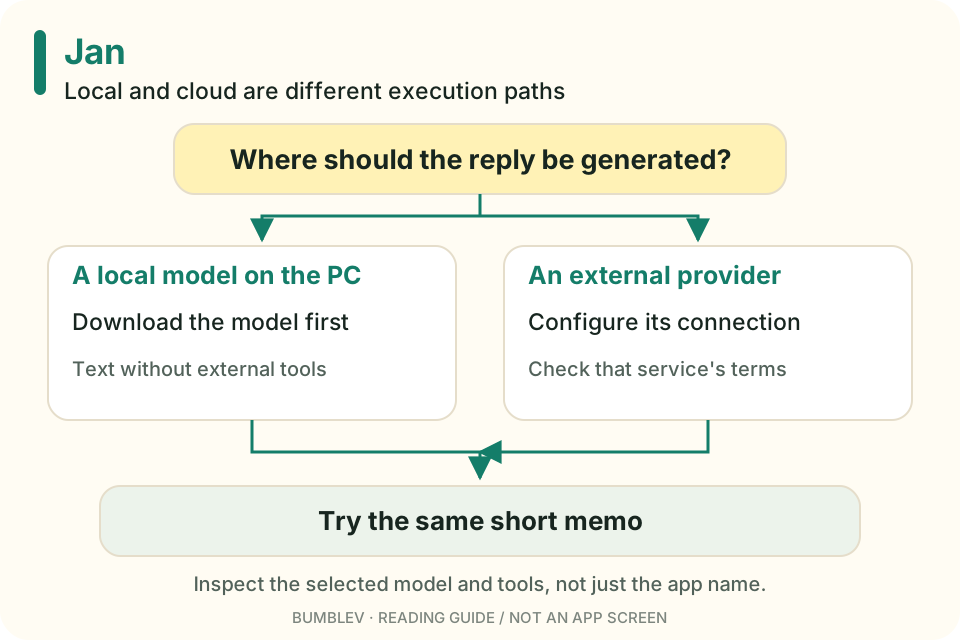
A small completed task is more useful than the label “local AI.” Here we will turn a memo into a four-sentence notice and check that the important facts survive.
This guide follows the official documentation for v0.8.7. It is not a hands-on report. The answer checks below are a rubric for your own run.
1. Get a stable installer
Open the release page and expand Assets. Choose the packaged installer for your operating system and processor rather than a nightly build or source archive.
| Computer | v0.8.7 file |
|---|---|
| Windows x64 | Jan_0.8.7_x64-setup.exe |
| Windows ARM64 | Jan_0.8.7_arm64-setup.exe |
| Apple Silicon Mac | Jan_0.8.7_universal.dmg |
| Debian-based Linux x64 | Jan_0.8.7_amd64.deb |
| Linux x64 AppImage | Jan_0.8.7_amd64.AppImage |
Despite “universal” in the Mac filename, the official guide does not support Intel Macs. Check About This Mac for the processor. On Windows, distinguish x64 from ARM64. Mac installation · Windows installation
2. Wait for the model to be ready
The first-launch flow can prepare a default model. Let its download finish before starting the exercise. An open application window is not proof that the model is ready. Quickstart
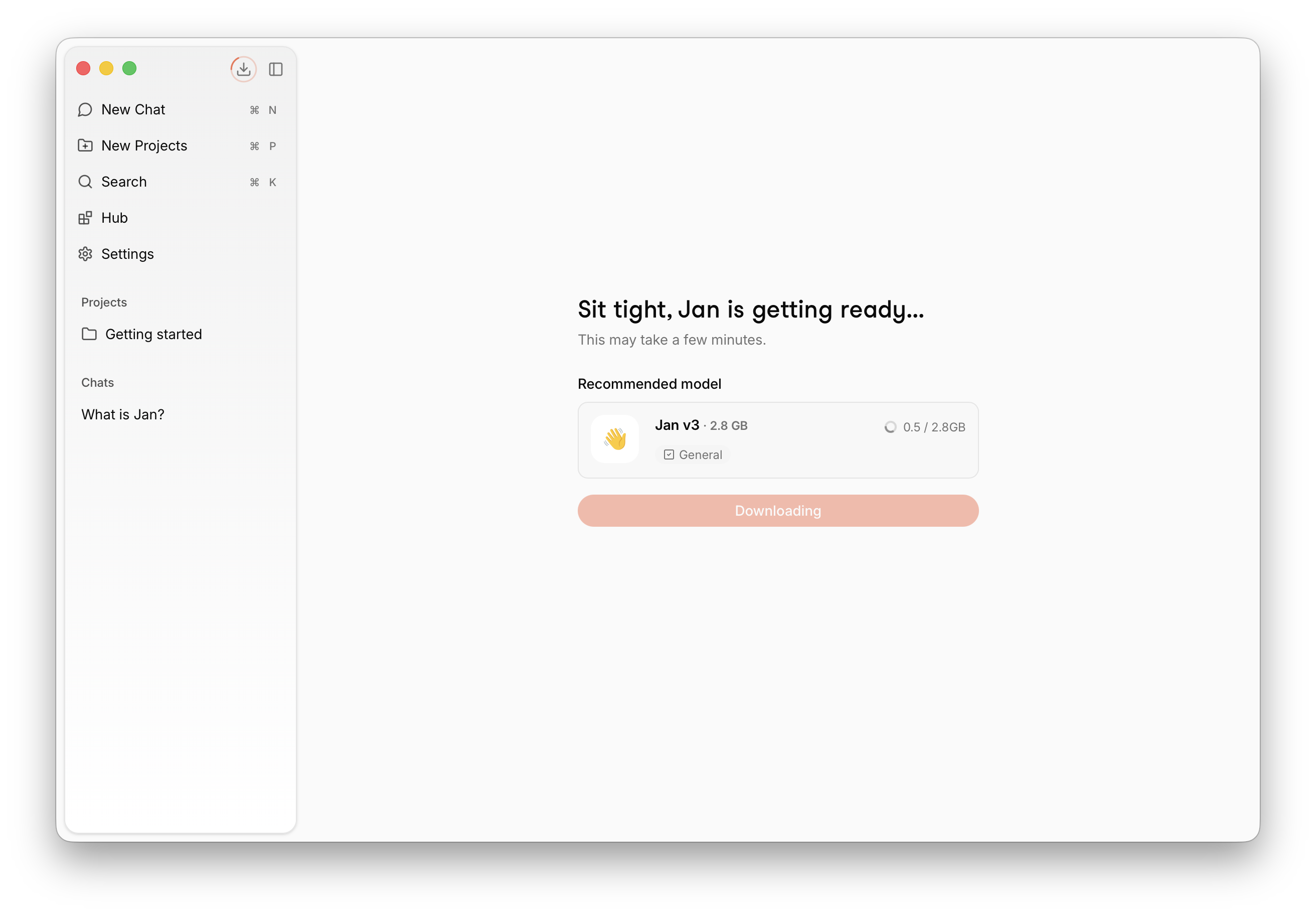

To choose another model, open Hub and select Download on a model that fits the computer. Start with one. If you plan to work in Korean, check the model’s language information as well; a Fits indicator does not establish Korean writing quality.
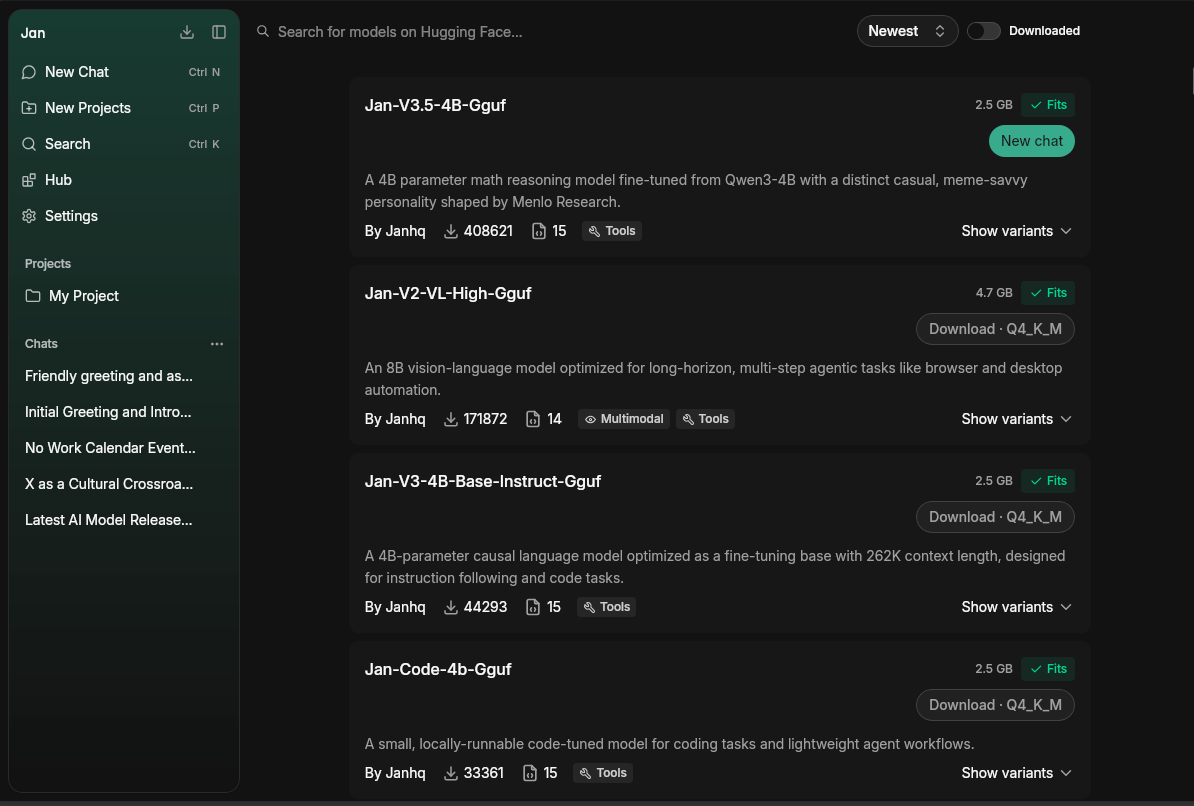
When the download is complete, select that local model in the conversation’s model selector. A model belonging to an external provider would use a different execution path. Model management

3. Open New Chat and paste the memo
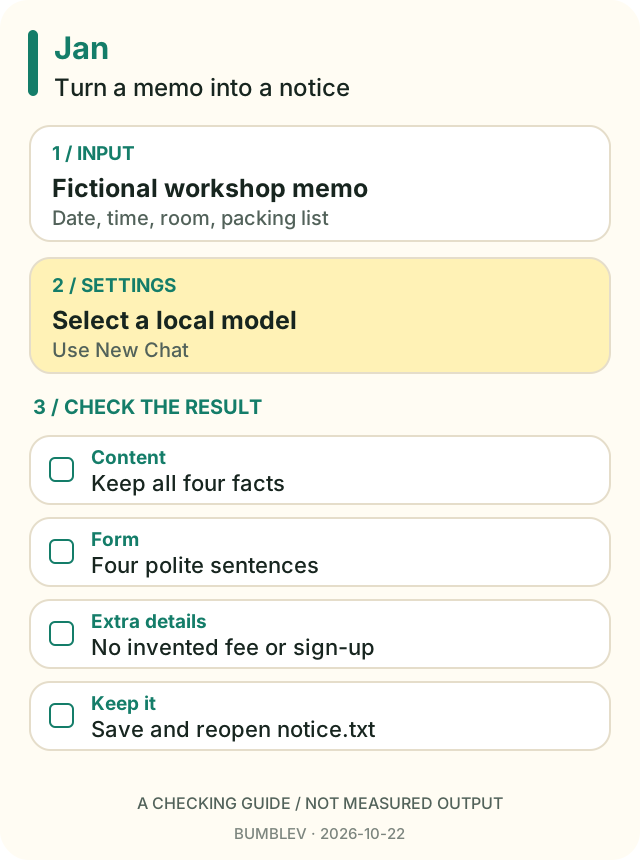
Use New Chat. This exercise needs no folder access or file attachment. Paste the following fictional memo directly into the input:
Rewrite this memo as a polite notice in four sentences.
Keep the date, time, location and everything people must bring.
Do not invent a fee or registration method.
Use only the supplied text, without web search or external tools.

Memo:
Weekend Making Workshop
Saturday, November 14, 2026, 10:00 AM to noon
Community Room B
Bring a laptop and its charger
Text rewriting does not require shell commands. The v0.8.7 release adds a Shell switch in the input’s tool menu; you can leave it off for this task. The intended result is notice text, not a request to run commands or access folders. Release notes

4. Check the facts before the style
The model can choose different wording, but these details should remain intact.
| Fact in the input | Check in the notice |
|---|---|
| Saturday, November 14, 2026 | Date and weekday unchanged |
| 10:00 AM to noon | Both start and end included |
| Community Room B | No invented venue |
| A laptop and its charger | Both items included |
| No fee or registration method stated | No invented price, booking link or sign-up instruction |
If the output is accurate but uses five sentences, ask for only that correction: “Keep all facts and reduce this to four sentences.” A narrow revision is easier to inspect than a fresh, open-ended rewrite.
5. Optionally check the offline path
After the model has downloaded and you have selected the local model, temporarily disconnect the computer from the network. Do this when other work does not need the connection. Start a new conversation and submit the same text-only task.
If it completes, you have checked that this task can run without a connection in that configuration. It does not turn cloud providers or web search into offline services. Restore the connection afterward. The official quickstart distinguishes local models from cloud models explicitly. Execution options
6. Keep a portable copy
Copy the final notice into a text editor and save it as notice.txt. Reopen it and check that the characters and four sentences are intact. This is an ordinary text-editor save step, not a claim about a particular Jan export button.
Also check that you can find the conversation after reopening the app. For material you will share elsewhere, a separate text file gives you a portable result.
| If something goes wrong | First check |
|---|---|
| No answer starts | Model download and active selection |
| Memory pressure | Other applications and a smaller suitable model |
| Weak wording in your language | The selected model’s language coverage |
| Changed dates or missing items | Request a correction to that exact fact |
| Offline failure | Cloud provider selection or tools needing internet |
The finish line is a factually faithful four-sentence notice, a TXT file that reopens and a clear understanding of the model path you used. That gives you a useful base for trying one of your own short memos.
Continue with this tool
Sources & further reading
- https://github.com/janhq/jan/releases/tag/v0.8.7
- https://github.com/janhq/jan/blob/648e8da55438150ccfab78808fa97a7a8e458c9f/README.md
- https://github.com/janhq/jan/blob/648e8da55438150ccfab78808fa97a7a8e458c9f/LICENSE
- https://github.com/janhq/jan/blob/648e8da55438150ccfab78808fa97a7a8e458c9f/docs/src/pages/docs/desktop/quickstart.mdx
- https://github.com/janhq/jan/blob/648e8da55438150ccfab78808fa97a7a8e458c9f/docs/src/pages/docs/desktop/manage-models.mdx
- https://github.com/janhq/jan/blob/648e8da55438150ccfab78808fa97a7a8e458c9f/docs/src/pages/docs/desktop/install/windows.mdx
- https://github.com/janhq/jan/blob/648e8da55438150ccfab78808fa97a7a8e458c9f/docs/src/pages/docs/desktop/install/mac.mdx
- https://github.com/Mintplex-Labs/anythingllm-docs/blob/ac02889e2a1eec1953a590c7a053d424bd5eca86/pages/chatting-with-documents/introduction.mdx
- https://github.com/ollama/ollama/blob/5e31438d5d2223d8338595b366b7434ef3539708/README.md