CapCraft Android tutorial: two clips, one title and an export check
A six-step documentation exercise for a small vertical video, with title timing, sound, export and playback checks.
Last updated
Menus and supported features can change. Compare the source-check date below with your current app version.
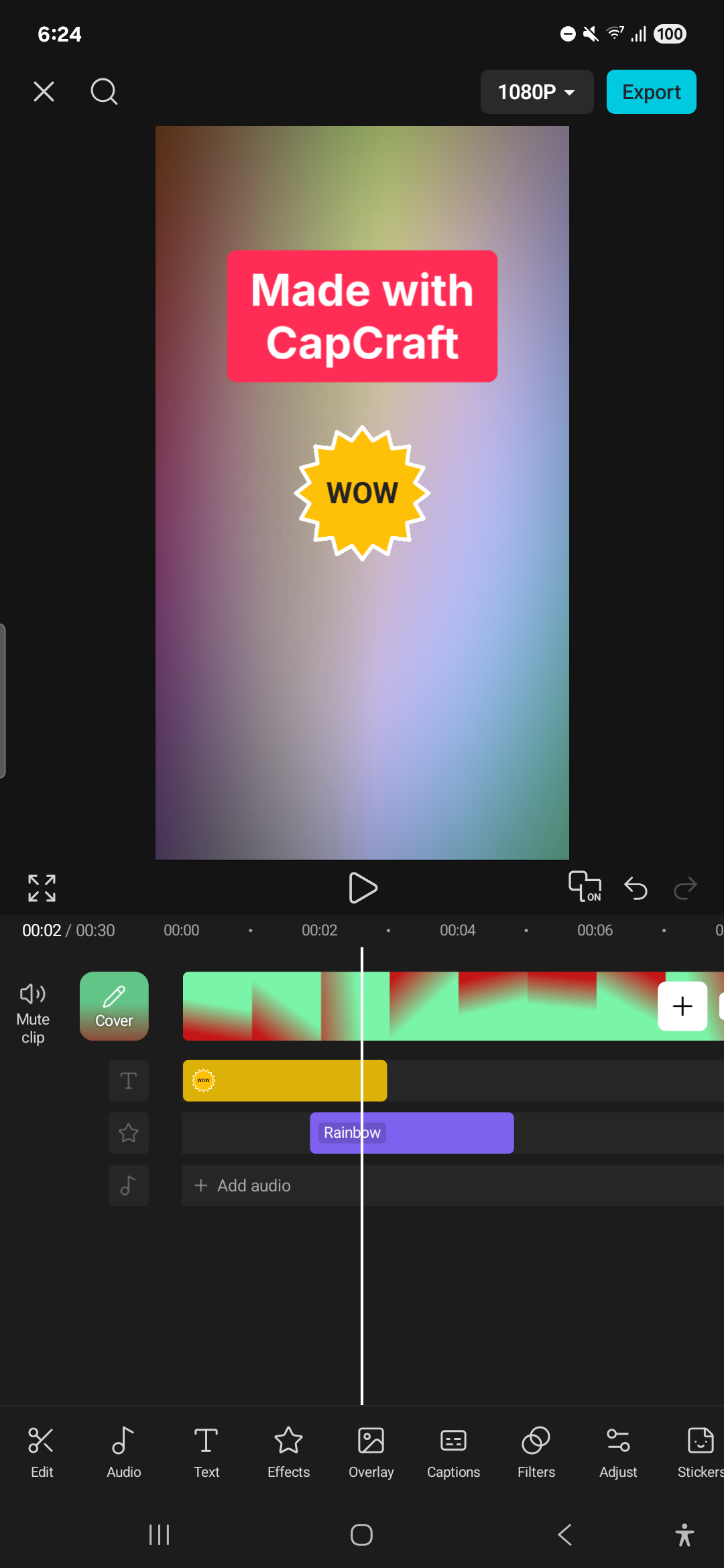
The goal is two short clips and one title in a vertical video. Check cuts, sound and the delivered file before adding effects. This guide follows developer documentation and screenshots; it reports no execution time or finished video from our own test.
Prepare
Use the community repository’s beta APK and a compatible Android device. Prepare copies of two clips, roughly three seconds each, and note any spoken words. Keep originals outside the test project.
| Setting | Planned target |
|---|---|
| Input | Two short clips |
| Aspect | 9:16 |
| Title | One line for about the first two seconds |
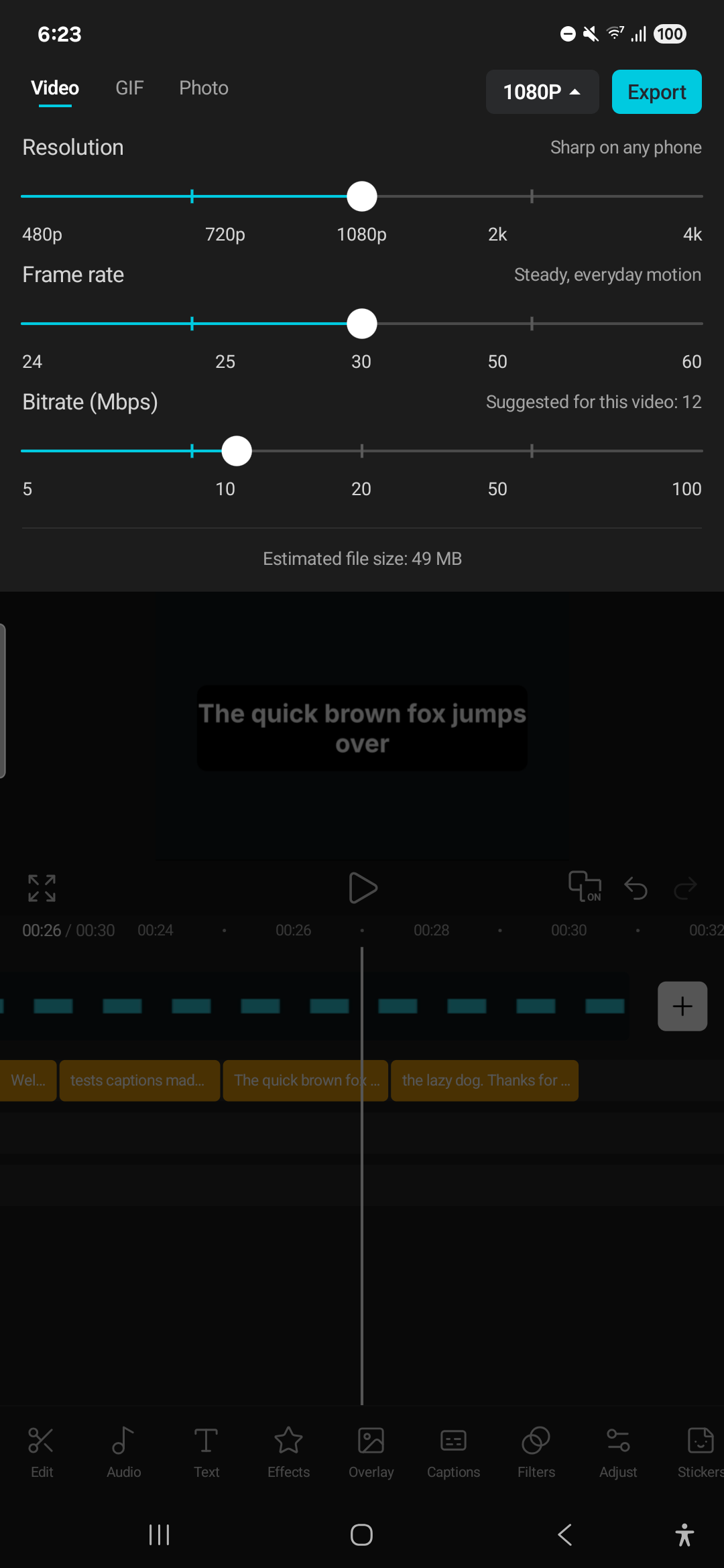
| Export | Check 1080p and 30 fps first |
| Review | Order, crop, title, audio and full playback |
1. Start with New video
The developer home screen documents New video. Select the two files and check media permissions and ordering. Record filenames so the exported sequence can be compared with the intended order.
2. Check vertical framing
Choose the vertical aspect and inspect each clip’s crop or background. Filling the screen does not guarantee that a face or important object remains visible. Make a deliberate framing choice for both clips.
3. Trim and arrange
Use the documented trimming and Split workflow to create the short sequence. Leave long transitions out of this first exercise. Preview the join for unexpected black frames or silence.
4. Add text and inspect captions
Use Text for a one-line title and limit its duration. Check readability and whether it covers the subject. For speech, start with typed Captions or check the language model and recognition result before selecting Auto Captions.
5. Review the sound
Listen to the whole sequence for inconsistent levels or speech masked by music. Use audio you are allowed to include. The README marks online music and downloadable template libraries as unfinished, so do not assume those catalogs exist.
6. Export and play elsewhere
Check Export settings for the target resolution and frame rate. After export, open the file in the gallery or another player. Inspect duration, first and last frames, lettering and audio synchronization.
Expected result and troubleshooting
The planned output is about six seconds, with clips in order and the title only in its intended interval. Exact duration depends on trims and transitions. These are task targets rather than observed measurements.
For missing media, check permissions and actual imported files. For failed export, reduce the task to a short copy and inspect the build’s documented settings. For incorrect captions, compare the original audio and language support, then correct names and numbers manually.
Korean fonts and recognition were not tested here. Check the actual exported lettering and line breaks. Reopening a project may still depend on access to original media, so verify storage locations before deleting clips or application data.
Sources and scope
Checked 19 October 2026. This introduction, tutorial and comparison use the primary sources below. They contain no claim of our own app execution or measured performance. Development builds may differ from the pinned source.
Sources & further reading
- https://github.com/artcraft-android/capcraft-android/blob/256e7162396519d816d5ffe346b6121e107e041f/README.md
- https://github.com/storytold/filmcraft/blob/fb4cbda47a134eedabd89fe02cd59ebc69462737/README.md
- https://github.com/artcraft-android/capcraft-android/blob/256e7162396519d816d5ffe346b6121e107e041f/LICENSE
- https://github.com/artcraft-android/capcraft-android/blob/256e7162396519d816d5ffe346b6121e107e041f/NOTICE
- https://github.com/artcraft-android/capcraft-android/releases/tag/v0.0.1-beta