Higgsfield tutorial: turn one image into a short video and save it
Follow seven real Higgsfield screenshots from Login and Video to model selection, image upload, DOLLY IN and duration settings.
Last updated
Menus and supported features can change. Compare the source-check date below with your current app version.
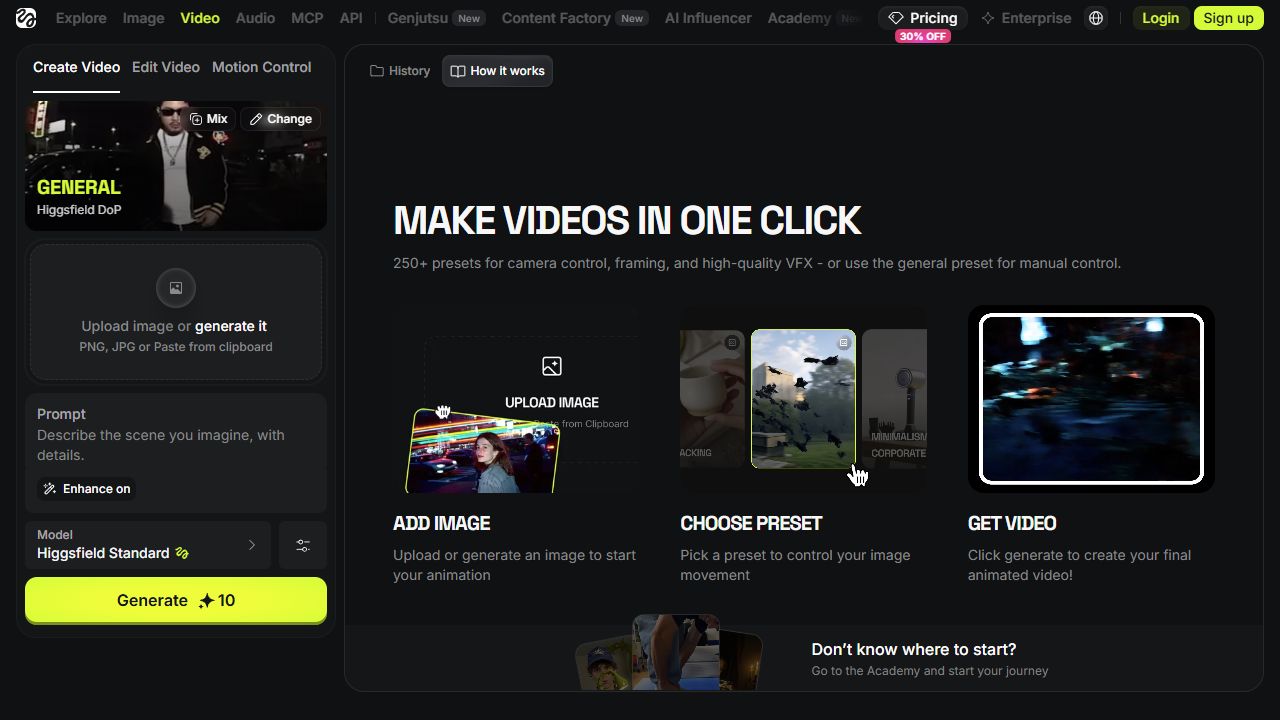
Start with the actual buttons on the screen. We will prepare one image for a short video using Higgsfield Standard and the DOLLY IN camera preset. This is a browser workflow, with no desktop installation.
These screenshots were captured directly from Higgsfield’s English web interface on October 26, 2026. Numbered markers identify the controls. Select a screenshot to open its full-size original. Sign-in, file upload and paid generation were not completed, so this guide does not present a finished generation as an observed result. The final saving step is identified separately as documentation-based.
Prepare one PNG or JPG image you have permission to use. A clear photograph of a mug or another simple object is a useful first input. The people and clips visible in the interface are Higgsfield’s own examples, not results we generated.
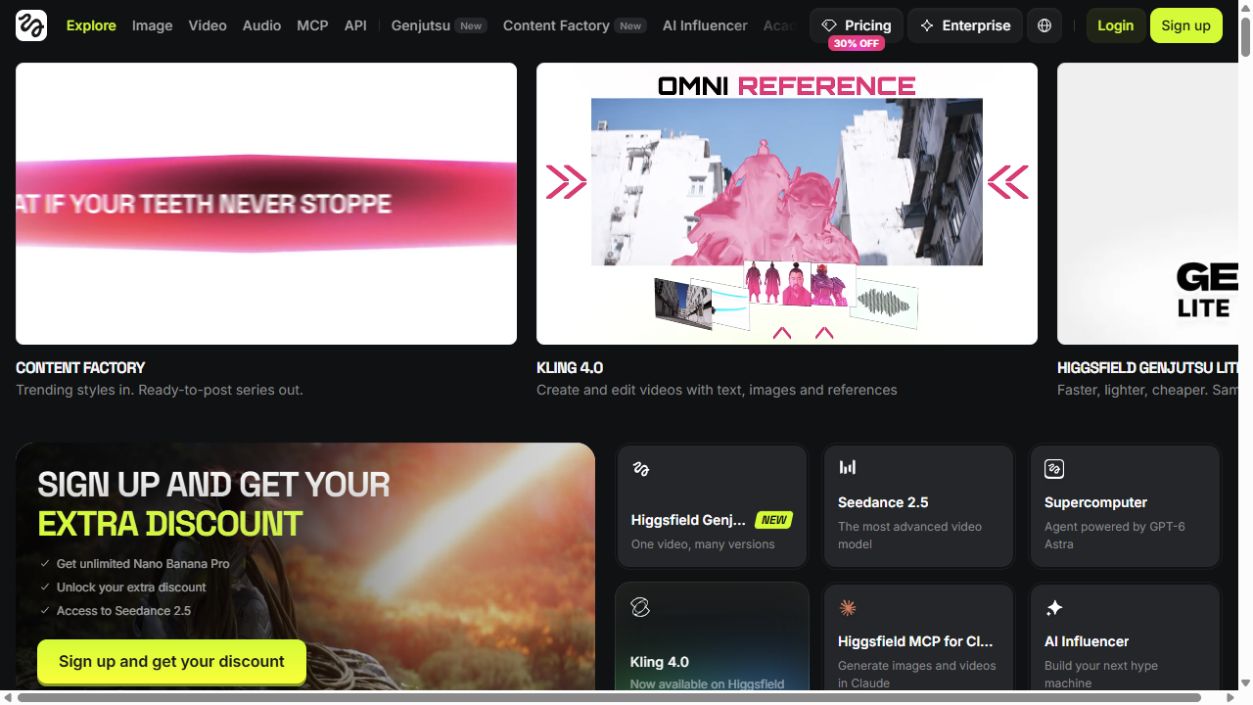
1. Select Login in the top-right corner
- Open Higgsfield · affiliate link.
- Select Login at the top right. Skip this if already signed in.
- New users can also start with the adjacent Sign up button. Dismiss or respond to any cookie or promotional overlay that blocks the navigation.
 12
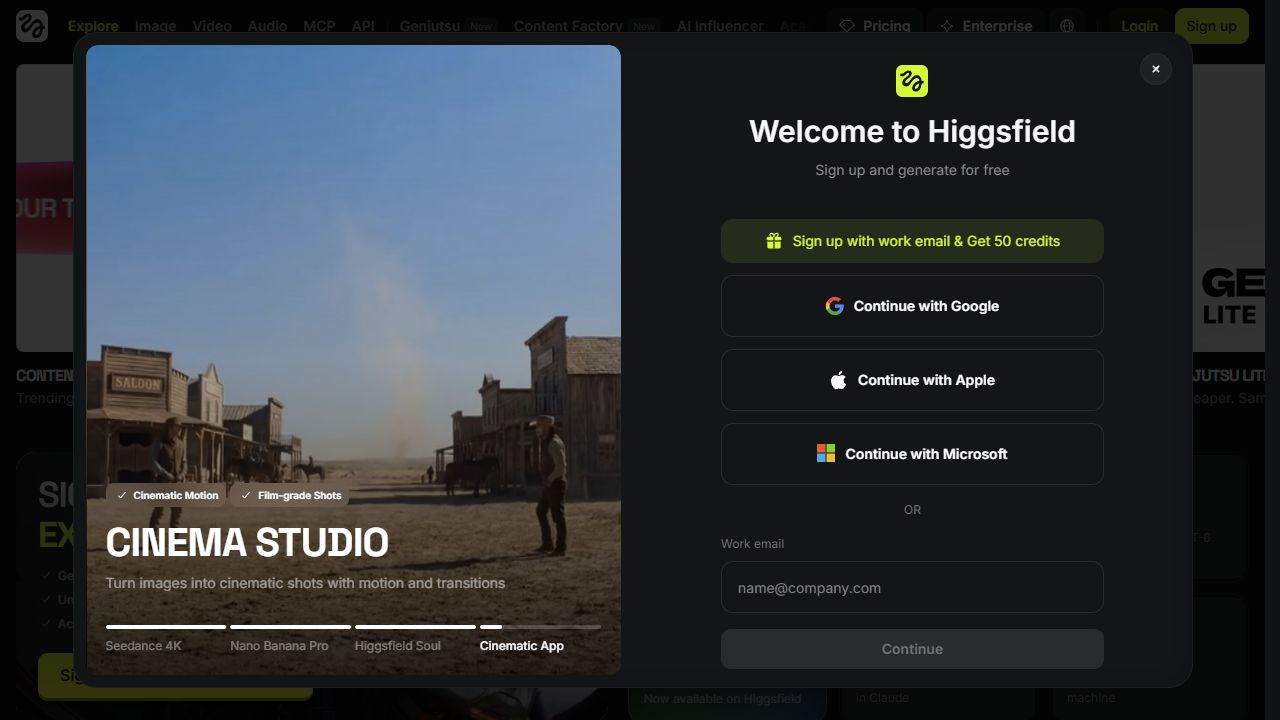
Choose your account’s authentication method
The captured dialog offers Continue with Google, Continue with Apple, Continue with Microsoft, and Work email. Use the method associated with your existing account. For email, enter the address and follow the enabled Continue button. The remaining verification depends on your account and chosen method.
 12
Expected next state: return to Higgsfield after authentication. If you cannot remember the account method, consult the account recovery instructions before creating another account.
2. Open Video and select Higgsfield Standard
- Select Video in the top navigation. If its menu opens, select Create Video. You can also open the video creation page directly.
- Check that the workflow at the upper left is Create Video, rather than Edit Video or Motion Control.
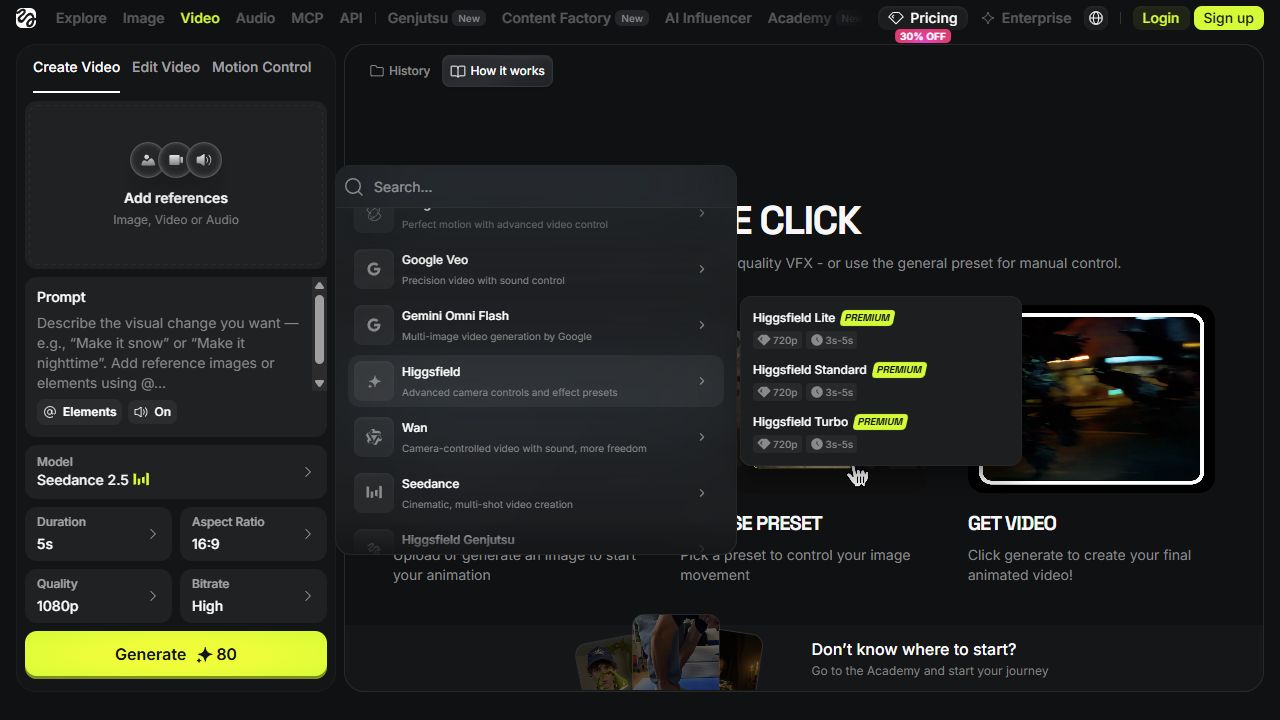
- Select the Model box at the lower left. Another model, such as Seedance 2.5, may be selected initially.
- In All models, select Higgsfield, described as Advanced camera controls and effect presets.
- Select Higgsfield Standard in the submenu, distinguishing it from Lite and Turbo.
 123
Expected next state: the Model box says Higgsfield Standard, with a Higgsfield DoP preset card and an Upload image area above it. The captured model menu marks this option Premium. Check your account’s access before proceeding; another model is not an interchangeable copy of these controls.
3. Put your image in Upload image
- Select the large dashed Upload image area on the left. It reads Upload image or generate it, with PNG and JPG underneath.
- In the file picker, open the folder containing your prepared image.
- Select the PNG or JPG and confirm with the picker’s Open action.
- Check that the image shown in the input is the file you intended to select.
The neighboring generate it action starts an image-creation path. Do not use it when your task is to upload an existing file. The screenshot below is the actual empty input before upload, not an example of a completed upload.
123Check before continuing: the subject is clear and not accidentally cut off. Correcting the starting picture makes it easier to evaluate motion than asking the video generator to repair an ambiguous input. Official input guidance
4. Select Change, Basic Camera Control and DOLLY IN
- Select Change on the preset card at the upper left. Leave Mix alone for this exercise.
- In the opened panel, select Basic Camera Control.
- Select the DOLLY IN card. Scroll within the list if necessary.
- Once the list closes, verify that the upper-left card says DOLLY IN.
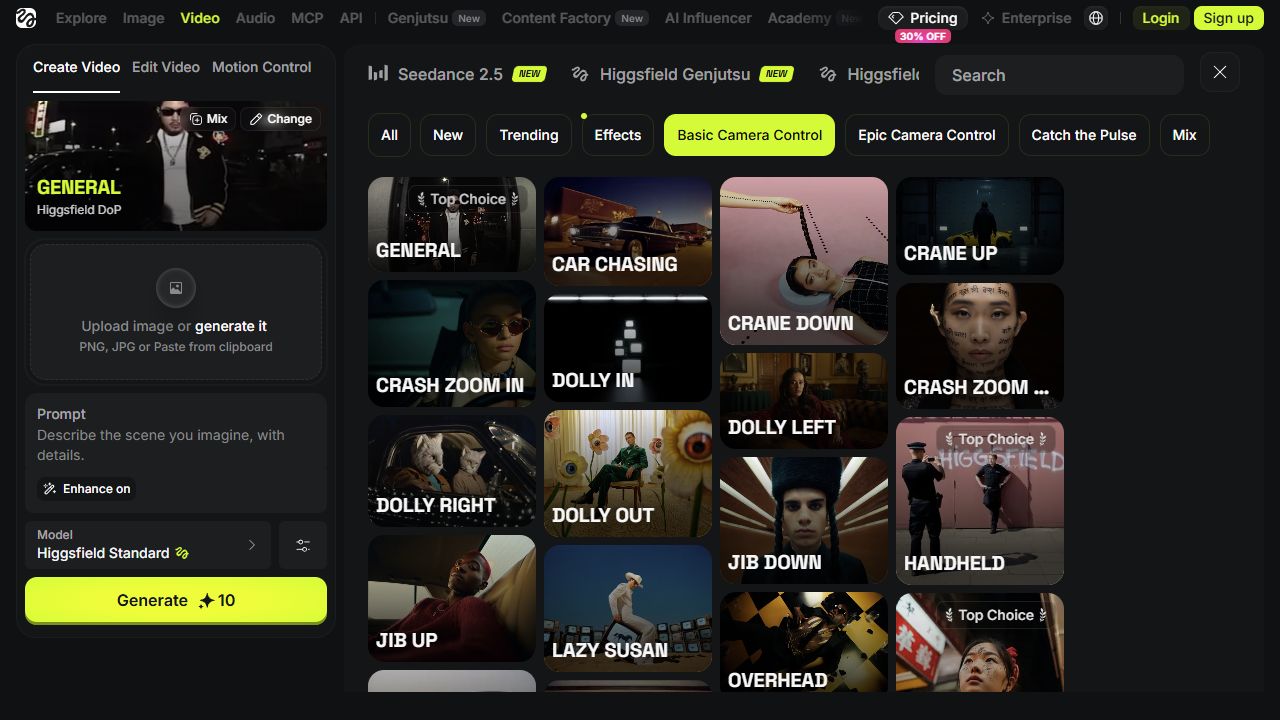 12
This is the camera-approach choice for our exercise. DOLLY OUT, DOLLY ZOOM IN and CRASH ZOOM IN are different entries. Verify the complete card name rather than matching only one word.
5. Write a short movement request in Prompt
Select the Prompt field on the left and describe the movement you want for your own image. For a mug picture, ask for a gradual camera approach while the cup stays in place. Avoid introducing a new character, a different background and multiple effects in the same first attempt.
The Enhance on control below Prompt expands the description. Record whether it is enabled when comparing attempts. A practice prompt is available below only if you need help getting started.
Only if you need help with wording · show an example prompt
This is a new instructional example, not a record of a successful generation. Adapt anything that does not match your picture.
6. Open the settings icon and choose a duration
- Select the small slider-shaped icon to the right of Model. Its accessible name is Open advanced settings.
- In Advanced → Duration, choose 3s or 5s; s means seconds.
- You can leave Seed = Random and the current default Steps value for an initial comparison. The value in the screenshot is the value displayed during capture.
- Select an empty area outside the popup to close it.
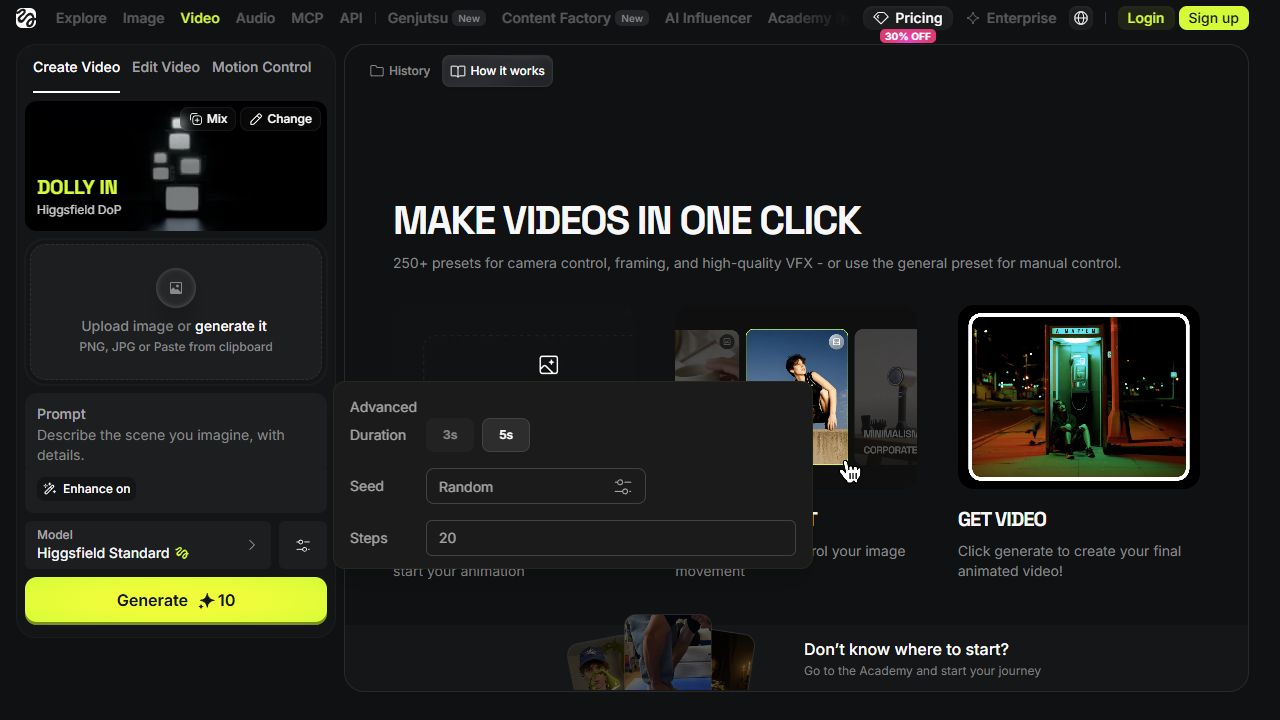 12
7. Read the credit amount before selecting Generate
Check that your image is present, the card says DOLLY IN, Model says Higgsfield Standard, and your prompt and duration match the task. Then read the credit number beside Generate.
When ready, select the yellow Generate button at the lower left. This submits a generation and may spend credits. If an account or plan prompt appears, resolve the access requirement first. The screenshot’s 10 is a captured display value, not a promise about your current price. Credit rules
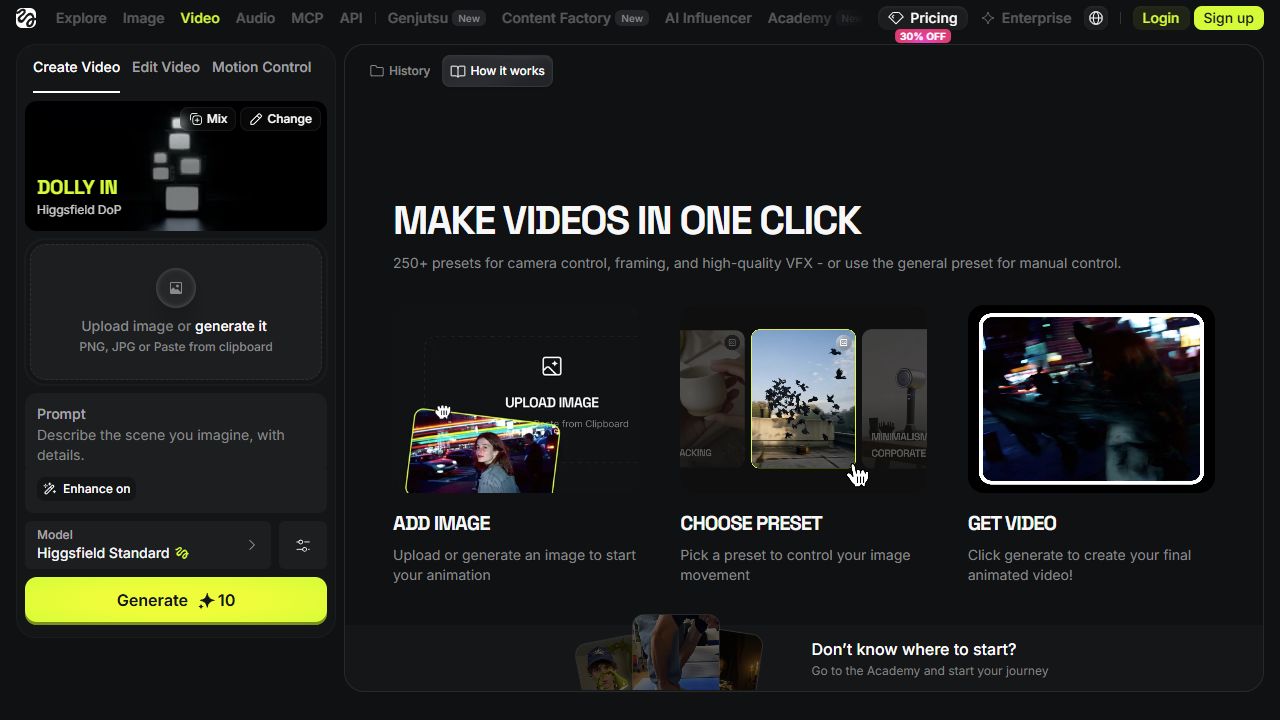 12
Next check: open History at the top of the right panel to inspect your request. If the instructional examples remain visible, check that History is selected instead of How it works. Inspect the current request before submitting another one.
8. Open a completed item and check the downloaded file
No paid generation was run for this guide, so a completed-result screenshot is not available here. The official first-generation guide explains that results appear in the creation area and Assets. The official download guide describes downloading results from Assets.
Open a completed item, play it, and use the download action offered by the current interface. This guide does not invent the appearance of an unobserved download icon or promise particular export options. Open the saved file in a separate player. Compare the beginning, middle and end for severe changes to the handle and cup outline, and check whether the ending stops abruptly.
If the screen differs or a request stalls
| Situation | First check |
|---|---|
| You see Add references and Seedance | A different model is selected. Revisit step 2. |
| You selected generate it | Check whether you entered image creation instead of file upload. |
| You cannot find duration | Open the small settings icon beside Model. |
| A job remains Queued | Inspect the pending item’s available cancellation action. |
| It says Processing or Generating | Processing has started; queued-job cancellation behavior may no longer apply. |
| A failure or refund needs checking | Inspect Manage Account → Usage. Not every failed attempt is necessarily free. |
Use the official troubleshooting guide and retain the model name, generation ID and exact error text if the problem persists. For another attempt, keep the same image and change one setting at a time so the difference is easier to judge.
Sources & further reading
- https://higgsfield.ai/creator-hub/help-center/getting-started/official-higgsfield-platforms
- https://higgsfield.ai/creator-hub/help-center/account/how-do-i-recover-access-to-my-account
- https://higgsfield.ai/creator-hub/help-center/getting-started/how-do-i-create-my-first-generation
- https://higgsfield.ai/creator-hub/help-center/ai-models/how-do-i-use-dop
- https://higgsfield.ai/creator-hub/help-center/credits/how-credits-work
- https://higgsfield.ai/creator-hub/help-center/troubleshooting/generation-is-stuck-or-failed
- https://higgsfield.ai/blog/generate-ai-videos-from-chatgpt
- https://higgsfield.ai/pricing