Goose tutorial: build and check one small browser game
Goose is an open-source AI agent for desktop and terminal workflows. Start with a documented small browser-game task.
Last updated
Menus and supported features can change. Compare the source-check date below with your current app version.
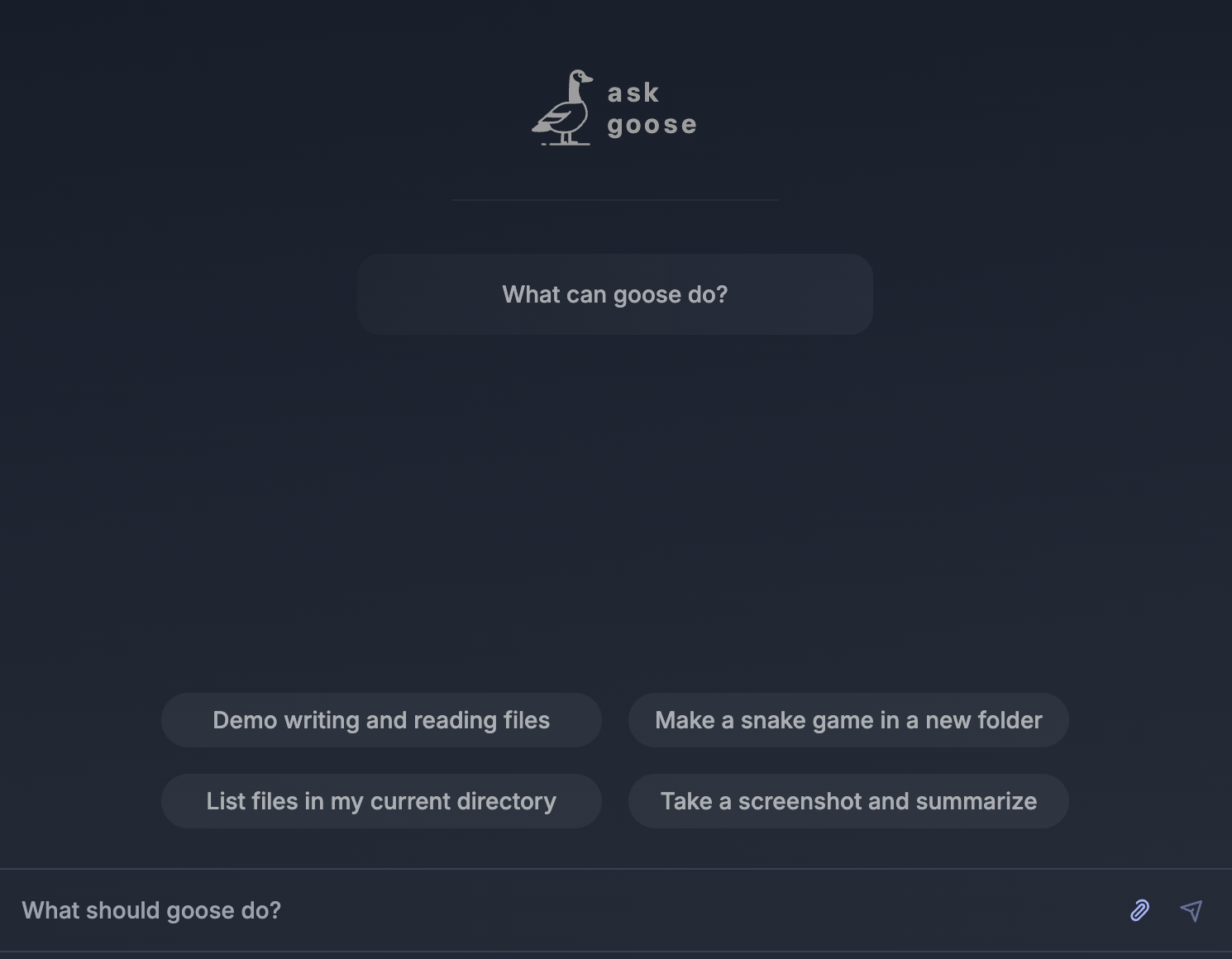
When you ask an AI agent to build a game, reading its final response is only part of checking the result. In this guide, start in an empty folder, request a small tic-tac-toe game, then inspect the expected files and reopen the result. This is a documentation-based walkthrough of Goose’s official quickstart, rather than a report of software installed or executed for this article F9.
This article covers the Goose v1.55.0 official release, published on 2026-10-16 (UTC). The source documents were checked on 2026-10-19.
Set one completion goal
The official example asks for a browser-based JavaScript tic-tac-toe game in which a human plays against a bot. Tic-tac-toe uses a small grid where players try to place their marks in a line, making the intended interaction easy to inspect. The documented expected output is an HTML page and a JavaScript file in the working folder F9.
For this walkthrough, the completion goal is to find the generated files and open the game in your browser. Deployment and additional account connections are separate tasks. The file and gameplay checks below are proposed criteria for following the example yourself.
Prepare the installation and model connection
Goose documents desktop apps for macOS, Linux and Windows, together with a CLI F3. The command examples here use the CLI path. Follow the official instructions for your operating system first, including the terminal and PATH guidance for Windows D3.
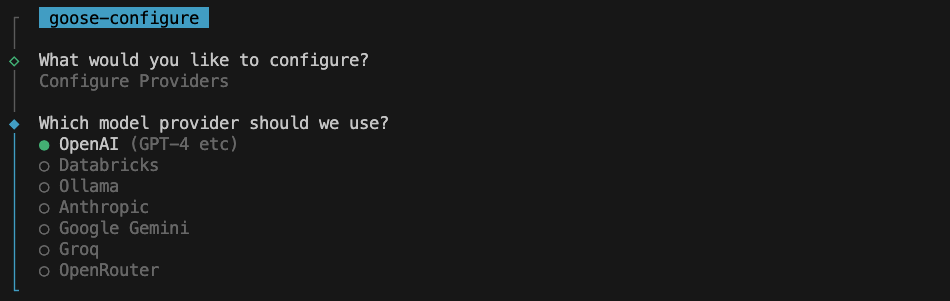
First use includes configuring a supported AI model provider F12. Finishing the application installation does not by itself confirm a working model connection. For an existing installation, the guide documents running goose configure, choosing Configure Providers, and following the provider and authentication prompts D3.
Check the application’s installation terms separately from the chosen model service’s usage conditions. This article does not establish an account-specific price or allowance. Review the models and billing conditions available to your account before making requests; no new subscription or paid plan is assumed by this walkthrough.
Start in an empty working folder
The official quickstart begins by creating an empty directory, such as goose-demo, entering it in the terminal, and starting a session F7. Choosing a small, clearly identified folder makes it easier to see what the task adds.
- Create a new empty folder and make it the terminal’s current working directory.
- Start the conversation with the documented command F7:
goose session- Check the model connection and choose a permission mode. The Developer extension guide says that Autonomous mode can edit accessible files and run commands without approval F5. To inspect actions while following the example, select Manual Approval with this in-session command F11:
/mode approve- When an action is proposed, read whether it concerns the selected folder and the game you requested. The purpose of the approval mode is to provide an opportunity to review the operation D6.
Submit the official example prompt
The following request is published in the official quickstart F9:
create an interactive browser-based tic-tac-toe game in javascript where a player competes against a botThe request identifies the result, where it should run, the programming language and the opponent. Keep that first goal small while you inspect the output. Adding several features before checking the initial game can make it harder to identify what needs attention.
The guide describes Goose making a plan and implementing it F9. Check the progress messages and the files separately. After receiving a completion response, open the working folder and see what is actually present.
Inspect the files and open the HTML page
The documented expected result is a JavaScript file and a playable HTML page F9. The quickstart does not fix their filenames, so this walkthrough does not assume a particular name. Find them in the actual generated file list.
Open the HTML page in your browser. The official guide includes manually navigating to the working directory and opening the file D4. Then inspect whether the screen responds when you place a mark, whether the human and bot can take turns, and how you would start another game. These are proposed output checks to perform yourself.
For automatic browser launching, the documentation also gives an optional route through the Computer Controller extension D4. Opening the HTML file manually is enough to inspect the initial goal, so you can examine that extension when you need it.
Close and reopen the result
After checking the output, close the HTML page and open the same file again. This checks whether you can find and reopen the result. It does not assume that the game saves an unfinished match. Persistent game state would be a separate requirement to request and test.
To continue the Goose conversation, the session guide documents F10:
goose session -rThat command resumes the latest Goose session; it is a different operation from restoring a browser game’s state. The desktop guide also documents choosing Resume or New Window from session history F10.
Narrow down the step that failed
If Windows does not recognize the goose command, check the official PATH instructions first F15. If the model connection fails, review Configure Providers and the authentication settings before repeating the game request D3.
If files are present but the page does not open correctly, check the current folder, actual file list and browser error. Describe which file you opened and what appeared, so that the next correction has a clear scope. This is a way to investigate your own output, rather than a list of errors observed during this article.
The goal is to check that a small request leads to files you can find, open and inspect. Check the agent’s response, the generated files and the browser behavior as separate parts of the task before moving on.
Original BumbleV reading guide illustration; not a product screenshot or a result from our testing. Official release behind this illustration · CC BY 4.0 · 2026-10-19


Sources & further reading
- https://github.com/aaif-goose/goose/releases/tag/v1.55.0
- https://raw.githubusercontent.com/aaif-goose/goose/2bcb8583a18a0623eb78c9ed845d597ed99fae48/README.md
- https://raw.githubusercontent.com/aaif-goose/goose/2bcb8583a18a0623eb78c9ed845d597ed99fae48/documentation/docs/getting-started/installation.md
- https://raw.githubusercontent.com/aaif-goose/goose/2bcb8583a18a0623eb78c9ed845d597ed99fae48/documentation/docs/quickstart.md
- https://raw.githubusercontent.com/aaif-goose/goose/2bcb8583a18a0623eb78c9ed845d597ed99fae48/documentation/docs/guides/sessions/session-management.md
- https://raw.githubusercontent.com/aaif-goose/goose/2bcb8583a18a0623eb78c9ed845d597ed99fae48/documentation/docs/mcp/developer-mcp.md
- https://raw.githubusercontent.com/google-gemini/gemini-cli/ed96faedfd5571f055c44f2c9509d62321d1138d/README.md