Cline 4 tutorial: change one button label and verify the scope
A documentation-derived VS Code workflow covering file context, Plan and Act, approval, diff and browser checks.
Last updated
Menus and supported features can change. Compare the source-check date below with your current app version.
The task in this guide is deliberately small: change the visible button label Start to Open guide in one HTML file. It does not build or deploy an application. The narrow scope makes it possible to separate an agent’s completion message from the file and browser checks that actually satisfy the request.
This walkthrough is derived from official documentation for the Cline 4.1.25 VS Code extension. I did not install the extension, sign in, call a model or edit the fixture with Cline. The model response and edit below are therefore expected results, not a hands-on record. Read the product introduction for cost and permission boundaries, then use the direct-editing comparison to decide whether this workflow earns its setup.
Requirements and finish line
You need VS Code 1.101 or later, Cline extension 4.1.25, Git, a browser and access to a supported model. That access can be a rotating Cline free-model promotion, usage billing, ClinePass or your own provider key. Never paste a secret key into the prompt or commit it to the project.
The job is complete only when the label becomes Open guide, while href="#guide", the CSS, title and guide paragraph remain unchanged. No package, file, deployment or remote operation is required. Stop before approval if Cline proposes anything outside that list.
1. Install and confirm the actual version
Open Extensions in VS Code with Ctrl/Cmd + Shift + X, search for Cline, select Install, then open Cline from the extension sidebar. Confirm version 4.1.25 in the installed extension details. The repository manifest requires VS Code ^1.101.0; fix an editor-version mismatch before assessing the agent.
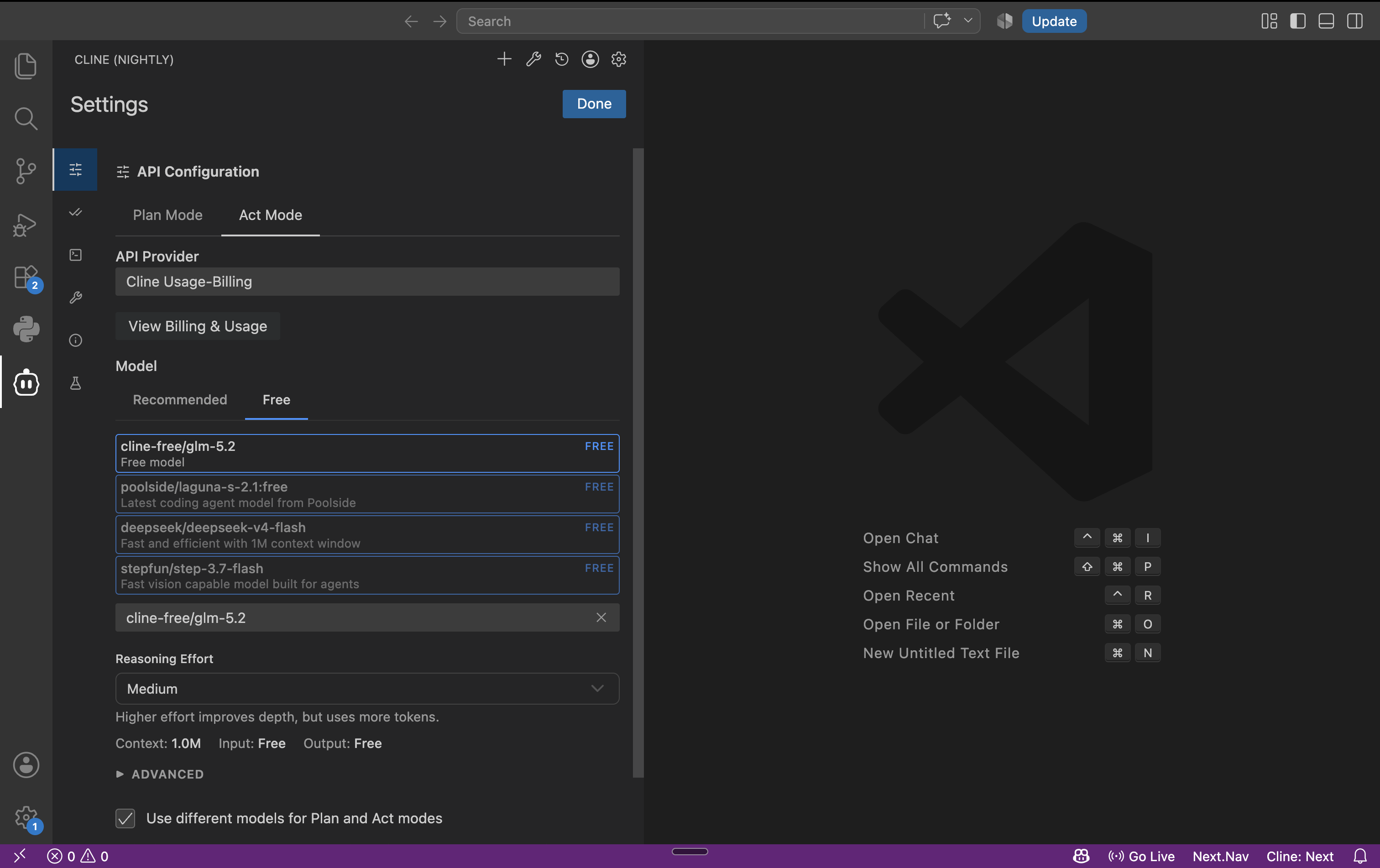
Choose a provider and model in Cline settings. The free-model documentation shows API Provider → Cline → Model → Free, but the names and quota are promotional and can change. Check the price and account before accepting any paid path. This tutorial does not make a performance claim about the models shown in the image.

2. Create a disposable input project
Create a new cline-button-demo folder and open it with File → Open Folder. Save the following as index.html. This is the reader’s input fixture, not an output produced by the agent.
<!doctype html>
<html lang="en">
<meta charset="utf-8">
<title>Button demo</title>
<style>
.cta {display:inline-block;padding:12px 18px;background:#ffd34d;color:#202020}
</style>
<h1>Button demo</h1>
<a class="cta" href="#guide">Start</a>
<section id="guide"><h2>Guide</h2><p>Keep this content unchanged.</p></section>
</html>
Open a VS Code terminal, verify that it is inside this new folder, and create an independent Git baseline:
git init
git add index.html
git commit -m "Add Cline button demo baseline"
Do not paste these commands into an unrelated existing repository. If the commit fails because Git identity is unset, resolve that locally before proceeding; no personal identity value belongs in the Cline prompt or this article. index.html is the browser output, while the commit is the before-state used for comparison.
3. Use Plan mode to constrain the task
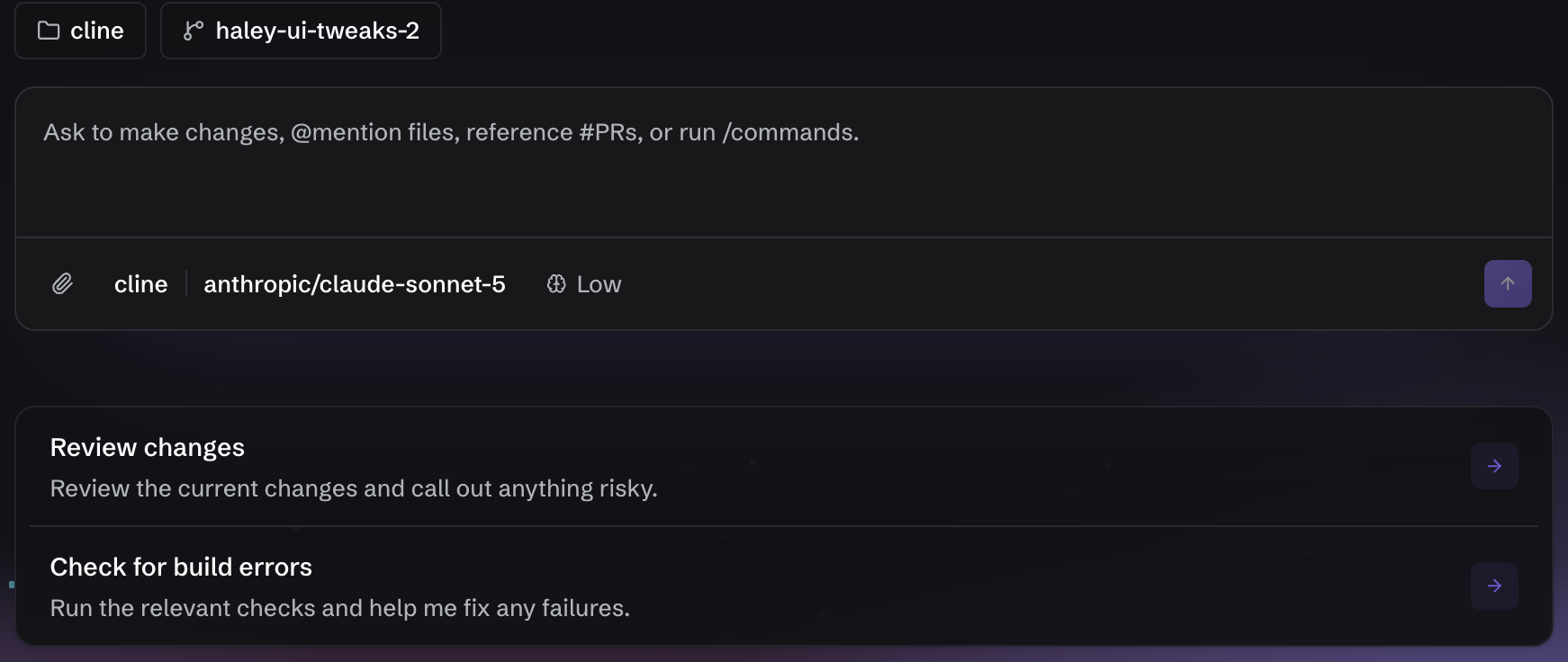
Select Plan mode in Cline. Official documentation says Plan can read and search but cannot modify files or execute commands. Type @ in the composer and select index.html, or use the + button at the lower left to add the file. One explicit file is easier to audit than an entire folder.
Enter this prompt:
Read @/index.html and give me a plan only.
I want to change the visible link label Start to Open guide.
Keep href="#guide", CSS, title, and every other sentence unchanged.
Do not create files, install packages, run commands, or edit anything yet.
The expected plan identifies one link element and one text-node replacement. A package install, component refactor or second file is outside scope. Ask “Will index.html be the only modified file?” before switching modes if the answer is ambiguous.

4. Switch to Act and approve one edit
When the plan names one file and one replacement, switch to Act in the same conversation. The documentation says conversation context carries across the mode change. Send:
Apply the plan now. In index.html, replace only Start with Open guide.
Do not change any other character, attribute, or file, and do not run a command.
After the edit, show the changed line and restate the acceptance conditions.
For a conservative first run, enable only Read project files under Auto Approve. Leave Edit project files, terminal commands, browser and MCP actions off. When an edit approval appears, confirm that the target is index.html and the proposal is one line. Reject a command or outside-workspace read because this task does not need one. Do not enable YOLO Mode.
The expected diff is:
-<a class="cta" href="#guide">Start</a>
+<a class="cta" href="#guide">Open guide</a>
5. Compare the checkpoint with Git
The checkpoint documentation says Cline snapshots file state in a shadow Git repository after tool use. Use Compare beside the Checkpoint marker to open the editor diff. It should show one line in index.html. Cline’s checkpoint is separate from the real project commit.
Run an independent check in the terminal:
git status --short
git diff -- index.html
The only modified file should be index.html, and the only textual difference should be the label. Investigate a new file or package.json rather than accepting the task summary. An agent saying “done” does not replace this evidence.
6. Verify browser behavior and know the rollback
Open index.html in a browser. Confirm that the button says Open guide, clicking it adds #guide to the address and moves to the Guide section, the yellow style remains, and the label is readable in a narrow window. All four checks are part of completion.
If the edit is wrong, the Checkpoint Restore menu offers Restore Files, Restore Task Only, and Restore Files & Task. The first keeps the conversation, the second keeps the files, and the third returns both to the selected point. None should be treated as a way to reverse a remote request or external system side effect. The Git baseline also lets you inspect or manually restore this one-line fixture.
Troubleshooting the documented flow
- If
@/index.htmlis missing, verify that VS Code openedcline-button-demoas the workspace. - If Plan mode requests an edit approval, recheck the active mode and extension version; the official description says Plan does not modify files or run commands.
- If no free model appears, the rotating promotion may have ended. Recheck provider pricing instead of assuming the screenshot is current inventory.
- If Compare is empty, save the file and use
git diff -- index.htmlas the independent check. - If multiple files change, stop approving, restore files or return to the baseline, and rewrite the prompt with a narrower target.
Last updated: 2026-10-17 · sources checked: 2026-10-17. This is a documentation-derived procedure with expected outcomes; it contains no measured time, success rate or model-quality result.
Sources & further reading
- https://github.com/cline/cline/releases/tag/v4.1.25
- https://docs.cline.bot/getting-started/installing-cline
- https://docs.cline.bot/core-workflows/plan-and-act
- https://docs.cline.bot/core-workflows/working-with-files
- https://docs.cline.bot/core-workflows/checkpoints
- https://docs.cline.bot/features/auto-approve
- https://github.com/cline/cline/blob/01b8a9724da905423e636396d7fb4acdf47796bb/apps/vscode/package.json
- https://github.com/cline/cline/blob/01b8a9724da905423e636396d7fb4acdf47796bb/LICENSE