Google Vids tutorial: Make a 15-second product clip and export it to MP4
Follow a hands-on Google Vids walkthrough from a copyable text prompt to a 15-second clip, a saved project and a playable MP4.
Last updated
Menus and supported features can change. Compare the source-check date below with your current app version.
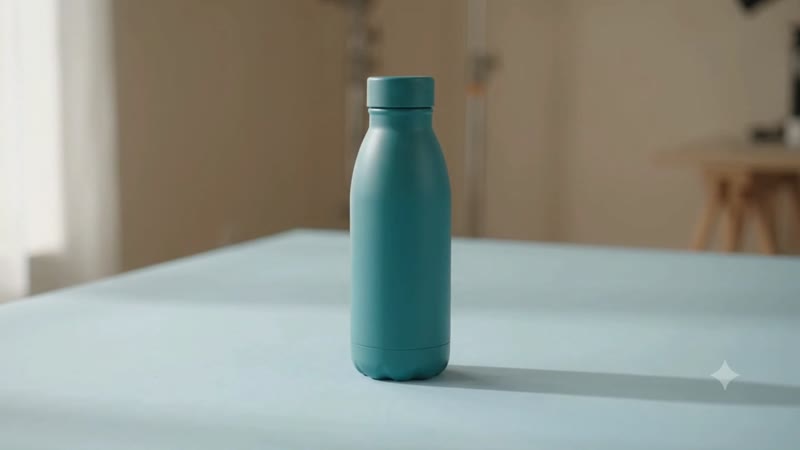
Make one landscape product clip from a short text prompt. On November 7, 2026, I opened Google Vids in a desktop browser, generated one clip about an unbranded teal bottle, inserted it into a project and exported an MP4. I reopened that file and checked its streams and duration. You do not need a product photo to reproduce this particular exercise.
Open Vids and name the project
Open Google Vids in a desktop browser and sign in to the Google account you want to use for saving the project. There is no desktop app to install for this exercise. On the home screen, follow Get started if it appears, then choose the AI video creation entry. If you already have a blank editor open, use the AI video clip button on the right rail. I tested the Korean interface. English labels here describe the corresponding controls in Google’s help, and may vary slightly with account and rollout.
Name the editable project something you will recognize in Google Drive, such as “Bottle product clip, 15 seconds.” Keep this practice project separate from client work. The prompt below asks for an imaginary bottle with no brand marks. If the clip must depict a particular item for sale, do not use a text-only result as evidence of what the real item looks like.
Set 15 seconds and generate a clip
Open the AI video clip panel and choose Create. Expand the generation settings. In my session the summary showed Omni, 720p, landscape and an initial duration of 10 seconds. Change the duration to 15 seconds and read the summary again before submitting. Setting the duration in the panel gives you a concrete value to check. Putting a duration in the prompt alone does not establish which setting the editor will use.
Paste this complete example into the prompt box:
One continuous studio shot of an unbranded matte teal reusable water bottle on a pale blue tabletop. Start at a medium distance and move the camera slowly closer. Keep the bottle shape and cap unchanged. Soft daylight from the left. No people, no text, no logo, no speech and no music.
Select Generate and wait for the result card. The card in my test displayed 720p · 0:15. Play the preview through to the end. Look at the cap, bottle silhouette and background in both the opening and closing seconds. The prompt asks for consistent geometry and no text, but those instructions are requests, so check the frames before using the clip elsewhere.
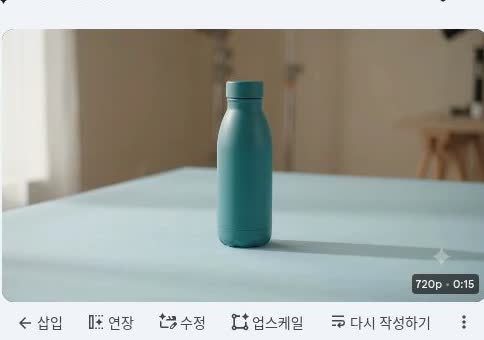
Google Vids editor, captured by BumbleV. The Insert control places this generated result in the project timeline.
Insert, export and check the MP4
Choose Insert on the result card. Verify that a clip appears in the timeline and the editor shows the expected end time. The test had one scene and an end time of 00:15.0. Play the timeline from its first frame and check the end for a stray scene or unwanted cut. A clip in the generation gallery is separate from a clip you have actually placed in the project.
Choose File → Download → MP4 video (.mp4). When the editor indicates the export is complete, open the actual file from your browser’s downloads. Check the full duration and listen for unwanted sound. The file I exported had a 15.08-second container duration, a 1920×1080 H.264 video stream and an AAC audio stream. The result card said 720p, so the output dimensions should not be read as native 1080p generation. An audio stream remained even with a prompt asking for no speech or music. If your delivery needs silence, mute the clip in the editor, export again and verify that version in a player.
An actual frame from BumbleV’s exported MP4, generated from text alone.
To revise the work later, find the named Vids project in Drive and reopen it. The project keeps your timeline editable. Keep the MP4 as the delivery copy. If you export twice, add a version to the second file name so you can tell which one you checked.
Troubleshoot and choose your next step
If the prompt box is hidden, close the gallery or collapse the settings to make room in the panel. If the result exists but the MP4 is blank or contains the wrong scene, check the timeline before generating again. If you cannot choose 15 seconds, confirm which model and controls your account offers against the dated rollout notes. Work with a supported duration if needed; repeated generation uses attempts and will not add an unavailable setting.
For a photo based clip, Google’s animation help starts with Animate → Add image. I reached the first-use image consent dialog and canceled it, so uploading a photo and generating from it were outside the completed test. If keeping the original product appearance matters, see the comparison of AI animation and Google Vids photo effects before deciding which route to try.