What is Make? Scenarios, connections and a small first automation
Understand scenarios, modules and connections, then decide what is worth automating in a personal workflow.
Last updated
Menus and supported features can change. Compare the source-check date below with your current app version.
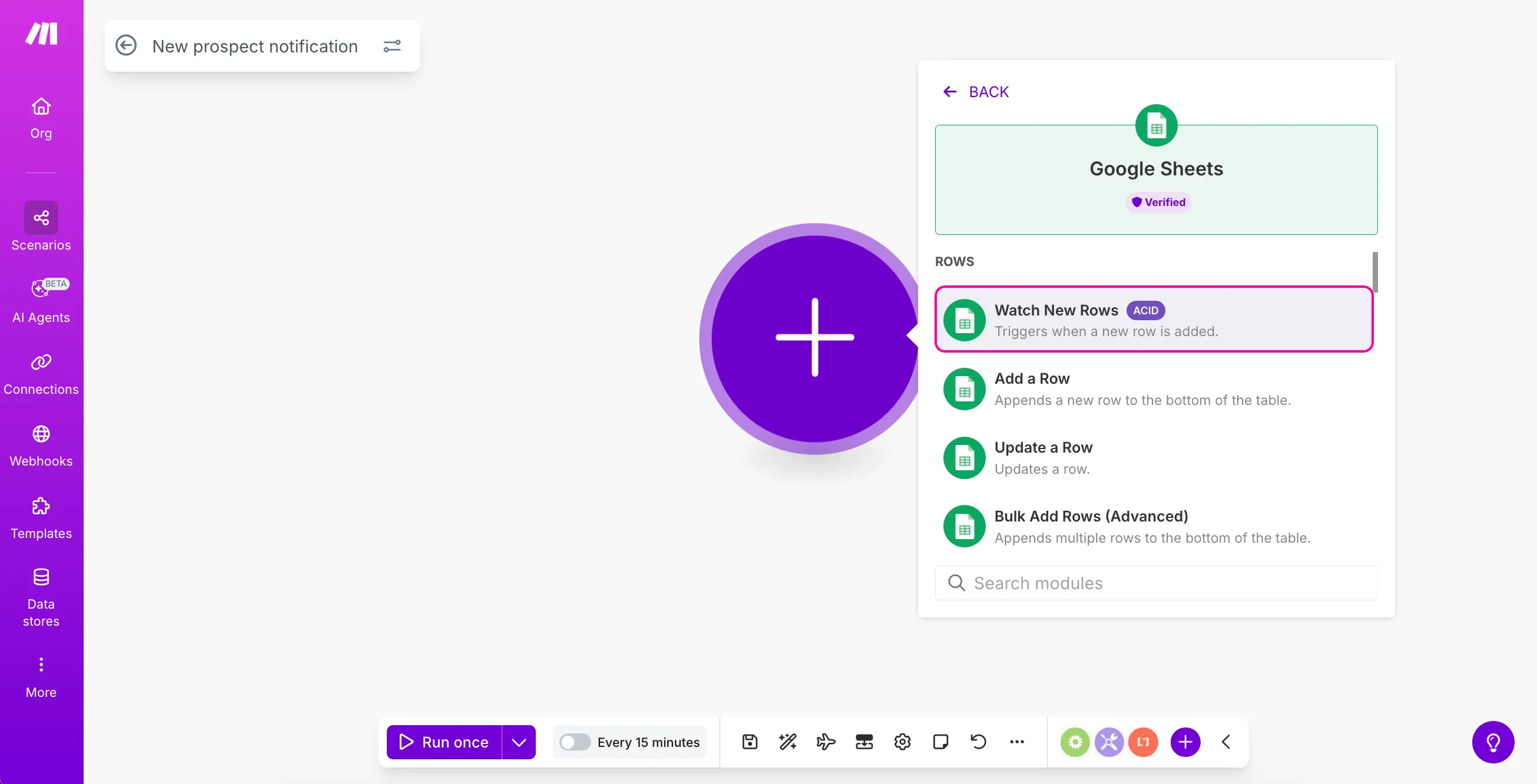
If you repeatedly move spreadsheet notes elsewhere, Make can help you examine that routine. It connects actions across services. Start with a clear source and an expected result rather than a large collection of connected apps.
This introduction uses official documentation checked on October 26, 2026. We did not connect Google, run a scheduled workflow or measure time saved. The images are the provider’s examples, not evidence of our own operational results.
Separate the flow, action and account
A scenario describes a connected flow of work. A module performs an individual app action. A connection authenticates access to an external service. Selecting a spreadsheet action does not itself establish which Google account or file supplies the data.
For a personal ideas sheet, your checks can be concrete: the title and notes exist, the intended account is connected and the returned fields match the sample. Understanding that relationship is more useful than memorizing every feature name.
Choose a repeatable task
Consider frequency, consistency and the effect of a mistake. An input that changes structure every time may need a clearer process first. Moving the same columns to the same destination is easier to describe. Repetition alone does not prove that automation is worthwhile.
For a personal side project, idea collection is a useful planning example. It is not a claim that this site already operates an automated revenue workflow. Also ask whether the copying step is necessary: if consulting the original sheet is sufficient, another connection may add little value.
Verify input before adding a destination
Our tutorial starts by reading a title and a note from Google Sheets and comparing them with the output inspector. You do not need to attach messaging or publishing to establish that input works. Correct formatting of the wrong source is still the wrong result.
Define success as matching values, not a green indicator alone. Record the scenario name, file, sheet tab and sample row. If the result is unexpected, fix that source before connecting more actions.
Distinguish testing from scheduled operation
The official onboarding treats a test and scheduled activation as separate steps. A successful sample run does not mean the scenario is now checking continuously. A polling task’s interval also influences when new information is discovered.
After practice, inspect the activation state and interval. Decide whether the information needs a quick response or can wait. A simple, understandable schedule helps avoid collecting results you do not need.
Include operation and maintenance in the decision
Runs and tests can use credits. Check the account’s usage and current pricing rather than extrapolating a whole monthly bill from one photographed number. The connected application may also have separate terms or charges.
Assess whether you can notice and recover from a failure, not just whether a few clicks disappear. Begin with one input and one inspectable result. Once that is dependable, you have a clearer reason for adding the next action.
Continue with the step-by-step task guide for the interface instructions.
Sources & further reading
- https://help.make.com/create-your-first-scenario
- https://help.make.com/step-2-get-your-apps-ready
- https://help.make.com/step-3-add-your-first-app
- https://help.make.com/step-4-create-a-connection
- https://help.make.com/step-5-set-up-the-trigger
- https://help.make.com/step-6-test-the-module
- https://help.make.com/step-10-schedule-your-scenario