PdfCraft: what it does and what to check first
An instruction sheet and its attachment need to become one PDF.
Last updated
Menus and supported features can change. Compare the source-check date below with your current app version.
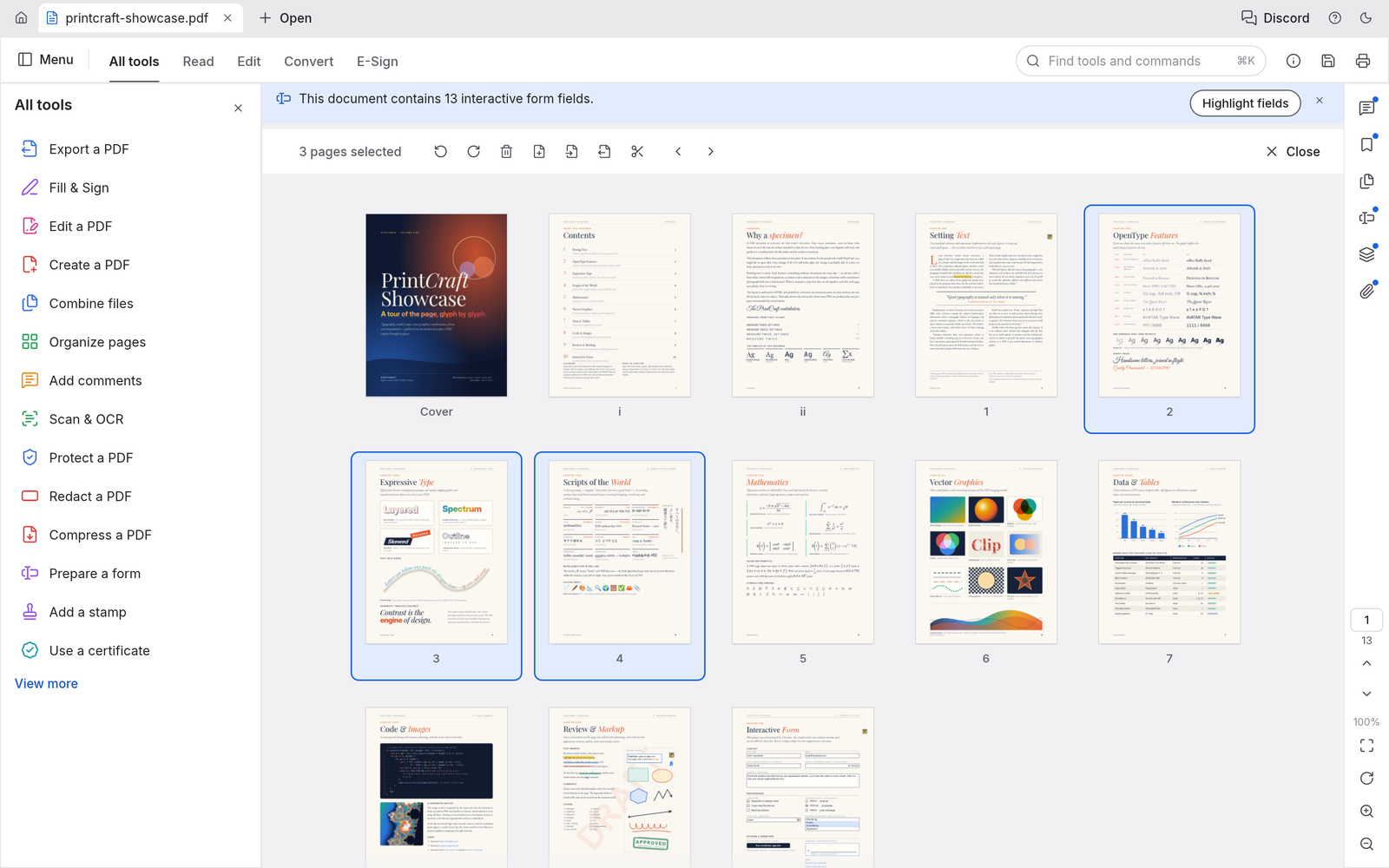
An instruction sheet and its attachment need to become one PDF. This is a good small task for PdfCraft because it has a clear answer: the right pages should appear in the right order. I would start with two readable documents, then check the result outside the app. Successfully opening a PDF is useful, but it does not settle conversion, OCR or signature requirements.
The checked material describes early alpha. I have read the public documentation; I have not installed and run this app for a hands-on review.
A look at the screen
| Where to look | What it does |
|---|---|
| Combine files | Add documents and inspect their order and selected page ranges. |
| Organize pages | Check thumbnails and rotate, insert or extract pages. |
| Command palette | Search page operations when a control is hard to find. |
What the documentation describes
- View and search PDFs, organise pages, and combine or split documents.
- The documentation describes annotations, forms, passwords, redaction and basic signature functions.
- CLI/MCP control paths and OCR functions using a separate model are documented.
What interests me beside Acrobat
Page organisation is a narrower task than replacing a full Acrobat workflow. PdfCraft’s local and command-based paths are worth examining for repeated merges, but conversion and text recognition need separate checks. OCR turns a scan into recognised text; moving pages does not perform that recognition or validate a digital signature.
The developer describes free, open-source, local work. Open source means the code is available to inspect. I have not measured a speed or total-cost advantage. For Acrobat, check the official product and plan information for the terms that apply in your region.
The limitation I would check first
The README says Office-to-PDF creation is absent and PDF-to-Word export can change layout. Remaining gaps include CJK text editing, OCR, professional signature validation and printing. Korean text is part of that CJK check. A successful merge should not be reported as evidence that these other features preserve the required result.
A small first task
For the first exercise, let’s combine two pdfs and check their page order. Prepare: A.pdf and B.pdf, each with two pages. Use readable test copies and identify each document by its first and last page as well as its filename.
Check the official app page and release downloads for a build matching your operating system and CPU. If there is no suitable installer or the app does not start, read Get started/Quick start and known issues in the official README. Record the app version and OS when you try the task.
The separate tutorial gives the menu sequence and an expected result. It is a documentation-based exercise, not a claim that I completed it. AI-assisted development, an app’s built-in AI features and an agent operating existing functions need to be distinguished when judging an automation claim.
Keep the working file and the delivery file
Keep both original PDFs and the combined copy. Four pages alone do not prove the order is correct, so inspect titles and content at the join. Links, annotations and form behaviour can need checking too. PDF-to-Word is a separate operation: visible text after conversion does not establish that tables, line breaks and fonts are preserved.
If the result differs
If a file is excluded, stop and inspect its password, permissions or reading error before saving. Compare the result’s page count with the sum of both sources. Search in a scanned page requires OCR, which is different from merging. Likewise, merging a signed document does not establish that its signature remains valid.
What I would verify before a bigger job
- Compare order, rotation and links after merging the same two PDFs.
- Record errors in Korean editing and OCR of the same scan.
- Compare tables, line breaks and fonts after converting the same PDF to Word.
Reading, splitting and combining are sensible first exercises. If Korean OCR, editable text conversion or electronic signatures are essential, test those particular results. A merged file that looks fine in one viewer does not cover every PDF workflow or printing requirement.
Record the first and last page titles, not just filenames, when planning a merge. This helps catch the wrong version when several files share a name. List any essential links, forms and signatures before working, then inspect those functions separately from page order.
Introduction · Task tutorial · Comparison: documented differences
Sources & further reading
- https://getartcraft.com/apps/pdfcraft
- https://github.com/storytold/pdfcraft/blob/main/README.md
- https://www.adobe.com/acrobat.html
- https://github.com/storytold/pdfcraft/blob/c1a41cc5c7c2460fb60af880af69ee28a0c71bd5/README.md
- https://github.com/storytold/pdfcraft/blob/c1a41cc5c7c2460fb60af880af69ee28a0c71bd5/crates/ui-egui/src/combine_ui.rs