WordCraft: what it does and what to check first
A one-page notice sounds finished until it opens as two pages on someone else's computer.
Last updated
Menus and supported features can change. Compare the source-check date below with your current app version.
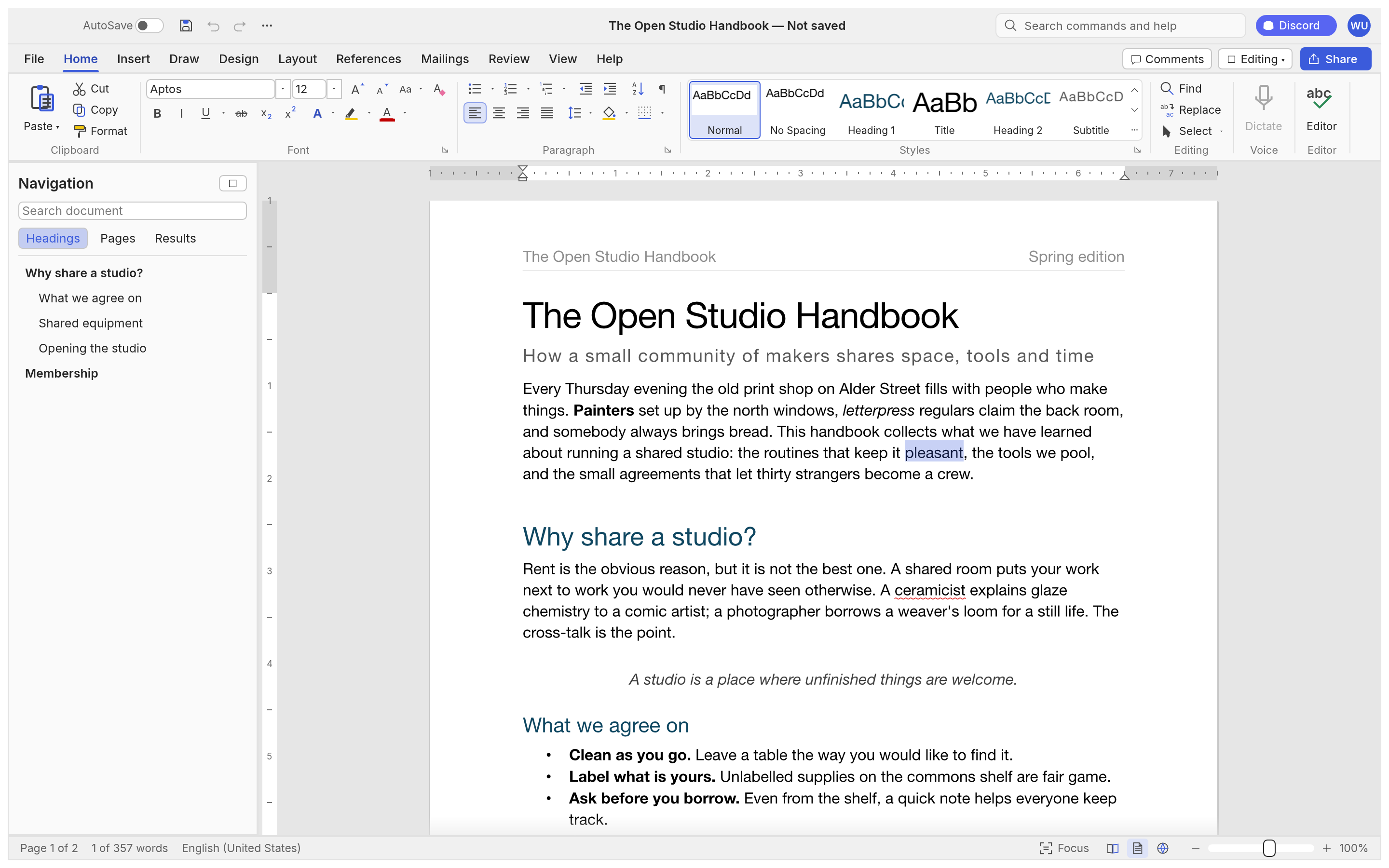
A one-page notice sounds finished until it opens as two pages on someone else’s computer. WordCraft is a word processor centred on DOCX documents. I would start with a title, two short paragraphs and a three-column table. The important result is a readable document that can still be edited next month, not just a page that looks right on my screen.
The checked material describes alpha / in development. I have read the public documentation; I have not installed and run this app for a hands-on review.
A look at the screen
| Where to look | What it does |
|---|---|
| Home and Styles | Keep title and body formatting consistent. |
| Insert and Table | Organise items in rows and columns. |
| Save As and Export | Retain an editable DOCX and a separate PDF. |
What the documentation describes
- The document model includes paragraphs, styles, tables, pages, headers and footers.
- The public material describes contents lists, comments, tracked changes and document comparison.
- DOCX is a primary working format, with CLI paths for conversion and commands.
What interests me beside Word
Local writing and repeated command-line conversion are interesting, but DOCX exchange is different from replacing Word’s online coauthoring. A team workflow needs checks for comments and tracked changes as well as the actual files passed between people. Matching a visual page does not prove that its table, styles or review state remain editable.
The developer describes free, open-source, local work. Open source means the code is available to inspect. I have not measured a speed or total-cost advantage. For Word, check the official product and plan information for the terms that apply in your region.
The limitation I would check first
The README identifies real DOCX fidelity, chart and SmartArt preservation, Word-compatible pagination, stability and native printing as areas needing more checking. Fonts, table widths and line breaks matter even in a short notice. If the job depends on exact print layout or agreed tracked-change behaviour, use the actual document for a round-trip test.
A small first task
For the first exercise, let’s write a one-page notice with a heading and a table. Prepare: A notice title, two short paragraphs and rows for Task, Owner and Date. Include one long task name to check table wrapping.
Check the official app page and release downloads for a build matching your operating system and CPU. If there is no suitable installer or the app does not start, read Get started/Quick start and known issues in the official README. Record the app version and OS when you try the task.
The separate tutorial gives the menu sequence and an expected result. It is a documentation-based exercise, not a claim that I completed it. AI-assisted development, an app’s built-in AI features and an agent operating existing functions need to be distinguished when judging an automation claim.
Keep the working file and the delivery file
DOCX is the file for revising text and tables; PDF is the copy for checking and reading the layout. Keep both. In another app, inspect heading styles and cell widths, not only whether the document opens. In the PDF, inspect fonts and page count. A table rendered as an image may look fine but cannot serve the same editing purpose.
If the result differs
If the notice becomes two pages, inspect fonts, line spacing and long text inside the table in that order. Changing margins immediately can hide the cause. Keep lettering readable instead of shrinking everything to force one page. Compare DOCX and PDF pagination to locate whether layout changed during export.
What I would verify before a bigger job
- Compare line breaks and page count with identical fonts, margins and paragraphs.
- Inspect table widths, image positions and charts in the same DOCX.
- Round-trip comments and tracked changes, comparing authors and change states.
A short new notice or repeated conversion is a useful first exercise. Complex charts, SmartArt, exact print specifications and negotiated review changes need separate file tests. A clean one-page PDF does not establish preservation of every DOCX object or author/change state.
Separate reusable wording from the date and person that change each week. Styles and tables should carry the structure into the next revision. For a conversion batch, inspect pages and fonts as well as file count; finishing more files is not helpful if every file needs its layout repaired.
Introduction · Task tutorial · Comparison: documented differences
Sources & further reading
- https://getartcraft.com/apps/wordcraft
- https://github.com/storytold/wordcraft/blob/main/README.md
- https://www.microsoft.com/en-us/microsoft-365/word
- https://github.com/storytold/wordcraft/blob/04f6f53b8a4d8140c7bb62f949b0a6099a473da1/README.md
- https://github.com/storytold/wordcraft/blob/04f6f53b8a4d8140c7bb62f949b0a6099a473da1/crates/ui-egui/src/backstage.rs