PdfCraft tutorial: combine two pdfs and check their page order
A documented, six-step guide to combine two pdfs and check their page order, with source screenshots, editable files and output checks.
Last updated
Menus and supported features can change. Compare the source-check date below with your current app version.
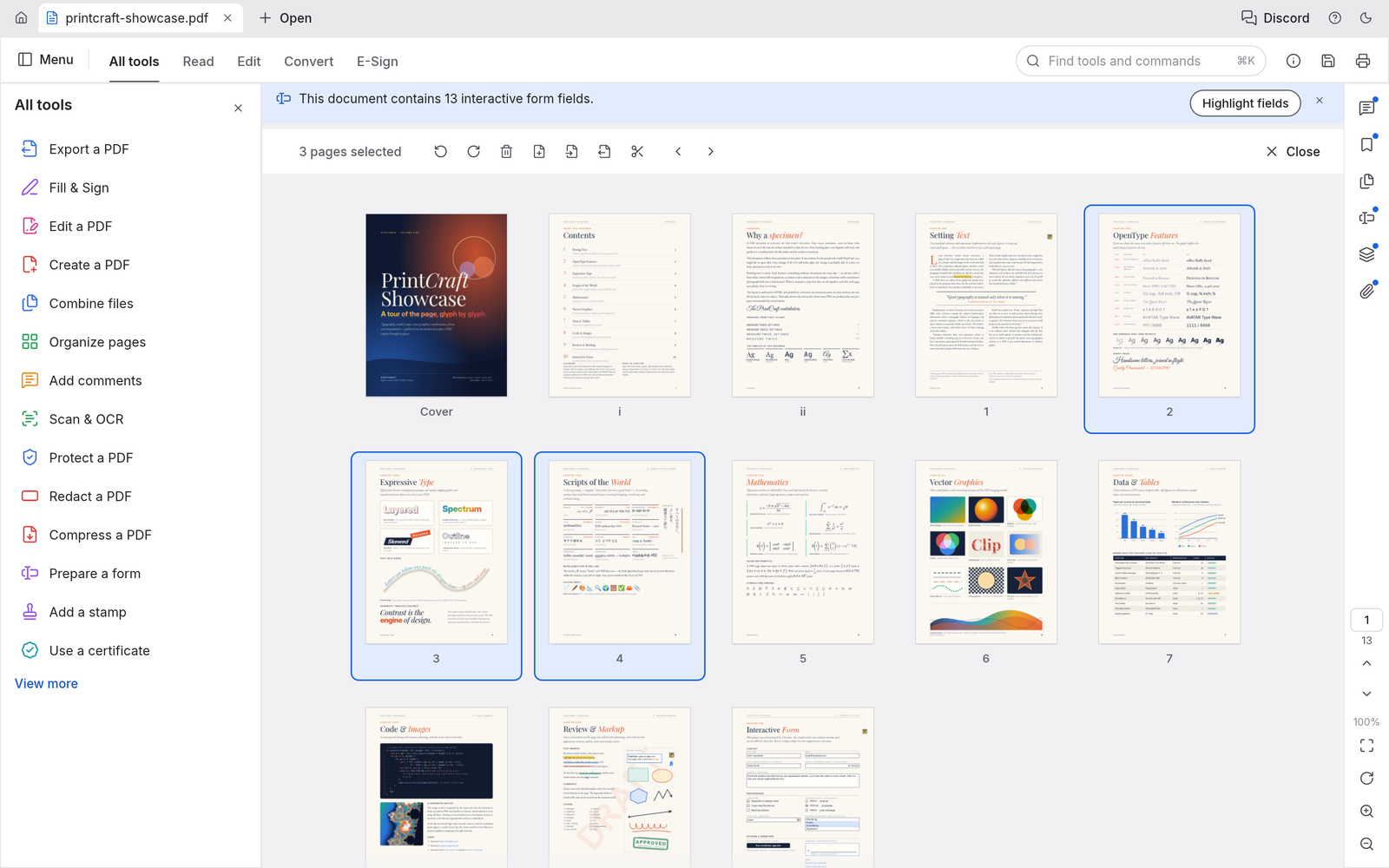
Let’s work towards one clear result: combine two pdfs and check their page order. The aim is to keep something you can revise and something you can actually share, rather than learn every feature at once.
This walkthrough follows the developer’s public screens and menu descriptions. I have not run it myself, so the outputs below are expected results to verify, not a tested finished example. Keep the English menu names visible while following along; they also help when your installed version differs.
Before opening the project
Prepare: A.pdf and B.pdf, each with two pages. Use readable test copies and identify each document by its first and last page as well as its filename.
Check the official app page and release downloads for a build matching your operating system and CPU. If there is no suitable installer or the app does not start, read Get started/Quick start and known issues in the official README. Record the app version and OS when you try the task.
Use copies for the exercise and keep originals, working documents and exports in distinguishable folders. The documented stage is early alpha. Check the article’s source date against your installed version if a menu or supported format has changed.
Find the relevant controls
| Where to look | What it does |
|---|---|
| Combine files | Add documents and inspect their order and selected page ranges. |
| Organize pages | Check thumbnails and rotate, insert or extract pages. |
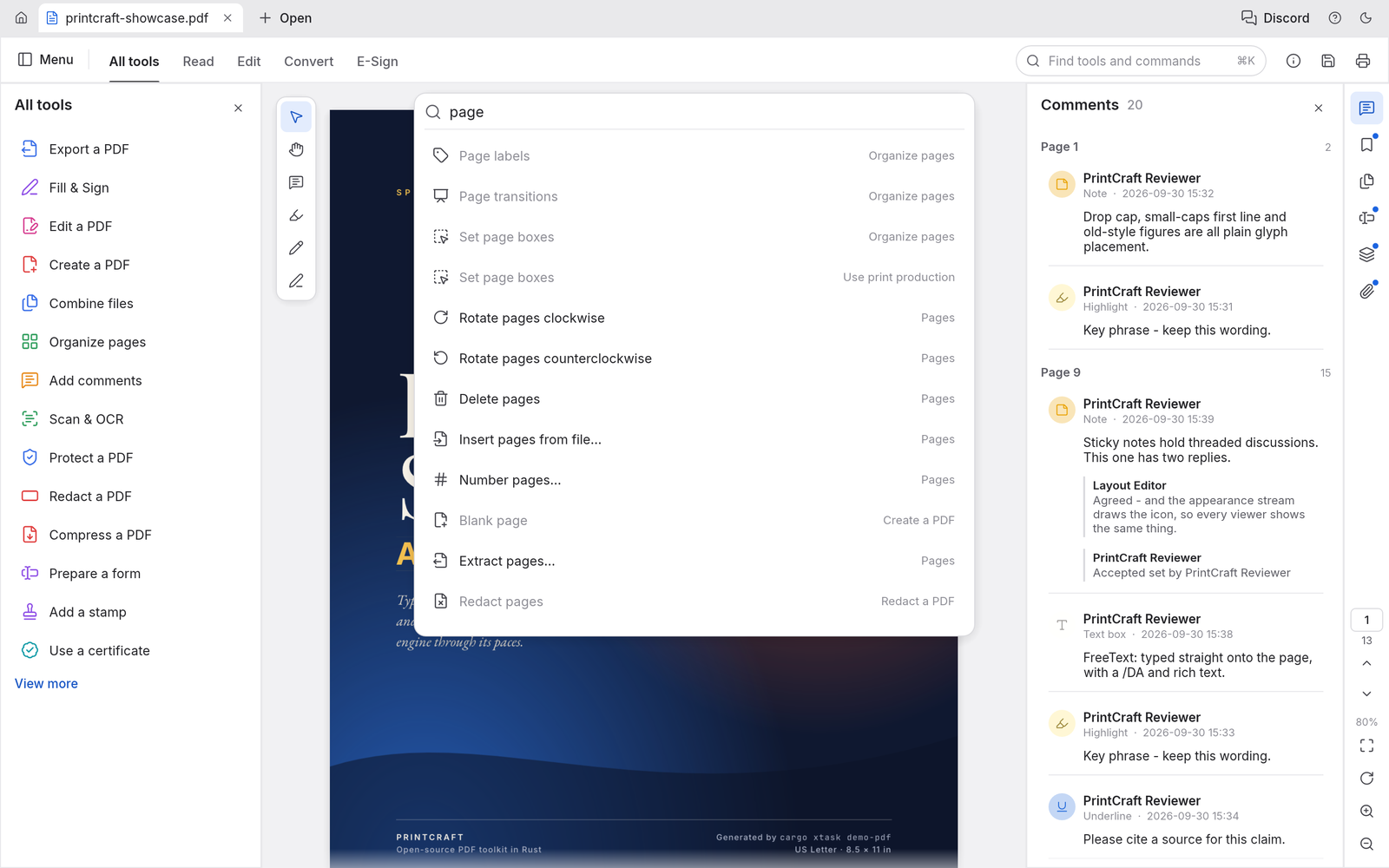
| Command palette | Search page operations when a control is hard to find. |
Example settings
| Setting | Example |
|---|---|
| Inputs | Two two-page PDFs |
| Order | A.pdf, then B.pdf |
| Expected count | Four pages |
| Example output | combined-review.pdf |
Follow the task
1. Open the combine task
Use File → Combine files…. The dedicated combine tab makes it easier to inspect the order of multiple PDFs than starting with a page-insert operation inside one existing document.
2. Add both documents
Choose Add files… and add A.pdf and B.pdf. Check that both files and their page ranges appear. Resolve any password or reading error before assuming the file will be included.
3. Set the document order
Use Move up / Move down, or a supported drag operation, to arrange A before B. Check that each range includes the whole document, not just a selected page.
4. Run Combine
Choose Combine. If the app offers to continue without an unreadable file, inspect what would be excluded and recalculate the expected page count rather than accepting the prompt blindly.
5. Inspect individual pages
Use Organize pages to inspect the final order. Search for page in the command palette to find operations such as Rotate, Insert, Delete and Extract if needed.
6. Open in another viewer
Save with a new filename. Check for four pages and confirm that the last page of A leads into the first page of B. Test text search and links if the document depends on them.
Expected output and the next small revision
Keep both original PDFs and the combined copy. Four pages alone do not prove the order is correct, so inspect titles and content at the join. Links, annotations and form behaviour can need checking too. PDF-to-Word is a separate operation: visible text after conversion does not establish that tables, line breaks and fonts are preserved.
Reading, splitting and combining are sensible first exercises. If Korean OCR, editable text conversion or electronic signatures are essential, test those particular results. A merged file that looks fine in one viewer does not cover every PDF workflow or printing requirement.
If you get stuck
If a file is excluded, stop and inspect its password, permissions or reading error before saving. Compare the result’s page count with the sum of both sources. Search in a scanned page requires OCR, which is different from merging. Likewise, merging a signed document does not establish that its signature remains valid.
Keep the last working copy separate from the problem file. Record the exact error and the step where it appeared. Changing several settings at once makes the cause harder to find. If you replace an input file, note that it is a different test rather than declaring the original successful.
Check before scaling up
- Compare order, rotation and links after merging the same two PDFs.
- Record errors in Korean editing and OCR of the same scan.
- Compare tables, line breaks and fonts after converting the same PDF to Word.
Record the first and last page titles, not just filenames, when planning a merge. This helps catch the wrong version when several files share a name. List any essential links, forms and signatures before working, then inspect those functions separately from page order.
Introduction · Task tutorial · Comparison: documented differences
Sources & further reading
- https://getartcraft.com/apps/pdfcraft
- https://github.com/storytold/pdfcraft/blob/main/README.md
- https://www.adobe.com/acrobat.html
- https://github.com/storytold/pdfcraft/blob/c1a41cc5c7c2460fb60af880af69ee28a0c71bd5/README.md
- https://github.com/storytold/pdfcraft/blob/c1a41cc5c7c2460fb60af880af69ee28a0c71bd5/crates/ui-egui/src/combine_ui.rs