FilmCraft tutorial: edit two clips into a 15-second promotional video
A documented, six-step guide to edit two clips into a 15-second promotional video, with source screenshots, editable files and output checks.
Last updated
Menus and supported features can change. Compare the source-check date below with your current app version.
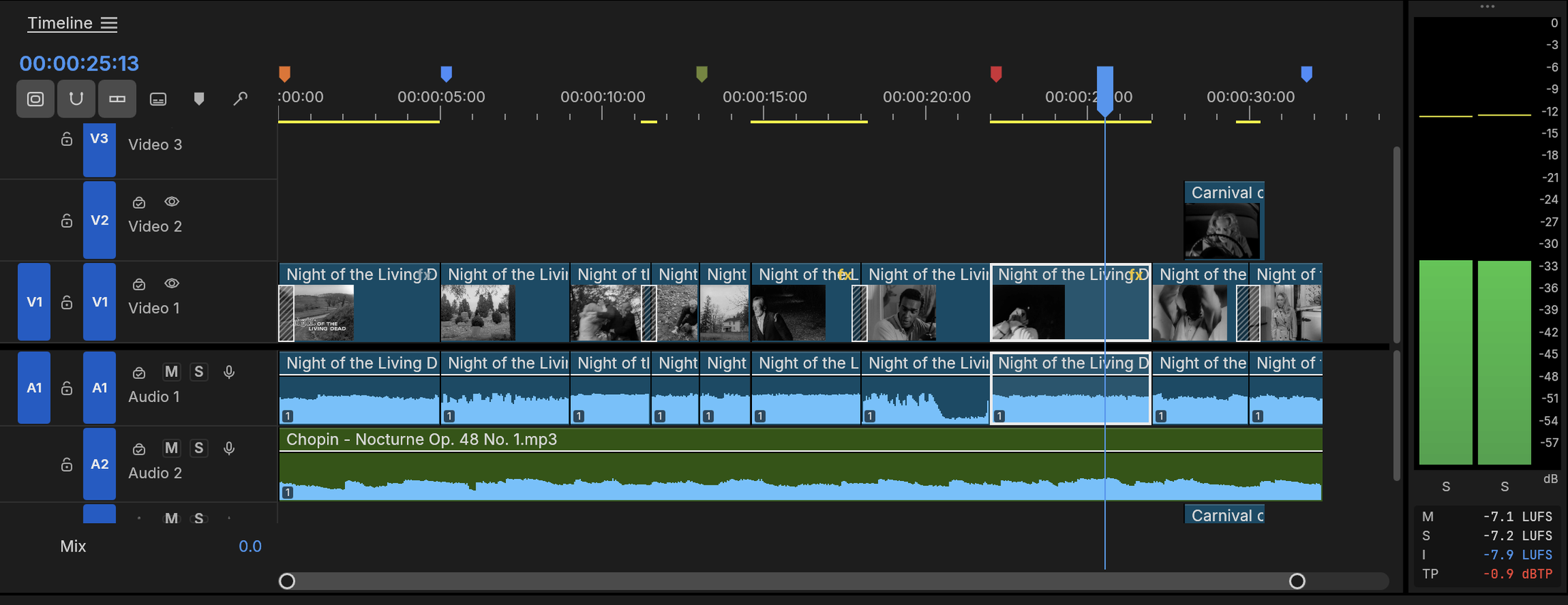
Let’s work towards one clear result: edit two clips into a 15-second promotional video. The aim is to keep something you can revise and something you can actually share, rather than learn every feature at once.
This walkthrough follows the developer’s public screens and menu descriptions. I have not run it myself, so the outputs below are expected results to verify, not a tested finished example. Keep the English menu names visible while following along; they also help when your installed version differs.
Before opening the project
Prepare: Two short MP4 clips you have permission to use, a short title and optional audio. Use the same original clips when comparing editors.
Check the official app page and release downloads for a build matching your operating system and CPU. If there is no suitable installer or the app does not start, read Get started/Quick start and known issues in the official README. Record the app version and OS when you try the task.
Use copies for the exercise and keep originals, working documents and exports in distinguishable folders. The documented stage is alpha / in development. Check the article’s source date against your installed version if a menu or supported format has changed.
Find the relevant controls
| Where to look | What it does |
|---|---|
| Source and Program monitors | Distinguish the selected source range from the final sequence. |
| Timeline | Adjust clip order, length and audio position. |
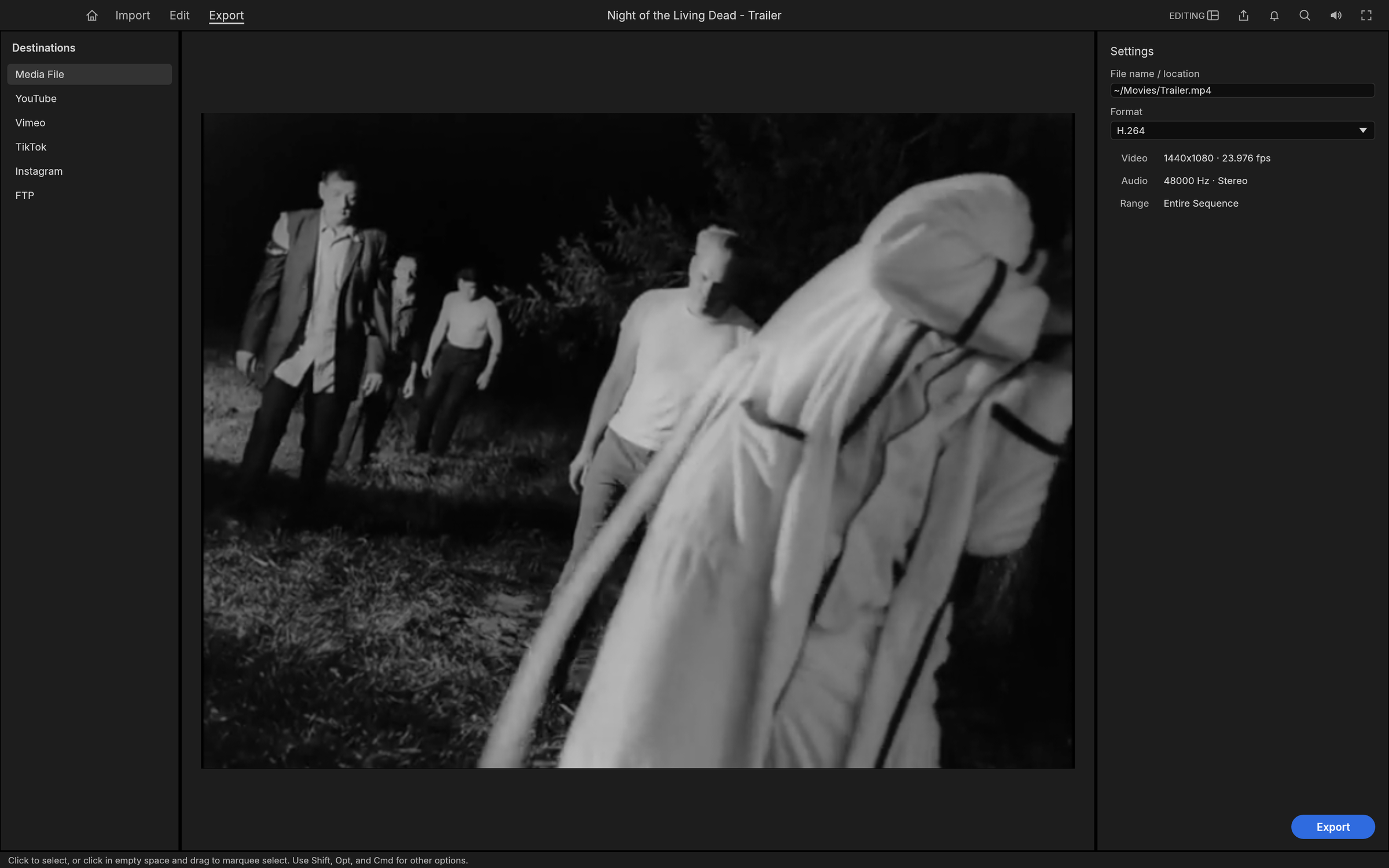
| Export | Check resolution, frame rate, range and audio output. |
Example settings
| Setting | Example |
|---|---|
| Total length | 15 seconds |
| Example split | 7 seconds followed by 8 seconds |
| Example output | 1080×1920, 30 fps, H.264 |
| Aspect ratio | Match sequence and export settings |
Follow the task
1. Import the media
Add both MP4s through the Import workspace or the documented media-import route. Check that they appear in Project and identify them by filename before placing them on the timeline.
2. Mark the source ranges
Open a clip in the Source monitor. Press I at the chosen start and O at the end. Use the documented insert operation or place the clip on the timeline, then repeat for the other clip.
3. Arrange a 15-second edit
Put the second clip after the first. Use Razor Tool (C) where a cut is needed. Play the whole sequence and look for empty sections or unwanted black frames, rather than checking only its displayed duration.
4. Add the title and sound
Use Type Tool (T) for a title and leave enough time to read it. Check voice and music tracks and their waveforms. Listen at the cut so volume does not change unexpectedly.
5. Check the export settings
Open the Export workspace. The documented shortcut notation uses Cmd on macOS and Ctrl combinations on Windows. Check H.264, dimensions, frame rate and the export range; do not simply accept the demo screenshot settings.
6. Inspect outside the editor
Save the project and a new MP4. In another player, check the beginning, cut and ending. For vertical video, inspect cropped edges, title placement and audio sync in particular.
Expected output and the next small revision
Keep the editing project together with its original video and audio, and save the delivered MP4 separately. An MP4 is the finished playback result, not an editable timeline. Reopen the project and change a cut or title, then compare the resulting duration with the first export. A preview that plays correctly does not guarantee that the encoded file has the same timing.
A new short video is a sensible first task. A project built around .prproj files or third-party effects is a different migration problem. A 15-second export also says nothing by itself about long edits, every phone codec or the speed of CPU rendering.
If you get stuck
If a phone clip previews or exports incorrectly, first play the original outside the editor. Record the codec, frame rate and FilmCraft version. Check whether the issue affects one clip or every clip. Inspect sequence and export start/end points and change one setting at a time; a replacement clip is a new input, not proof that the original worked.
Keep the last working copy separate from the problem file. Record the exact error and the step where it appeared. Changing several settings at once makes the cause harder to find. If you replace an input file, note that it is a different test rather than declaring the original successful.
Check before scaling up
- Compare cut positions, duration and voice sync using the same two clips.
- Record import, preview and export times plus errors on the same PC.
- Inspect missing titles and effects in actual XML/AAF/OTIO interchange.
Judge the edit’s communication as well as its length: the first scene needs reading time, the second needs a clear continuation, and music needs an intentional starting point. For a fair performance comparison, record importing, previewing and exporting on the same PC, including crashes and repair time.
Introduction · Task tutorial · Comparison: documented differences
Sources & further reading
- https://getartcraft.com/apps/filmcraft
- https://github.com/storytold/filmcraft/blob/main/README.md
- https://www.adobe.com/products/premiere.html
- https://github.com/storytold/filmcraft/blob/cee1feb185e675a108f78067f71ad86a640ace3d/README.md
- https://github.com/storytold/filmcraft/blob/cee1feb185e675a108f78067f71ad86a640ace3d/crates/ui-egui/src/menus.rs
- https://github.com/storytold/filmcraft/blob/cee1feb185e675a108f78067f71ad86a640ace3d/docs/keyboard.md