WordCraft tutorial: write a one-page notice with a heading and a table
A documented, six-step guide to write a one-page notice with a heading and a table, with source screenshots, editable files and output checks.
Last updated
Menus and supported features can change. Compare the source-check date below with your current app version.
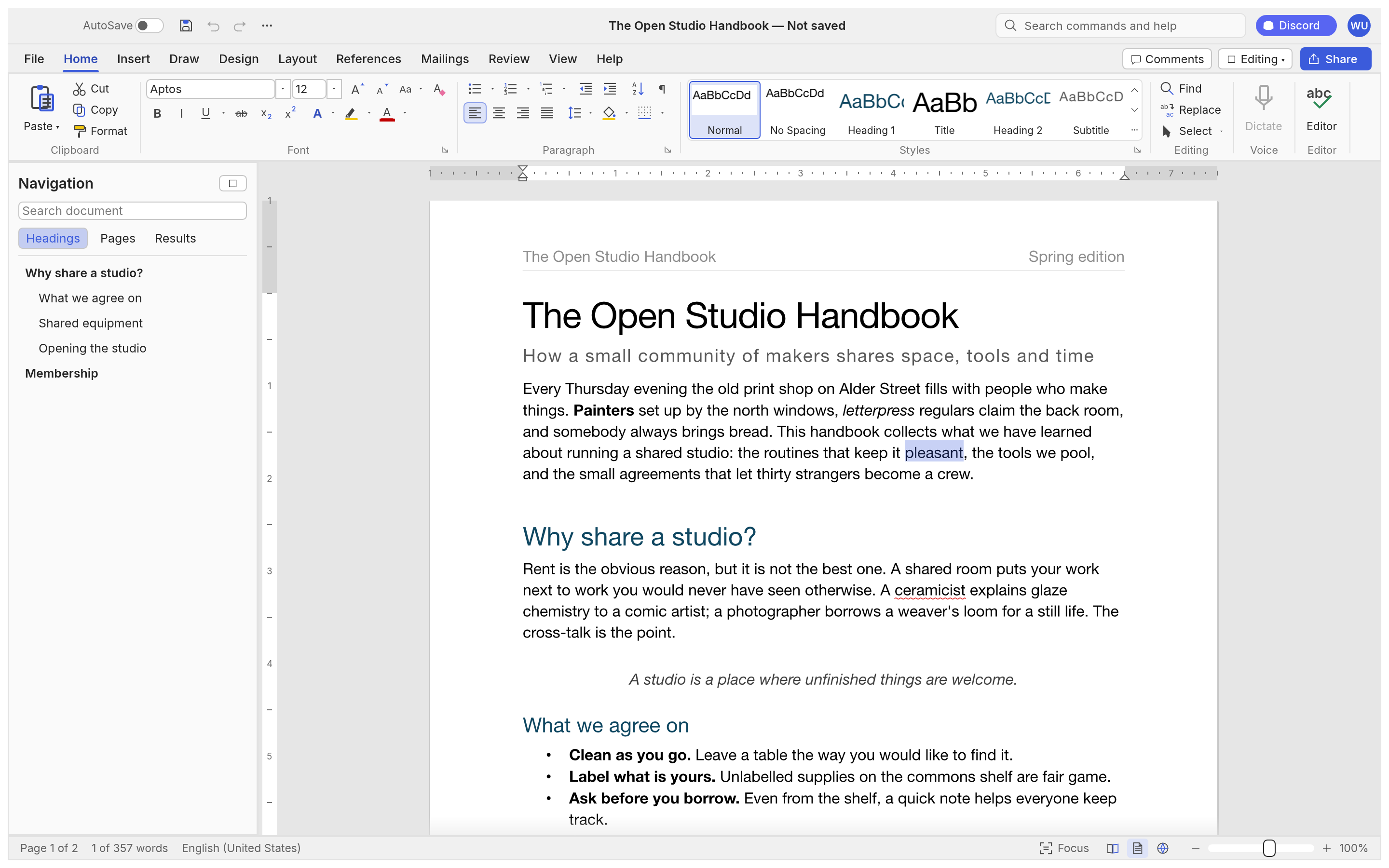
Let’s work towards one clear result: write a one-page notice with a heading and a table. The aim is to keep something you can revise and something you can actually share, rather than learn every feature at once.
This walkthrough follows the developer’s public screens and menu descriptions. I have not run it myself, so the outputs below are expected results to verify, not a tested finished example. Keep the English menu names visible while following along; they also help when your installed version differs.
Before opening the project
Prepare: A notice title, two short paragraphs and rows for Task, Owner and Date. Include one long task name to check table wrapping.
Check the official app page and release downloads for a build matching your operating system and CPU. If there is no suitable installer or the app does not start, read Get started/Quick start and known issues in the official README. Record the app version and OS when you try the task.
Use copies for the exercise and keep originals, working documents and exports in distinguishable folders. The documented stage is alpha / in development. Check the article’s source date against your installed version if a menu or supported format has changed.
Find the relevant controls
| Where to look | What it does |
|---|---|
| Home and Styles | Keep title and body formatting consistent. |
| Insert and Table | Organise items in rows and columns. |
| Save As and Export | Retain an editable DOCX and a separate PDF. |
Example settings
| Setting | Example |
|---|---|
| Example title | Weekly work notice |
| Table | Task / Owner / Date, three columns |
| Body | One purpose paragraph and one notes paragraph |
| Output | Editable DOCX and readable PDF |
Follow the task
1. Start a blank document
Use File → New. Set paper size and margins first, and choose a font that supports the text you will use. For a Korean notice, check that the font contains Korean characters.
2. Apply heading styles
Enter the title and choose Title or a Heading style under Home → Styles. Use Normal for the body. This creates a clearer basis for later changes than formatting each character separately.
3. Arrange paragraphs
Enter the two paragraphs and adjust paragraph spacing. Avoid creating all spacing with repeated blank lines, which can make pagination fragile when the text changes.
4. Insert a three-column table
Use Table under Insert and label the columns Task, Owner and Date. Add a long task name to check that cell width and wrapping remain readable.
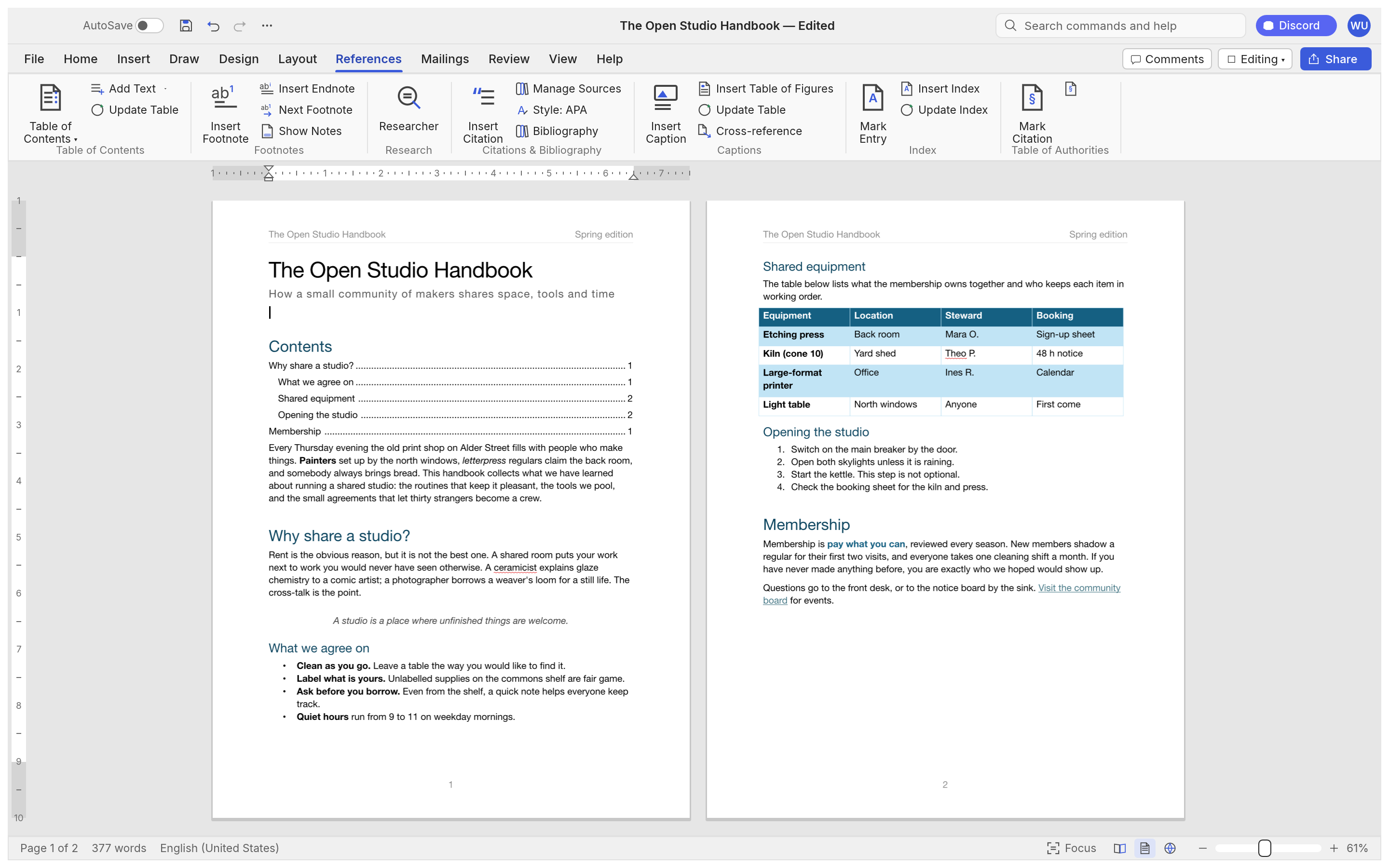
5. Save the DOCX
Use File → Save As with a new filename. Reopen it and try changing a heading style and table cell. Seeing the page is not enough if those objects are no longer editable.
6. Export a PDF
Use the PDF route under File → Export, or examine the documented CLI convert route. Check page count, text and table layout in the PDF, and retain the original DOCX too.
Expected output and the next small revision
DOCX is the file for revising text and tables; PDF is the copy for checking and reading the layout. Keep both. In another app, inspect heading styles and cell widths, not only whether the document opens. In the PDF, inspect fonts and page count. A table rendered as an image may look fine but cannot serve the same editing purpose.
A short new notice or repeated conversion is a useful first exercise. Complex charts, SmartArt, exact print specifications and negotiated review changes need separate file tests. A clean one-page PDF does not establish preservation of every DOCX object or author/change state.
If you get stuck
If the notice becomes two pages, inspect fonts, line spacing and long text inside the table in that order. Changing margins immediately can hide the cause. Keep lettering readable instead of shrinking everything to force one page. Compare DOCX and PDF pagination to locate whether layout changed during export.
Keep the last working copy separate from the problem file. Record the exact error and the step where it appeared. Changing several settings at once makes the cause harder to find. If you replace an input file, note that it is a different test rather than declaring the original successful.
Check before scaling up
- Compare line breaks and page count with identical fonts, margins and paragraphs.
- Inspect table widths, image positions and charts in the same DOCX.
- Round-trip comments and tracked changes, comparing authors and change states.
Separate reusable wording from the date and person that change each week. Styles and tables should carry the structure into the next revision. For a conversion batch, inspect pages and fonts as well as file count; finishing more files is not helpful if every file needs its layout repaired.
Introduction · Task tutorial · Comparison: documented differences
Sources & further reading
- https://getartcraft.com/apps/wordcraft
- https://github.com/storytold/wordcraft/blob/main/README.md
- https://www.microsoft.com/en-us/microsoft-365/word
- https://github.com/storytold/wordcraft/blob/04f6f53b8a4d8140c7bb62f949b0a6099a473da1/README.md
- https://github.com/storytold/wordcraft/blob/04f6f53b8a4d8140c7bb62f949b0a6099a473da1/crates/ui-egui/src/backstage.rs