PhotoCraft: what it does and what to check first
An event date changes, and the title on a promotional image needs updating.
Last updated
Menus and supported features can change. Compare the source-check date below with your current app version.
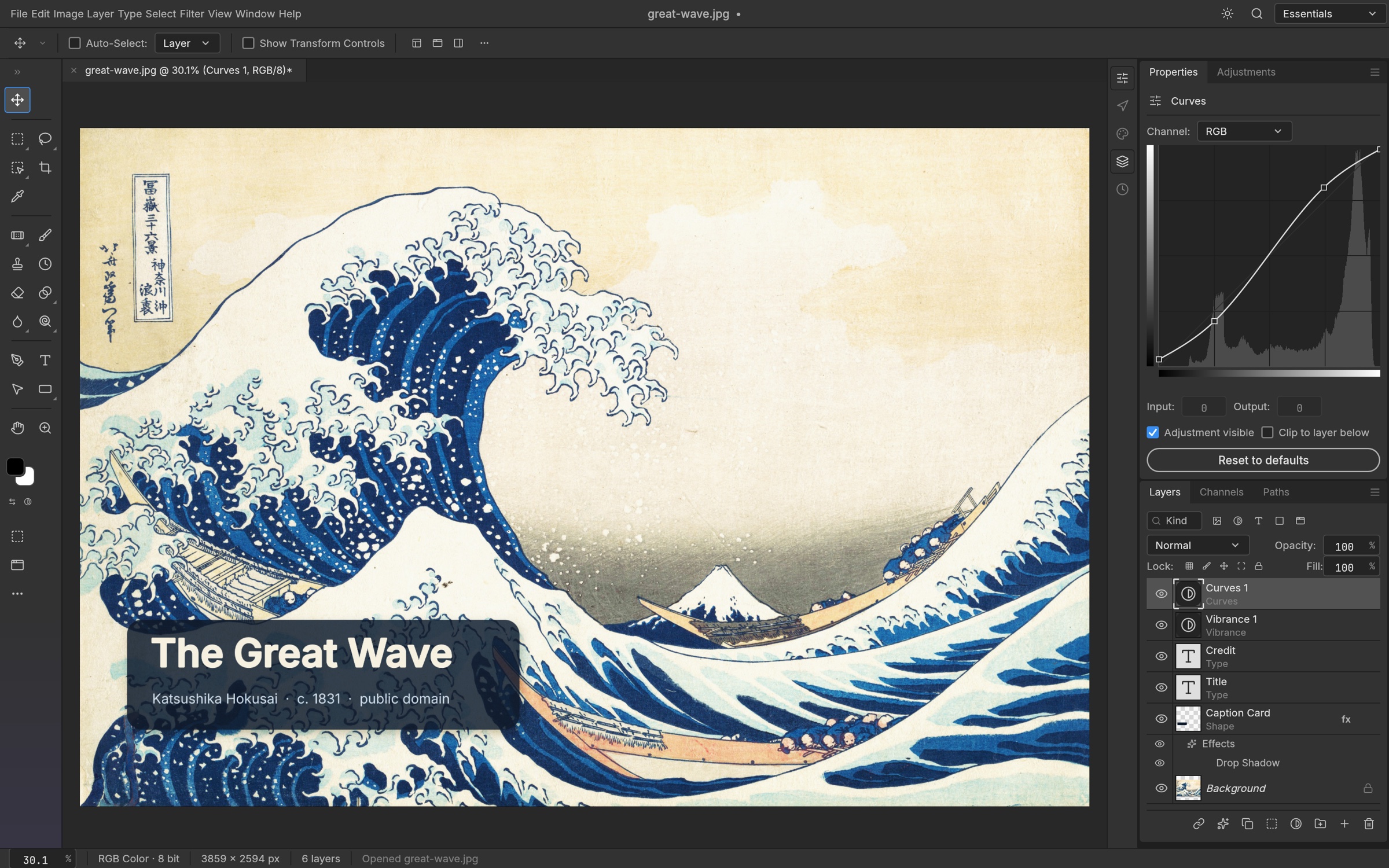
An event date changes, and the title on a promotional image needs updating. If the photo and lettering were flattened into one image, that small change can mean rebuilding the design. PhotoCraft is interesting here because it treats the photo, text and adjustments as separate layers. I would start with that ordinary task before moving a complicated Photoshop project.
The checked material describes early alpha. I have read the public documentation; I have not installed and run this app for a hands-on review.
A look at the screen
| Where to look | What it does |
|---|---|
| Layers | Keep the photo and title independently selectable. |
| Type and character settings | Choose the font, size and colour of the title. |
| Export As | Separate the working document from the shared image. |
What the documentation describes
- Edit photos, text, brushes and shapes in layers; use masks to choose an affected area and adjustment layers to change brightness or colour.
- The documentation describes reading and saving PSD/PSB files, with text and effects kept within an editable document.
- The same editing engine is designed to be controlled through the graphical interface, a command-line interface (CLI), or an agent connection (MCP).
What interests me beside Photoshop
The local editor and command-based workflow are what caught my attention. A command line lets a script request an edit; MCP gives an agent a connection to tools. Neither means every Photoshop feature has an equivalent, or that the app can generate any image you ask for. AI-assisted development, built-in generative features and an agent controlling ordinary editing functions are different things.
The developer describes free, open-source, local work. Open source means the code is available to inspect. I have not measured a speed or total-cost advantage. For Photoshop, check the official product and plan information for the terms that apply in your region.
The limitation I would check first
The developer describes remaining gaps in generative features, professional typography and plug-in compatibility, and does not present this as a replacement for everyday professional Photoshop work. Opening a PSD is only the first check: masks, adjustments, fonts and effects must also survive saving and reopening. A workflow that depends on a particular Photoshop plug-in needs its own compatibility test.
A small first task
For the first exercise, let’s make a promotional image with a photo and a title. Prepare: One JPG you took yourself, a short title and a target size of 1080×1080 pixels. Include a Korean title if Korean text is part of your real work.
Check the official app page and release downloads for a build matching your operating system and CPU. If there is no suitable installer or the app does not start, read Get started/Quick start and known issues in the official README. Record the app version and OS when you try the task.
The separate tutorial gives the menu sequence and an expected result. It is a documentation-based exercise, not a claim that I completed it. AI-assisted development, an app’s built-in AI features and an agent operating existing functions need to be distinguished when judging an automation claim.
Keep the working file and the delivery file
The PSD is for the next edit; the PNG is for sharing. Keep both without overwriting the original photo. Reopen the PSD and change one word while leaving the photo intact. Toggle the adjustment layer and inspect masks and fonts as well as the layer list. In the PNG, check the actual pixel dimensions, square crop and readability of Korean characters if you used them.
If the result differs
If the title uses a different font after export, check the installed font separately from the image dimensions. If the edges are cropped, inspect the canvas and export size. Change one setting at a time so you can identify the cause. On Linux Wayland, if drag-and-drop fails, the README points to File → Open as the alternative route.
What I would verify before a bigger job
- Save and reopen the same masks, adjustments, fonts and effects in both apps.
- Compare edges, Korean lettering and colour in equal-size PNGs.
- Repeat the same title and size changes, recording manual corrections.
A small layered thumbnail is a useful first exercise. It does not settle whether generative filling, existing plug-ins or a complex PSD delivery workflow will work. If those are the main reason you use Photoshop, test those requirements explicitly before changing your normal process.
For repeated title changes, first prepare a document in which the photo and text can be selected independently. Specify the wording, position and output size separately. Check one image before extending the operation to a batch; automation cannot check that you chose the right original photo on your behalf.
Introduction · Task tutorial · Comparison: documented differences
Sources & further reading
- https://getartcraft.com/apps/photocraft
- https://github.com/storytold/photocraft/blob/main/README.md
- https://www.adobe.com/products/photoshop.html
- https://github.com/storytold/photocraft/blob/ed7df56a2455375240959bae6e5273a71d858d84/README.md
- https://github.com/storytold/photocraft/blob/ed7df56a2455375240959bae6e5273a71d858d84/crates/ui-egui/src/menus.rs