DeckCraft tutorial: make a three-slide problem, solution and next-step presentation
A documented, six-step guide to make a three-slide problem, solution and next-step presentation, with source screenshots, editable files and output checks.
Last updated
Menus and supported features can change. Compare the source-check date below with your current app version.
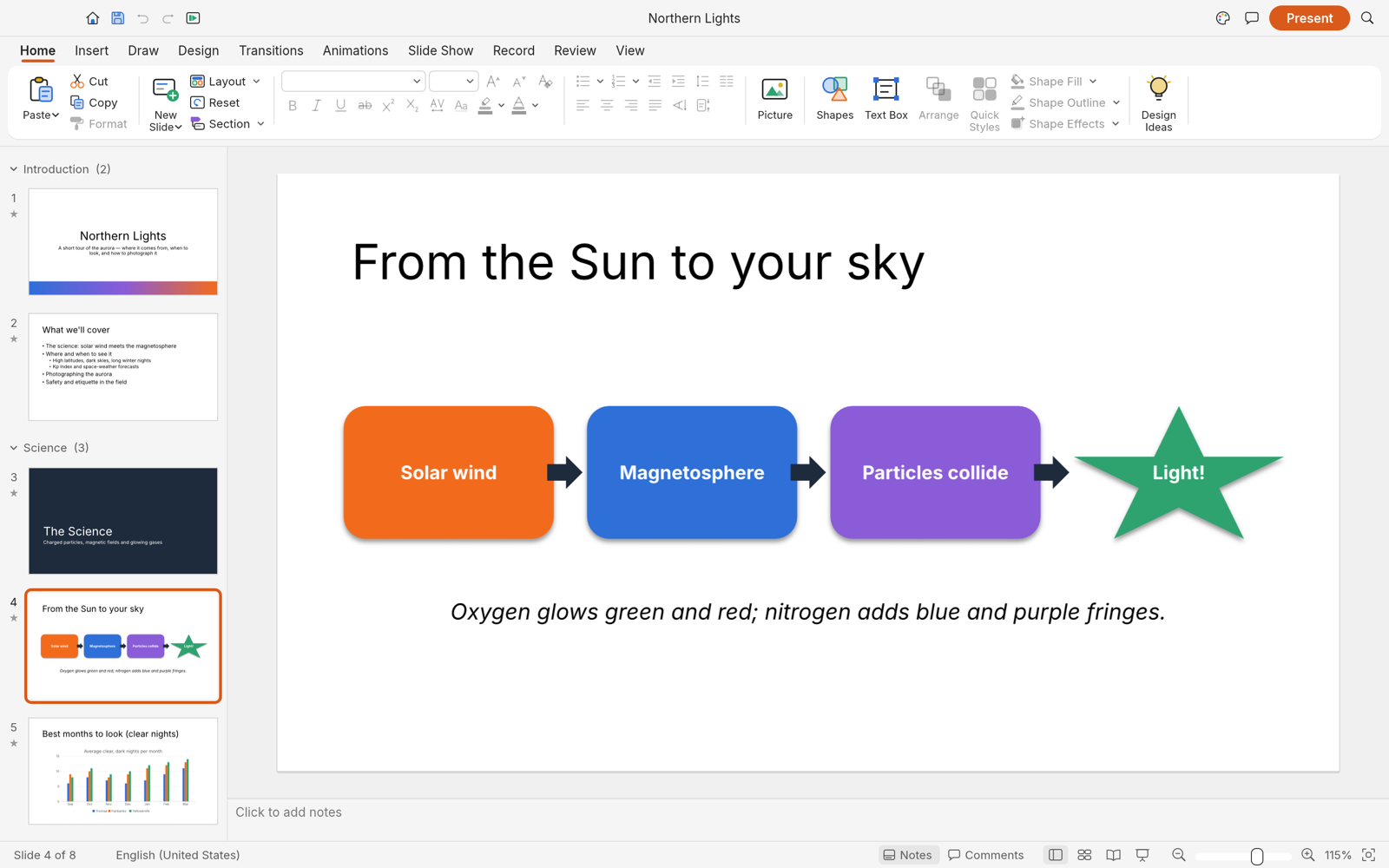
Let’s work towards one clear result: make a three-slide problem, solution and next-step presentation. The aim is to keep something you can revise and something you can actually share, rather than learn every feature at once.
This walkthrough follows the developer’s public screens and menu descriptions. I have not run it myself, so the outputs below are expected results to verify, not a tested finished example. Keep the English menu names visible while following along; they also help when your installed version differs.
Before opening the project
Prepare: Three pieces of content: a problem, a solution and the next step, plus an image or simple table. Keep wording short and place spoken detail in notes.
Check the official app page and release downloads for a build matching your operating system and CPU. If there is no suitable installer or the app does not start, read Get started/Quick start and known issues in the official README. Record the app version and OS when you try the task.
Use copies for the exercise and keep originals, working documents and exports in distinguishable folders. The documented stage is alpha / in development. Check the article’s source date against your installed version if a menu or supported format has changed.
Find the relevant controls
| Where to look | What it does |
|---|---|
| Slide list | Set and inspect the order of the three slides. |
| Insert | Add pictures, tables or charts. |
| Notes and Slide Sorter | Check spoken detail and overall flow. |
Example settings
| Setting | Example |
|---|---|
| Slide count | Three |
| Example ratio | 16:9 |
| Order | Problem → Solution → Next step |
| Output | PPTX and PDF |
Follow the task
1. Create the presentation
Use File → New Presentation, choose a theme and dimensions and enter the first slide title. Keep the first deck small enough to inspect every slide.
2. Add two slides
Use New Slide twice. Give the three slides distinct jobs: explain the problem, show the solution and state the next action. Check that the titles reflect that sequence.
3. Add a visual
Use Insert → Picture from File… or Table…. Prefer one key sentence and a useful visual per slide to a block of paragraphs that is hard to read during a talk.
4. Check notes and text
Add what you will say in Notes while keeping the slide text short. Choose the actual presentation font. If Korean text is used, inspect its wrapping and character support.
5. Inspect order and present
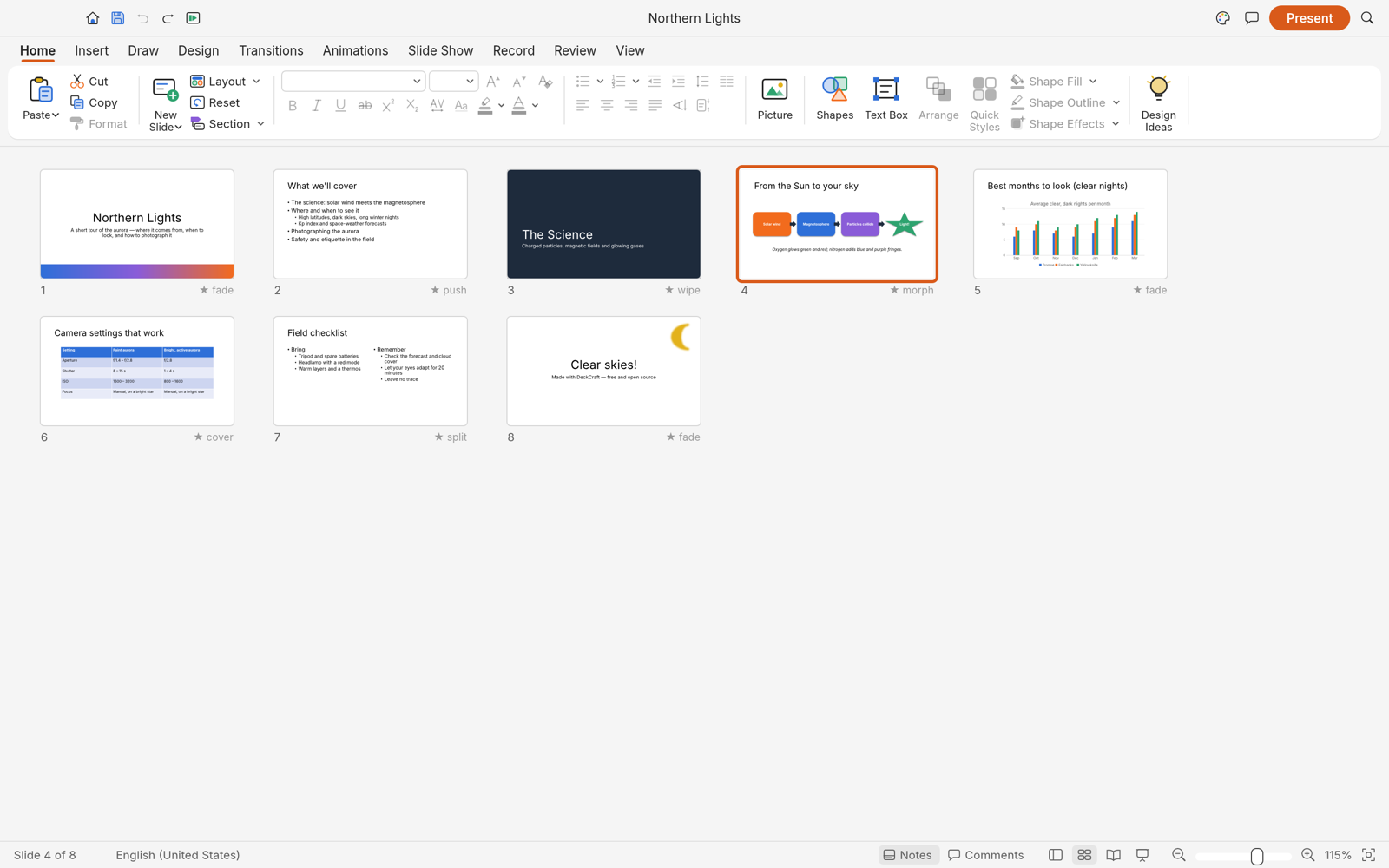
Use View → Slide Sorter, then Slide Show. Reduce unnecessary transitions and inspect consistent typography and margins across all three slides.
6. Save both deliverables
Use File → Save As… for PPTX and File → Export… for PDF. On another presentation device, check the PPTX fonts, pictures and tables; a PDF alone does not exercise playback.
Expected output and the next small revision
Keep the PPTX to revise text, tables and pictures, and a PDF to inspect the static layout. The PDF cannot stand in for speaker notes, media or transitions. Reopen the PPTX, edit one item and play the sequence again. For an existing corporate template, inspect masters and editable chart objects as well as the visible slide.
A small new presentation can help inspect the basic authoring and delivery flow. It does not establish complete preservation of a complex PPTX or every animation. The final presentation device matters, particularly when the font installed during editing is missing there.
If you get stuck
If text shifts on another computer, inspect installed fonts and text-box dimensions first. Check chart and image positions separately. After reordering slides, run the presentation again. Treat importing a complex template as a different test from creating three new slides; the source media, masters and transitions can introduce other issues.
Keep the last working copy separate from the problem file. Record the exact error and the step where it appeared. Changing several settings at once makes the cause harder to find. If you replace an input file, note that it is a different test rather than declaring the original successful.
Check before scaling up
- Save the same PPTX in both apps and inspect editable shapes and charts.
- Check slide order, animations, speaker notes and media.
- Compare Korean line breaks and layout on a device missing the original font.
Let the content flow guide design: one problem, a clear solution and an actionable next step. Notes should support speaking rather than fill the slide with extra text. Compare matching slide sizes and fonts, and inspect both an editable deck and its PDF before judging how easily the workflow can be repeated.
Introduction · Task tutorial · Comparison: documented differences
Sources & further reading
- https://getartcraft.com/apps/deckcraft
- https://github.com/storytold/deckcraft/blob/main/README.md
- https://www.microsoft.com/en-us/microsoft-365/powerpoint
- https://github.com/storytold/deckcraft/blob/457406a7a5b62425e915926c8ccb0984e61a198c/README.md
- https://github.com/storytold/deckcraft/blob/457406a7a5b62425e915926c8ccb0984e61a198c/crates/ui-egui/src/menus.rs