Firefly Design: edit one poster element and export a PNG
Build a small practice poster, use AI Assistant on one selected element, undo unwanted changes and inspect a full-artboard PNG.
Last updated
Menus and supported features can change. Compare the source-check date below with your current app version.
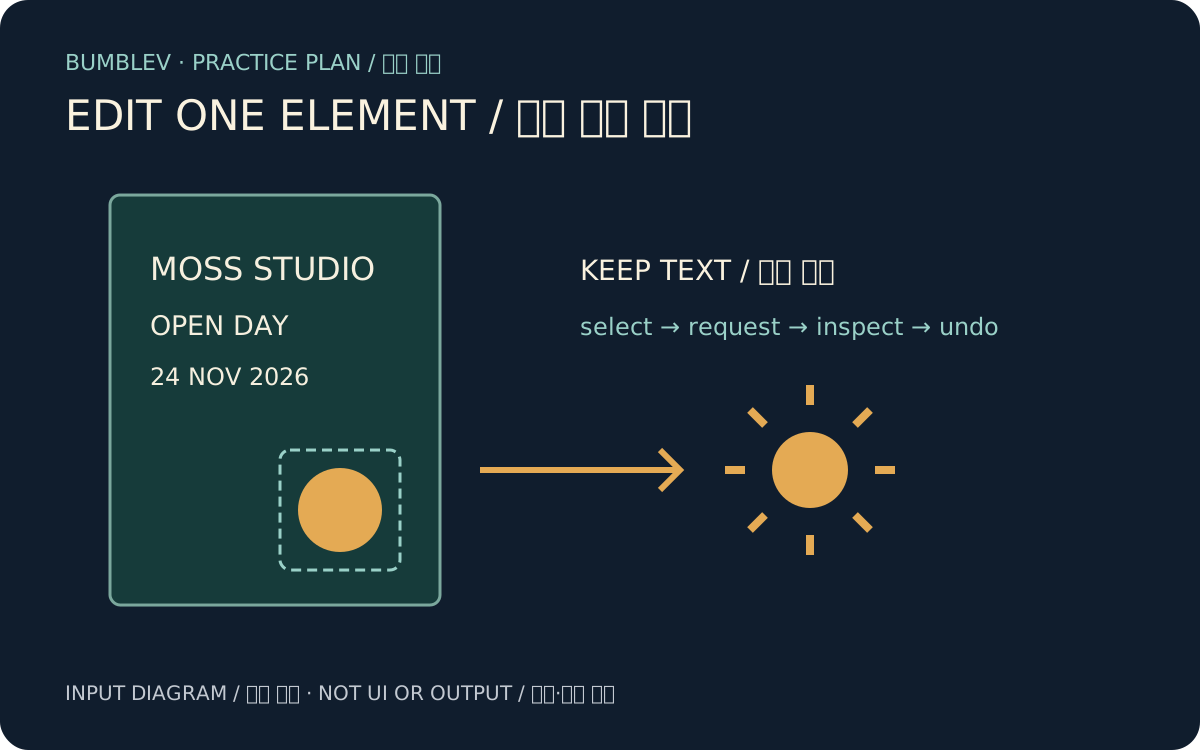
When a poster is nearly finished, regenerating the whole image to change one decoration can disturb its text and layout. This exercise uses Firefly Design to edit one selected element and undo an unwanted change. A small document with separate text and shapes makes the preservation checks explicit.
The guide uses Adobe documentation and an original demonstration checked on November 16, 2026. Firefly Design and its AI Assistant are described as beta. We have not generated, edited or exported this poster in an authenticated account. The brief and checks below are practice inputs and expected outcomes for you to verify.
What to look for in Adobe’s demonstration
Open Adobe’s original video · Official product page linking the demonstration
Adobe’s Firefly Design Sizzle Video provides context for working across media on one canvas. We confirmed playback in the original player. It is a product overview, not a complete recording of our practice prompt or every export control. Follow the current help pages for the actual procedure. An original-video link remains available if embedding fails.
Access and computer requirements
Sign in with an Adobe ID at Adobe Firefly. Open Design or Firefly Design from the left panel. The getting-started page uses Design, while the assistant instructions use Firefly Design, so follow the label actually offered to your account. Do not substitute Firefly Boards or the general image generator.
Opening a browser is not the only requirement. Adobe’s technical requirements call for hardware-accelerated WebGPU. The Windows guidance specifies Windows 11 24H2 or newer with current Chrome or Edge; the Mac guidance lists Apple silicon M1 or newer with current Chrome or a supported macOS/Safari combination. A hardware-accelerated WebGL status alone does not establish WebGPU support. Compare your exact OS and GPU with the source.
The AI Assistant FAQ lists paid Creative Cloud subscribers, some free Adobe accounts, and adult users aged 18 or older; K–12 and some legacy enterprise plans are excluded. If the workspace or feature is absent, check beta access and compatibility. This guide does not promise free generation, unlimited use or identical language quality for every account. Check the entitlement for the requested assistant operation and model. Evaluate any upgrade requirement before spending; no subscription or generation was purchased while preparing this article.
Prepare a poster with separate elements
Choose New blank design. Select the artboard using Select, then enter a width of 1080 and height of 1350 in Properties. These are our practice dimensions. Use Text for the title and supporting lines, and a 2D shape tool for one circle. Leave space between the decoration and the text.
Color setup is optional for this first exercise; you can begin with the default shape. The teal, cream and amber below are an optional example palette. We have not established an exact manual color-entry path, so it is not a required procedure here. Continue once the three text lines and one circle are separate elements.
Practice poster: MOSS STUDIO / OPEN DAY / 24 NOV 2026.
Fictional event and brand; no real contact information.
Artboard: 1080 x 1350 pixels.
Optional example palette: teal #163B3A, cream #F6F0DF, amber #E4AA54.
Use default colors if manual color setup is unavailable.
Accent: one circle, separate from the text.
Goal: change only the selected circle, preserving the three text lines.
Delivery file: moss-open-day-v1.png
Unlike importing a flattened finished poster, this exercise needs the circle and lettering to be separate elements. Importing one JPG does not automatically make its lettering editable text. Starting with simple objects keeps the selection and acceptance checks clear.
Ask AI Assistant to modify only the circle
Select the circle, then open AI Assistant from the upper left. Your selection can provide context. Adobe also documents Open AI agent in the contextual taskbar on selected artwork. Whichever entry you use, check the selected object before sending.
This is an editing brief, not a guarantee that the assistant will preserve every requested detail. Inspect the output against the input.
Copyable editing request
Modify only the selected circle in this fictional event poster.
Turn it into a simple sun-like accent with eight short rays.
Use amber #E4AA54 for the accent and keep its current position.
Do not change the artboard size, background, or any text.
Keep these lines exactly: MOSS STUDIO / OPEN DAY / 24 NOV 2026.
Do not add photos, logos, contact details, extra words or animation.
Enter the request and select Send once. Answer follow-up questions without expanding the task beyond the selected decoration. Read the title, event name and date before judging the new accent’s shape and placement. A pleasing decoration with an altered date is not a completed result.
Undo and compare with manual editing
Adobe’s keyboard reference lists Ctrl+Z or Command+Z for Undo. If text or unrelated artwork changes, undo and inspect whether the unwanted operation was actually reversed. Shortcuts can conflict with the browser or OS; do not press repeatedly without checking the result. Distinguish editing characters inside a text object from manipulating canvas objects.
Manual Properties editing is another option for a one-element change. AI can help explore a shape, but a single color correction may be clearer to perform directly. Compare the two on your document; this article has not measured which is faster.
| Check | Completion criterion for this exercise |
|---|---|
| Three text lines | Spelling, spacing and date match the brief. |
| Decoration | Only the selected element changes and it does not cover the title. |
| Artboard | The 1080 × 1350 composition remains. |
| Undo | An unwanted change is visibly reversed. |
| Delivery image | The whole poster opens, not just an isolated decoration. |
Export the whole poster as a PNG
Deselect the decoration and select the whole artboard. Use the contextual Export icon, choose PNG under Formats, review the available Scale and Background settings, then select Export. This is a one-poster export rather than a multi-asset Export Center batch. Adobe’s export instructions distinguish object and artboard output.
Keep the downloaded file under a clear name such as moss-open-day-v1.png. Open it in an image viewer, check all three text lines, the decoration and background, and inspect its actual pixel dimensions. A PNG is a delivery image; it is not a substitute for the document’s separate editable text and shapes.
Record the editing document’s name and current URL separately. Reopen that document using the same account and verify that the text and shapes really remain. We have not verified its native save format or an autosave-completion screen, so a successful download alone does not establish that the editable document is safely retained. Treat a missing document and a good PNG as separate outcomes.
Common obstacles
For a blank or unavailable workspace, check supported OS, browser, WebGPU and graphics acceleration. Ask the administrator about managed settings rather than weakening them. If export contains only the decoration, select the entire artboard before trying again. If the assistant changes a title, undo, narrow the selection and state the exact text to preserve.
This article teaches an external tool in Tools. A later showcase of an original work made with it is a different kind of article: keeping the tool instructions and the maker’s build story distinct helps readers know what they will learn.
Sources & further reading
- https://helpx.adobe.com/firefly/web/firefly-design/get-started/get-started-on-firefly-design.html
- https://helpx.adobe.com/firefly/web/firefly-design/get-started/technical-requirements.html
- https://helpx.adobe.com/firefly/web/firefly-design/use-ai-assistant/start-a-chat-with-ai-assistant.html
- https://helpx.adobe.com/firefly/web/firefly-design/get-started/keyboard-shortcuts.html
- https://helpx.adobe.com/firefly/web/firefly-design/export-designs/export-designs-and-assets.html
- https://helpx.adobe.com/firefly/web/firefly-design/export-designs/supported-export-formats.html
- https://helpx.adobe.com/firefly/web/firefly-ai-assistant/ai-assistant-faq.html
- https://www.adobe.com/products/firefly/features/design.html
- https://video.tv.adobe.com/v/3504074