ComfyUI: One-task guide
Follow the documented ComfyUI shortcuts to save a workflow as JSON, reopen its node graph and queue it. Check models, dependencies and output separately.
Last updated
Menus and supported features can change. Compare the source-check date below with your current app version.
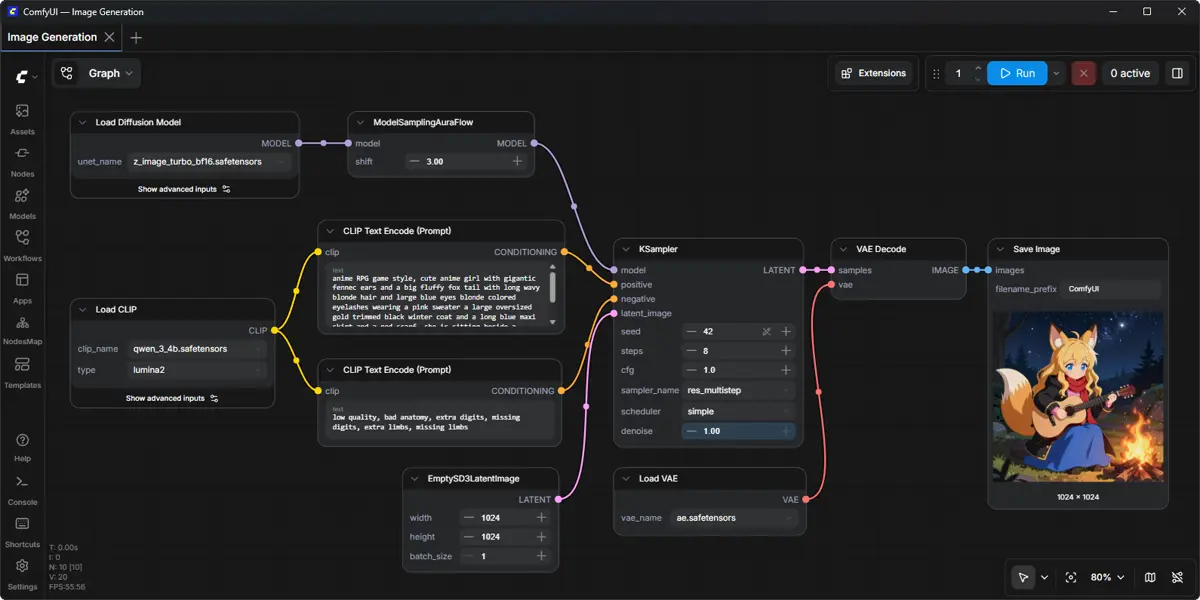
This guide follows official ComfyUI documentation to explain one task: save an existing compatible local image workflow, reopen it, and queue the same graph. The application was not run for this article, so the outcomes below are expected results to verify on your own setup.
ComfyUI v0.42.0 was published on October 18, 2026 (UTC). Sources were checked on October 25, 2026. ComfyUI uses a modular node graph for AI creation; this guide concentrates on workflow files and documented keyboard actions. D1 F1
One completion goal
Keep a workflow you can reopen and inspect before another generation attempt. Saving, loading and queue submission are separate checkpoints. A graph appearing on screen does not prove that its models and dependencies are available or that an image has been generated. The official shortcuts are Ctrl+S for saving, Ctrl+O for loading and Ctrl+Enter for queueing the current graph. F8
Prerequisites and files
Prepare a working local installation and an image workflow compatible with its models and extensions. The desktop application is available for Windows and macOS; manual installation has separate requirements. The README also documents installation through comfy-cli, but this task assumes setup has already been completed. F4 F11
For a manual installation, check models/checkpoints for SD checkpoint files and models/vae for VAE files. Keep a note of which files the workflow uses. A workflow JSON records a graph; do not assume that saving it also packages every model or installs extensions on another machine. The README describes workflow JSON storage and model locations separately. F5 D2
Example input
Use this as a record for an exercise or later comparison. The filename and prompt are proposed examples, not a supplied complete graph or a result from our testing. Use an existing compatible image workflow; the checked README does not provide every prompt-field label or a universal layout for all workflows.
Workflow file: local-image-workflow.json
Prompt: a yellow ceramic cup on a plain wooden table
Record the exact model, VAE, seed and software versions.
If your workflow has different requirements, record those differences before comparing results. Do not paste an invented partial JSON structure into the application and assume it is a validated template. The purpose here is to preserve and reopen a workflow that already has the necessary structure.
Step 1: save the current workflow
With the intended graph active, press Ctrl+S. Choose a filename such as local-image-workflow.json and keep track of where it is stored. Saving a workflow is the documented action; the exact file dialog and download location depend on the environment and are not established by the shortcut table. F8
Keep the original file while experimenting so that you have a reference for your next check. Record model and extension details alongside it. This is a suggested file-management practice, not an automatic backup feature verified in this article.
Step 2: reopen and compare the graph
Press Ctrl+O and load the saved file. Inspect the nodes and connections against the graph you intended to preserve. The expected result is the compatible workflow appearing again. If the file opens but required components are absent, resolve that before treating the workflow as ready for generation. F8 D2
The README says macOS users can replace Ctrl with Cmd. Use the documented equivalent on your platform rather than assuming every operating system uses the identical key combination. Reopening checks the workflow structure; it does not certify all of its runtime dependencies. D2
Step 3: queue and inspect progress
Press Ctrl+Enter to queue the current graph. Use Q to toggle queue visibility and H to toggle history visibility. R refreshes the graph. These are the documented interface actions; exact visual placement can differ from older screenshots or a different frontend version. F8 F9
Expected result: with a compatible graph, model files and environment, the job can be submitted for execution. An error or an unfinished queue item is not a completed image. Inspect the recorded state and, if generation succeeds, open the actual output file. Its location and format depend on the workflow; this README alone does not establish a universal output-node label or menu path.
Completion criteria and reopening
Completion criteria are to locate the saved workflow file, reopen it, compare the graph, inspect queue and history state, and open the output if the run finishes. Keep the workflow record separate from the produced image so that you know which artifact preserves the process and which artifact is the visual result.
Repeat Ctrl+O with the file you saved when returning to the task. Verify the graph and required model files again after changes to the environment. This is a checking procedure, not a claim that the article’s task was executed or that a graph restores every dependency automatically. F8 F5
Troubleshooting and limits
The release notes state that CPU devices do not support fp8, nvfp4, mxfp8 or int8. Check that the selected model format fits the intended hardware. The manual-install notes describe possible Python 3.14 custom-node issues and suggest trying 3.12 when some dependencies have problems on 3.13. Those checks can narrow a setup problem without promising that they solve every failure. F6 F12
Finally, distinguish the local application from optional paid cloud or API services. Comfy Cloud is paid, and the README describes optional paid API nodes. Check the specific model and service conditions before running a workflow that uses them. No purchase, API generation or performance measurement was performed for this guide. F10 D2
Original BumbleV reading guide illustration; not a product screenshot or a result from our testing. Official release behind this illustration · CC BY 4.0 · 2026-10-25
Sources & further reading
- https://github.com/Comfy-Org/ComfyUI/releases/tag/v0.42.0
- https://raw.githubusercontent.com/Comfy-Org/ComfyUI/355cd6b14c92c19ac3188fe528e47a3f21ef5178/README.md
- https://raw.githubusercontent.com/invoke-ai/InvokeAI/6af20578bce65177ff9da43df0e82c788a2e14ae/README.md
- https://api.github.com/repos/Comfy-Org/ComfyUI