Is visitor analytics actually receiving your data?
Check the GA4 property, measurement ID, consent, incoming events, duplicate views, useful actions and campaign tags in eight illustrated steps.
Last updated
Official sources checked:
A tag can exist while the wrong property receives events or one visit is counted twice. This guide reviews a website GA4 setup from its destination through observable collection. It combines Google’s official guidance with practical checks. IDs and events in the illustrations are examples. Account menus vary, and an unobserved collection result should remain unfinished.
CHECK 01 / 8Are you looking at the correct property and web stream?
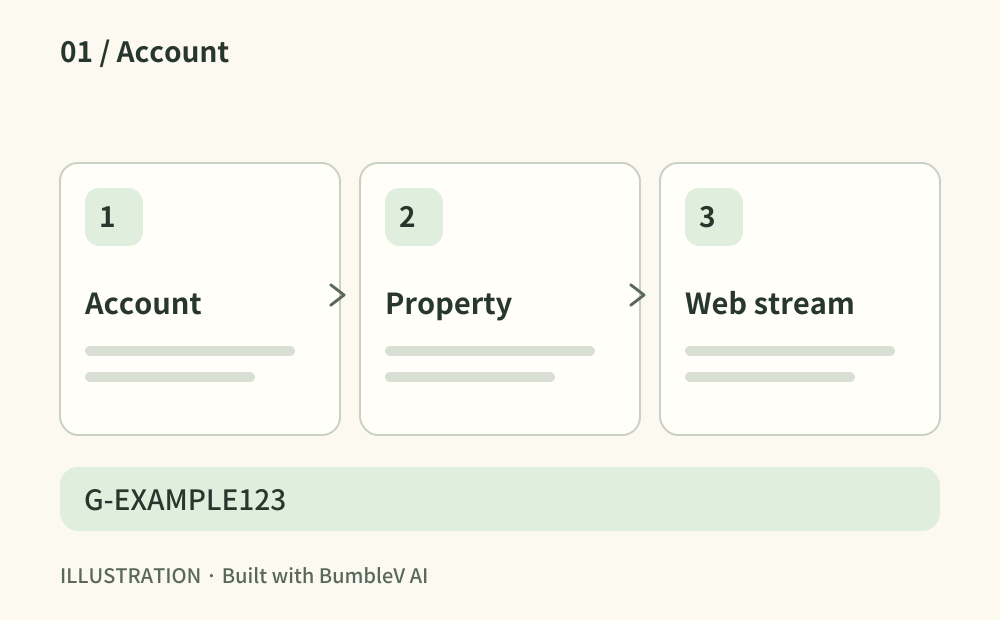
Select the intended Analytics account and property, then open its web data stream. Record the domain, measurement ID and reporting time zone. A G- measurement ID and a GTM container ID serve different purposes. Compare the stream details with production configuration before investigating an empty report.
- Where to look
- Analytics Admin → property → Data streams → Web
- When to tick this check
- The intended web stream and measurement ID are identified and the reporting time zone is recorded.
CHECK 02 / 8Does the published page send to the intended ID?
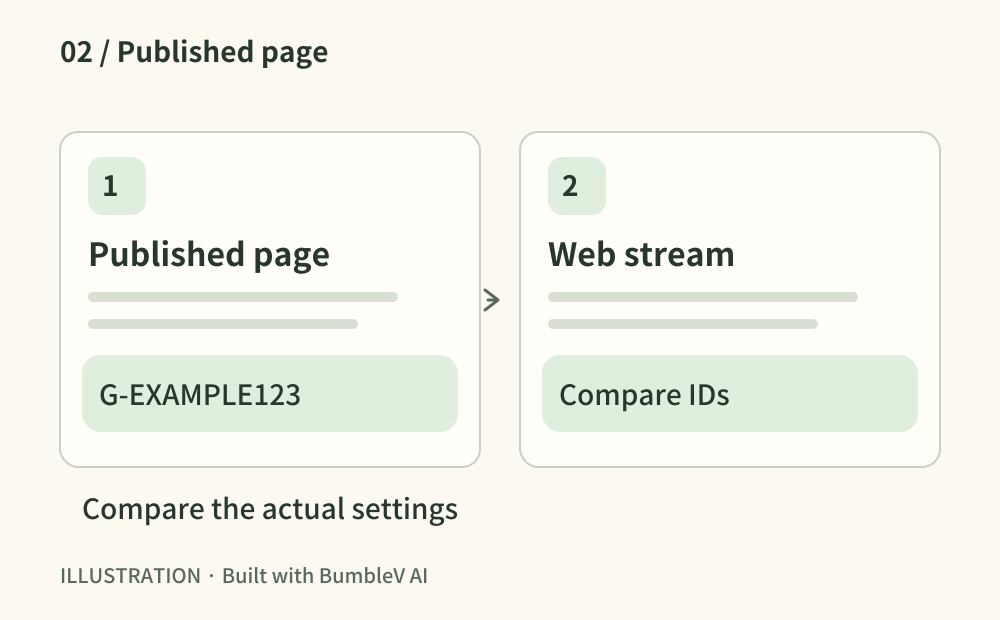
Identify whether your tag is installed directly or through Tag Manager. On the published home page and an article, inspect measurement requests and their destination ID in developer tools. Use an appropriate consented test session. A value saved in an environment file alone does not demonstrate delivery.
- Where to look
- Published page source · Network requests · tag installation route
- When to tick this check
- A controlled test session sends measurement requests to the intended GA4 ID.
CHECK 03 / 8Do consent choices change the measurement state?
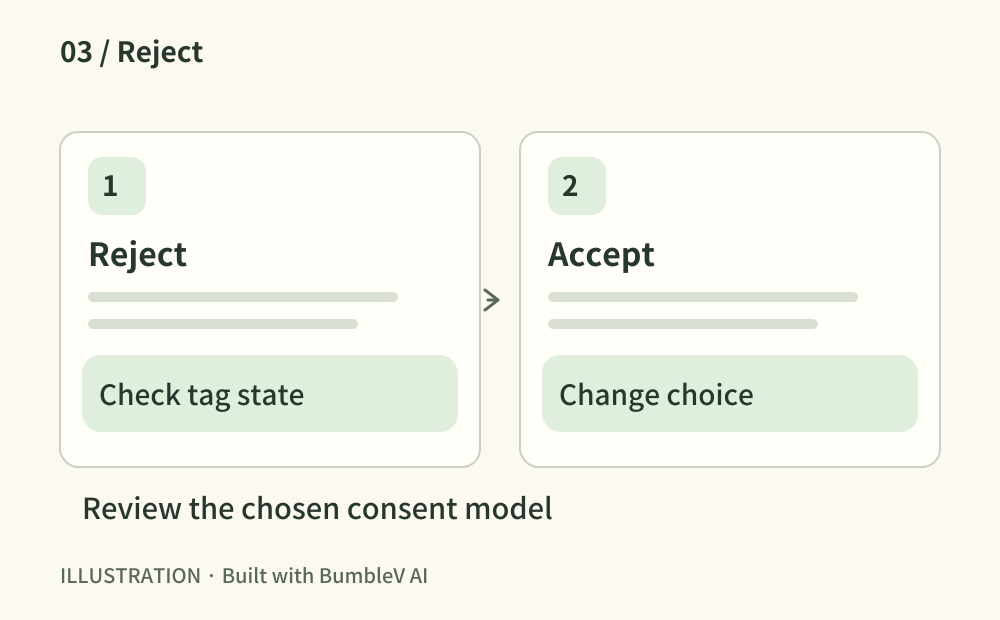
Test a first visit, rejection, acceptance and later changes. Match tag behaviour to your chosen implementation: basic consent mode blocks tags before consent, while advanced mode can send cookieless signals under denied consent. Do not assume every network request must disappear. Review the policy, banner and Analytics consent settings together.
- Where to look
- Consent banner · tag consent state · Analytics consent settings
- When to tick this check
- Observed behaviour matches the chosen consent model and visitors can revise their choices.
CHECK 04 / 8Can you see your controlled test event?
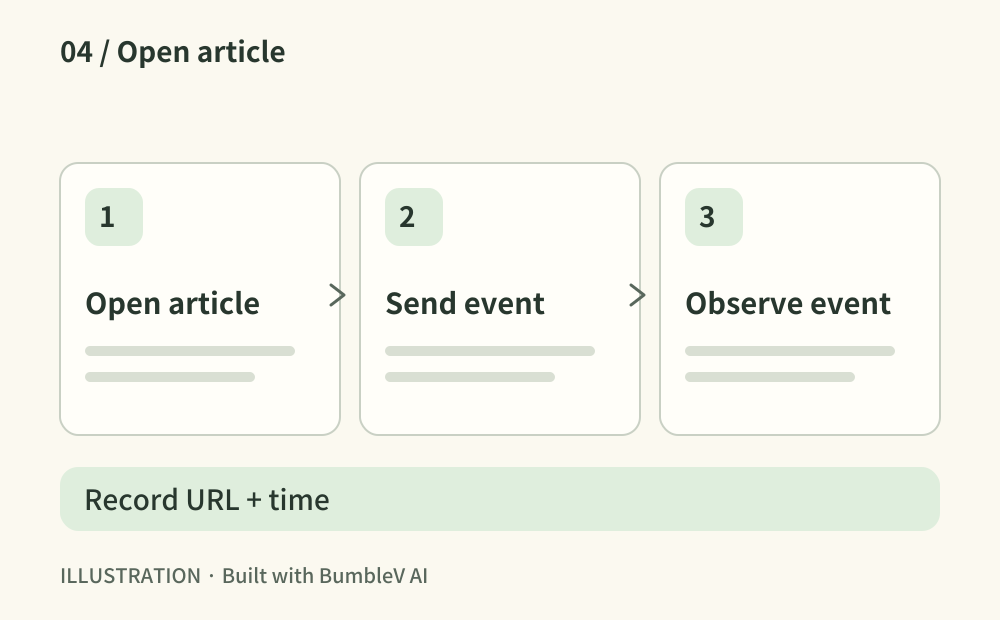
Visit a published article in another browser and look for the event in Realtime. For detail, use an explicitly debug-enabled test session and DebugView. Note the URL and time. If nothing appears, review consent, browser blocking, the destination ID and filters. Standard reports and a live debugging stream have different processing behaviour.
- Where to look
- Analytics Realtime · Admin → DebugView
- When to tick this check
- An incoming event matches the URL and time of your controlled test.
CHECK 05 / 8Are pageviews duplicated or missing on navigation?
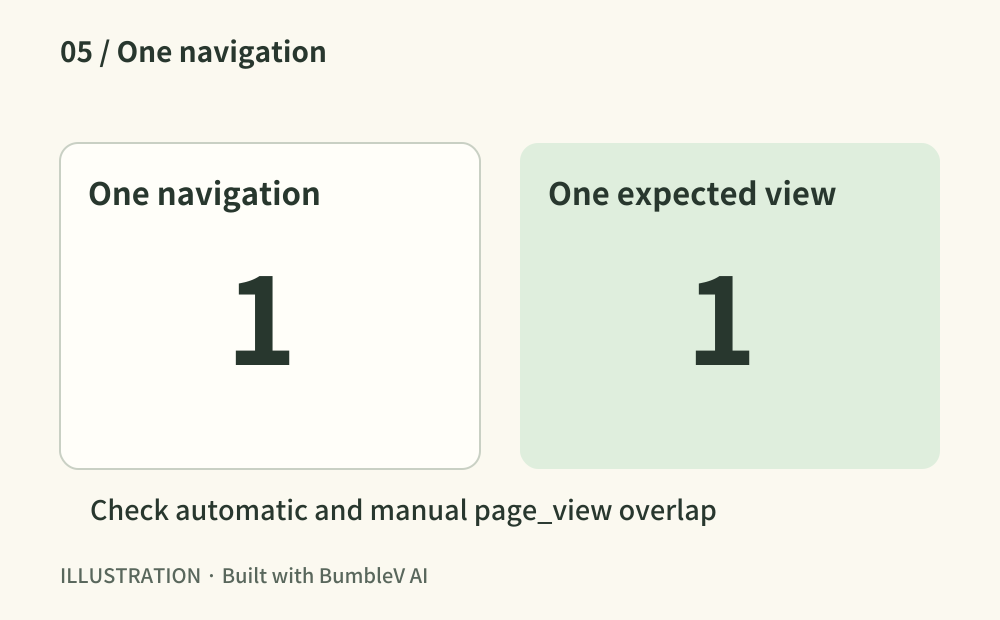
Count page_view events for a controlled navigation. Direct tags and Tag Manager can overlap; automatic and manual pageviews can also duplicate each other. For an app with client-side navigation, test an internal route and the Back button. Understand the collection routes before disabling any of them.
- Where to look
- page_view requests · tag installation locations · route transitions
- When to tick this check
- Observed pageviews match the declared navigation model without duplication or missed route changes.
CHECK 06 / 8Have you defined a useful action precisely?
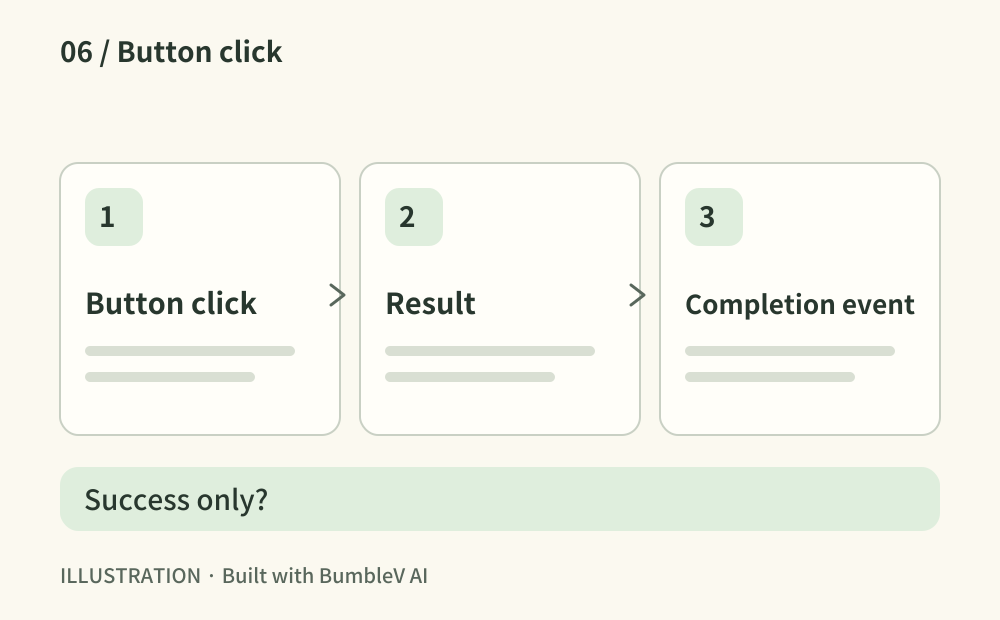
Choose one outcome you want to understand, such as a completed download or successful enquiry. Distinguish a button click from a completed submission. Review an applicable recommended event before creating a custom event. Test both a success and a failure so the event represents the intended outcome.
- Where to look
- Event definition · actual completion flow · DebugView
- When to tick this check
- The action, name and trigger are documented and success and failure tests behave as intended.
CHECK 07 / 8Can you identify a campaign link’s source?
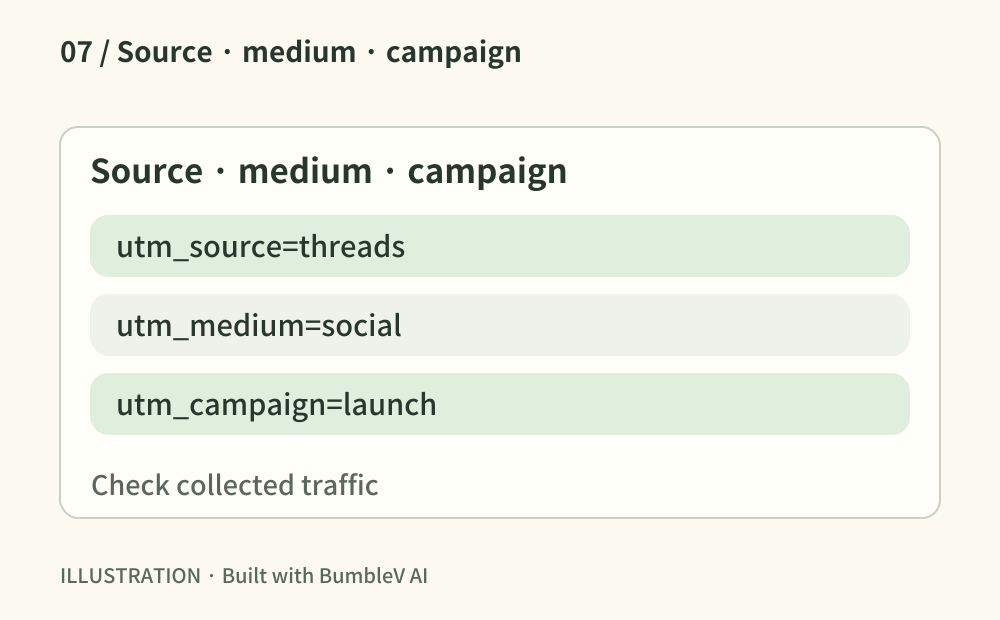
Where an external promotional post includes a site link, use a consistent UTM scheme if campaign measurement is useful. For example, source=threads, medium=social and campaign=launch. Test the full link and any redirects, then check the collected campaign in acquisition reporting. Do not tag every internal navigation link as a campaign.
- Where to look
- External promotional URL · landing URL · Traffic acquisition
- When to tick this check
- A naming scheme exists and a test visit is observed under the intended campaign.
CHECK 08 / 8Are your own tests distorting the reports?
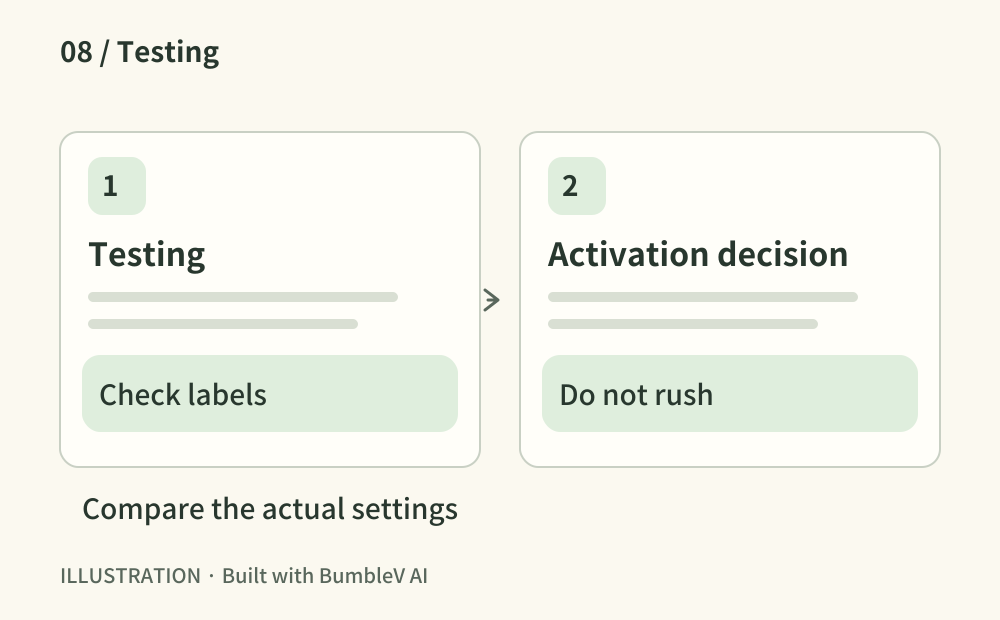
For a new site, your refreshes may dominate traffic. Decide whether internal-traffic rules are useful, and validate a data filter in Testing before activating it. Excluded data cannot later be recovered. Check both how a test visit is labelled and whether legitimate visits remain included, then document the decision.
- Where to look
- Web stream internal traffic rules · Admin → Data filters
- When to tick this check
- The test result and filter decision are recorded without unintentionally excluding legitimate visits.
Copy this prompt and paste it into your AI
Replace the placeholders with your URL, tools and current situation. Copy the full text into your AI to request all eight checks, verification of the public result and any remaining account tasks.
Sources & further reading
- https://support.google.com/analytics/answer/9304153?hl=en
- https://developers.google.com/analytics/devguides/collection/ga4/tag-options
- https://developers.google.com/tag-platform/security/concepts/consent-mode
- https://support.google.com/analytics/answer/7201382?hl=en
- https://developers.google.com/analytics/devguides/collection/ga4/views
- https://support.google.com/analytics/answer/9267735?hl=en
- https://support.google.com/analytics/answer/10917952?hl=en
- https://support.google.com/analytics/answer/10104470?hl=en