Recraft tutorial: Replace a product photo background and save a PNG
Replace one product background in Recraft Studio, check the handle and label against the original, and export a PNG.
Last updated
Menus and supported features can change. Compare the source-check date below with your current app version.
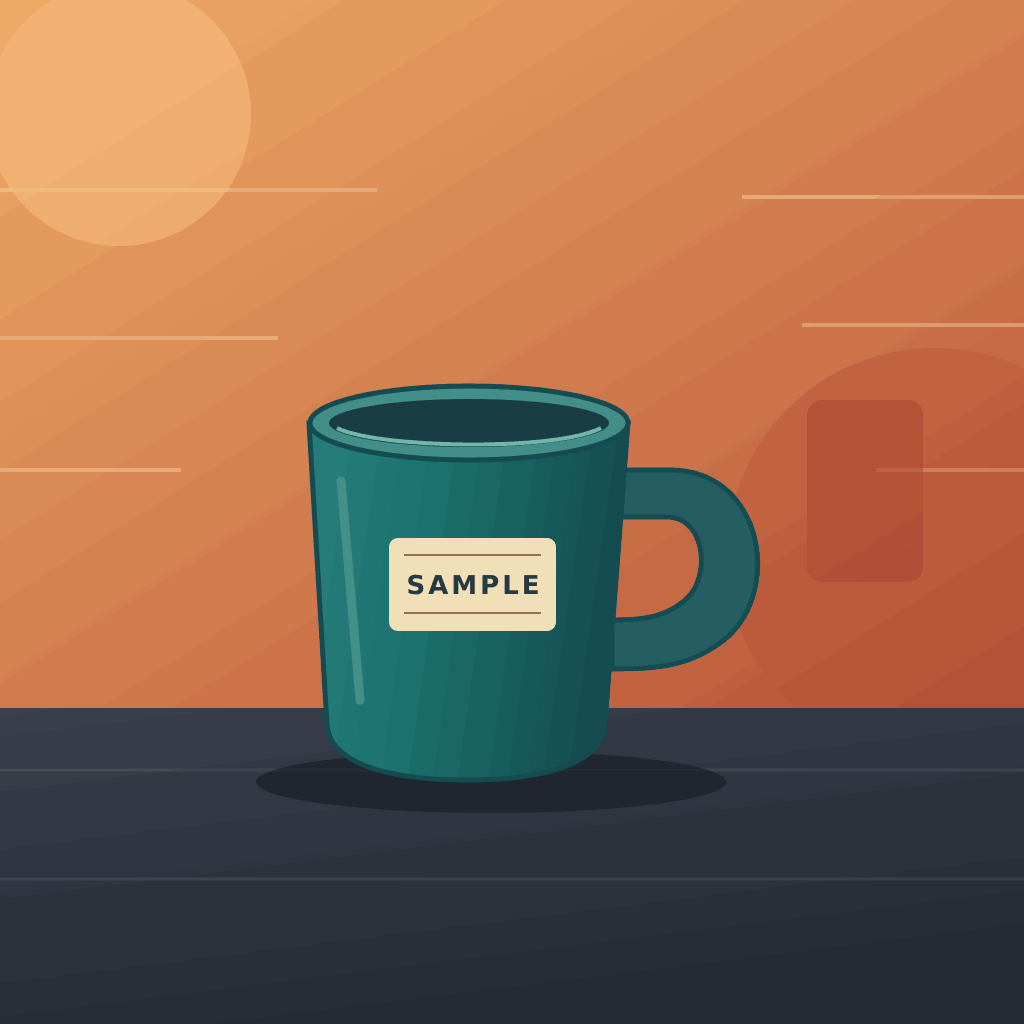
Replace the busy background of one product image with a warm beige studio setting. The goal is one PNG where the background changes and the mug still looks like the original. A polished background does not make up for a blocked handle or an altered label. Start with the practice image below so that you have something specific to check.
I checked Recraft’s official web editing and export instructions on November 8, 2026. I did not sign in, submit the example to Recraft or generate a result. The illustration is an input you can use in the exercise. It is not a product screenshot or a Recraft output.
1. Sign in and prepare one image
Open Recraft Studio in a desktop browser. There is no desktop installation for this exercise. If you are new, the official quick start lists email, Google, Discord and Apple as sign-in options. The email flow uses a one-time code. From Projects, choose Create new project to open an empty canvas. Give it a name you will remember, such as “Mug background practice.”
Download the practice mug PNG and save it locally. You can also use a photo you have permission to upload. Pick one with clear edges, a visible opening in the handle and a little room around the product. Keep the original in a separate folder. According to Recraft’s rights documentation, results generated on the Free plan are not licensed for commercial use and may appear in a public gallery. Practice with an image you can disclose, and review the current terms and the plan in effect when you generate an asset before using it for a product listing or ad.
Original BumbleV illustration supplied as the practice input. It is not a real product photo or a Recraft result.
2. Select the background and describe the change
- Drag the file onto the empty canvas or choose Upload image in the toolbar. Click the mug image once to select it. In the official interface walkthrough, look for the distinction between the Create and Chat controls on the left and the controls for the selected image on the right.
- In the selected image’s right panel, choose Modify → Change background. The background tools documentation says to wait for the background mask. The mask marks the area to change. If the selection covers the mug body or misses the space inside the handle, pause and check a clearer input before you spend another attempt.
- Paste the full prompt below into the prompt panel and choose Generate once. Leave the other settings at their defaults for this exercise and check any credit information shown in your account before you submit.
Replace only the area behind and beneath the mug with a light, warm beige studio wall and a matching matte tabletop. Keep the teal mug, handle opening, cream label and the letters SAMPLE, size, position and camera angle as in the original. Add a soft shadow beneath the mug. Do not add props, logos or new text.
The expected result is a new image on the canvas. Compare it with the source at the same zoom. Recraft’s November 5 announcement also documents GPT Image 2.6 Sunburst and Flare as options for general image editing. You do not have to choose either model to follow the dedicated background tool in this guide.
Recraft’s official background removal examples show a selected image and the cutout state. Remove background in that example makes the backdrop transparent. In this exercise, Change background asks for a new backdrop instead. The developer’s visuals are linked on the original page.
3. Check the product before you judge the backdrop
Compare four details: the mug’s outline, the opening in the handle, the cream label and its SAMPLE lettering, and where the mug sits in the frame. Even a good-looking scene is a poor product image if it changes one letter on the label or shifts the handle. Zoom in to look for orange fringes from the original background. Look at the base too: a shadow that starts away from the bottom can make the mug look like it is floating. The warm wall, matte tabletop and gentle shadow are targets, not guaranteed results.
If the generated edit repeatedly alters the label or shape, consider separating the mug first with Remove background, exporting a transparent PNG and compositing it over a separate backdrop. Inspect the edges and the space inside the handle before compositing. If exact product color and geometry are essential, keep the original available as your reference and leave a changed version out of the listing.
4. Export one PNG and open it again
Select just the finished image and choose Finalise → Export → PNG. The quick start also documents a right-click Export as… option. Save the file as recraft-mug-beige-v1.png, then open it from Downloads in a normal image viewer. Check that it contains the new beige background, that nothing is cut off at the frame edges and that its width and height fit the intended placement.
To edit again, return to the named project from Projects. Recraft’s importing documentation explains that edited versions are saved in the project’s History. Keep the downloaded PNG as the output to inspect or deliver and the project as the place where you can find and compare versions. Do not overwrite the original with the export.
5. Fix common problems
- Modify is missing. Select one actual image, rather than the empty canvas or an entire frame. The context panel changes with the selected object.
- The old background is still visible. Inspect the mask around reflections and shadows. Try a source with clearer edges, or make the new wall and tabletop easier to distinguish in the next prompt. Compare the first result with the source before spending more attempts.
- The downloaded file has a transparent background. You may have exported the cutout. For this exercise, select and export the new image that shows the beige backdrop.
Sources & further reading
- https://www.recraft.ai/docs/recraft-studio/quick-start
- https://www.recraft.ai/docs/recraft-studio/interface-overview
- https://www.recraft.ai/docs/recraft-studio/image-generation/context-panel
- https://www.recraft.ai/docs/recraft-studio/image-editing/background-tools
- https://www.recraft.ai/blog/ai-image-from-another-image
- https://www.recraft.ai/docs/recraft-studio/exporting-and-sharing/how-to-export-an-image
- https://www.recraft.ai/docs/recraft-studio/importing/about-importing
- https://www.recraft.ai/legal/terms
- https://www.recraft.ai/docs/plans-and-billing/commercial-rights-and-ownership
- https://www.recraft.ai/blog/gpt-image-2-6
- https://www.recraft.ai/background-remover