Getting Started with InvokeAI: A Creator’s Guide to Images and Canvas
Understand InvokeAI’s models, Canvas, fonts, and working files, then plan a manageable first image project with clear success criteria.
Last updated
Menus and supported features can change. Compare the source-check date below with your current app version.
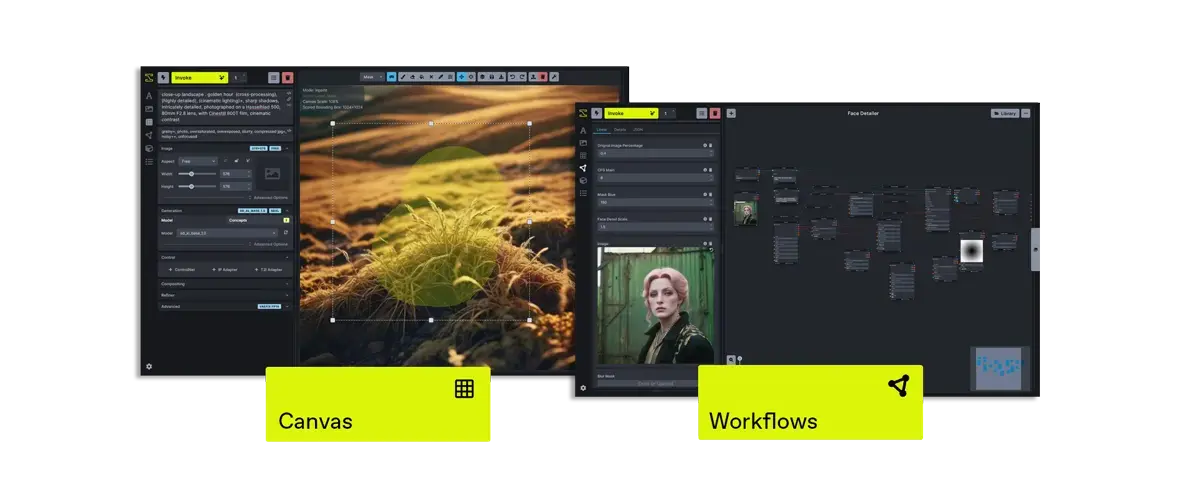
InvokeAI is useful when you want to keep working on an image after the first generation: choose a background, arrange a composition, place lettering, and preserve the work for another session. For a beginner, a sensible first project is a small promotional image with one photograph, one headline, and one supporting line.
This introduction uses the stable v6.14.2 release and its official documentation, checked on October 26, 2026. It is a source-based explanation, not a hands-on review or a speed comparison. The project describes an image-generation and creative workspace; the recommendations here explain how that fits a modest design task. Official project overview
Start with a job you can recognize
“Learn AI images” is difficult to finish. “Make a square image announcing Saturday’s coffee workshop” is much easier to evaluate.
Write down the message before opening the app. Who will see it? What should they read first? Which details must remain exact? A poster has different requirements from a background illustration. Its date, name, and address need deliberate checking even when the surrounding image is attractive.
For the first attempt, choose a picture you already own. This separates the decisions: you can learn composition and lettering before deciding whether to generate a new background.
What changed in this version?
The v6.14.2 release adds the ability to import custom fonts for the Canvas Text tool. That makes a practical lesson possible: use a font file you have chosen to place a short heading on an image. The same release also mentions a Krea-2 reference-image feature, but you do not need that model for the lettering exercise. Version 6.14.2
A font import is not a guarantee that every language or symbol will display correctly. Your actual wording is the test. For a Korean heading, inspect the Korean characters you will publish; checking an English word alone is not enough.
Understand the parts before changing settings
| Part | What it means for your first project |
|---|---|
| Background | The photo or generated image behind your message |
| Model | The image-generation system used when you create a new background |
| Canvas | The place to assemble the visible composition |
| Font file | The letterforms you want to use for the heading |
| Finished image | The flattened file you deliver or upload |
| Saved project | The state you keep so you can return to the composition |
InvokeAI’s image-generation guide introduces text-to-image, image-to-image, and Canvas work. Its model guide explains installing starter models. You do not need to learn every generation setting to understand the roles in the table.
The finished picture and the saved project serve different purposes. A client needs a usable image; tomorrow’s editing session needs your working materials. Treat delivery and continuation as two separate completion checks.
Decide whether local installation suits you
The official Launcher manages installation and updates. The hardware guide is the place to check your operating system, GPU, memory, and chosen model before making a large download. Installation · Requirements
Make a small inventory first:
- Where will the installation and model files live?
- Which background will you use for the first exercise?
- Which font file and wording will you test?
- Where will you save the final image and working files?
- What would count as a successful first session?
If installing models feels like too much at once, begin by organizing the background and copy. That preparation is useful even if you later choose a different creation tool.
There is also an important cost distinction. A locally installed workflow uses your machine’s resources. InvokeAI can additionally connect to external model APIs, whose usage is billed by their providers. The tutorial in this series does not require those connections. External models and billing
A practice brief with clear boundaries
Use this original brief:
Create a calm workshop announcement. Keep a cup or notebook on the right. Leave the left side for the heading “A SMALL PAUSE.” Put “Saturday · 10:00” below it. The heading should be easy to read when the image is viewed small. Prepare a finished image and keep the materials needed to change the date.
This brief is deliberately narrow. It gives you a subject, a layout preference, exact copy, and a revision task. It also exposes a common design problem: a background can look beautiful while leaving nowhere comfortable to place the words.
Make two rough layout decisions on paper before spending time on refinements. Try a heading near the top and another nearer the center. Choose the arrangement that makes the message easiest to understand.
How to judge your result
Review the final image as a reader would:
- Can you understand the event without zooming in?
- Is every character in the title and date correct?
- Does the photograph support the message rather than crowd it?
- Are the margins intentional?
- Can you locate the source photo, wording, font, and saved work again?
These are editorial criteria, not benchmark scores. A technically successful save is only one part of a useful result.
Once one image works, make a second version by changing only one variable: the headline, the background, or the font. Keeping everything else stable helps you explain why the new version is better.
The next tutorial walks through installation, custom-font setup, Canvas lettering, and saving. The comparison article then helps you decide when to continue composing directly on Canvas and when a reusable node workflow is worth learning.
Sources & further reading
- https://github.com/invoke-ai/InvokeAI/blob/11b6ee6e2b7bb2dfb4f9f8714525f2fdc62e591f/README.md
- https://github.com/invoke-ai/InvokeAI/releases/tag/v6.14.2
- https://github.com/invoke-ai/InvokeAI/blob/11b6ee6e2b7bb2dfb4f9f8714525f2fdc62e591f/docs/src/content/docs/concepts/image-generation.mdx
- https://github.com/invoke-ai/InvokeAI/blob/11b6ee6e2b7bb2dfb4f9f8714525f2fdc62e591f/docs/src/content/docs/concepts/models.mdx
- https://github.com/invoke-ai/InvokeAI/blob/11b6ee6e2b7bb2dfb4f9f8714525f2fdc62e591f/docs/src/content/docs/start-here/installation.mdx
- https://github.com/invoke-ai/InvokeAI/blob/11b6ee6e2b7bb2dfb4f9f8714525f2fdc62e591f/docs/src/content/docs/start-here/system-requirements.mdx
- https://github.com/invoke-ai/InvokeAI/blob/11b6ee6e2b7bb2dfb4f9f8714525f2fdc62e591f/docs/src/content/docs/features/External%20Models/index.mdx