Buzz tutorial: make a transcript and SRT from a short recording
Install Buzz v1.4.5, select a local multilingual model, transcribe Korean speech, review numbers and export files you can reopen.
Last updated
Menus and supported features can change. Compare the source-check date below with your current app version.
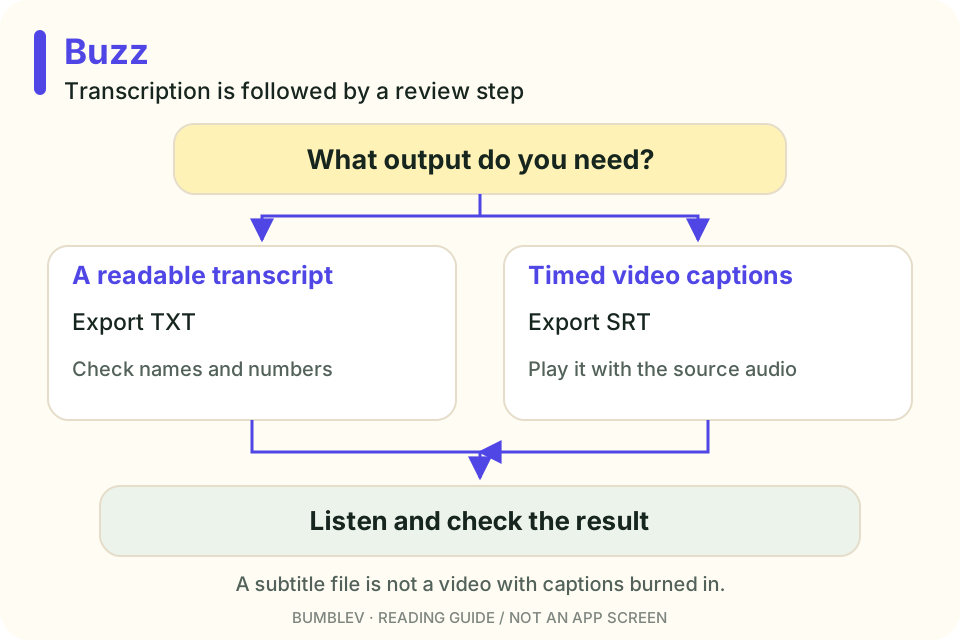
We will aim for two usable files from one short recording: a readable transcript and timed subtitles. A recording whose content you already know makes the first check much easier.
This is a documentation-based walkthrough for v1.4.5, not a recorded execution. Expected content comes from the fictional script below.
1. Download all Windows installer parts
On the official release page, expand Assets and get all three:
- Buzz-1.4.5-windows.exe
- Buzz-1.4.5-windows-1.bin
- Buzz-1.4.5-windows-2.bin
Keep them together in one folder and run the EXE. The BIN files are installer data. The release page also links the project’s SourceForge distribution.
For Apple Silicon, use Buzz-1.4.5-mac-ARM64.dmg; for Intel Macs, use Buzz-1.4.5-mac-X64.dmg. These instructions are specifically for v1.4.5. Linux users can follow the version-pinned Flatpak or Snap guidance. Installation
2. Prepare a short sample you can verify
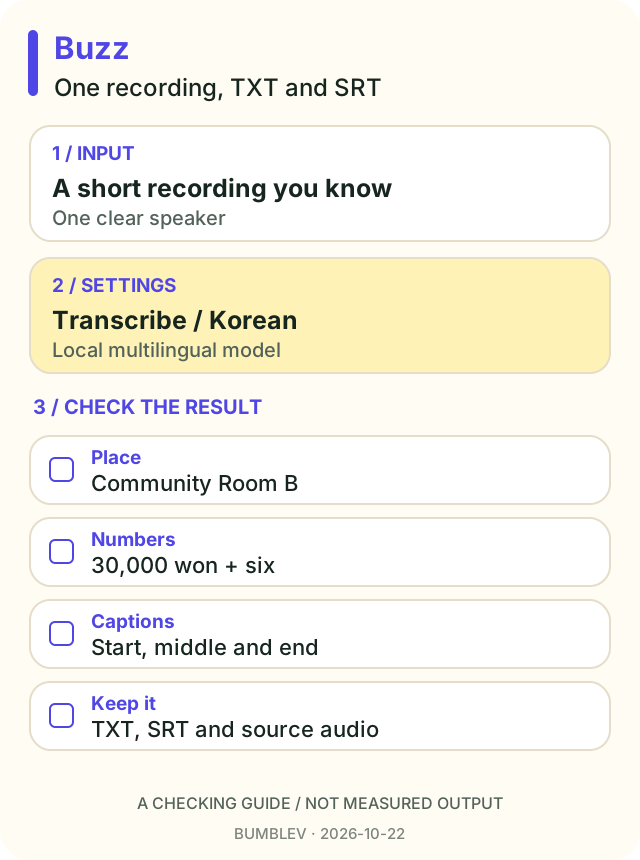
Record yourself reading the Korean sample below. It is fictional practice material. If you use a phone, copy the original audio file to the computer first.
다음 모임은 십일월 십사일 토요일 오전 열 시입니다.
장소는 커뮤니티실 비입니다.
노트북과 충전기를 가져와 주세요.
예산은 삼만 원이고, 간식은 여섯 개 준비합니다.
It says the next gathering is November 14, Saturday at 10 AM, in Community Room B. Bring a laptop and charger. The budget is 30,000 won and there are six snacks.
Use one clear voice without background music for the first attempt. Give the file an obvious name such as practice. Keep its original extension: renaming an extension does not convert audio formats.
3. Import the recording
Open File → Import Media File, use the toolbar +, or press Ctrl+O on Windows/Linux or Command+O on Mac. Select the local recording. Import instructions

4. Choose transcription settings
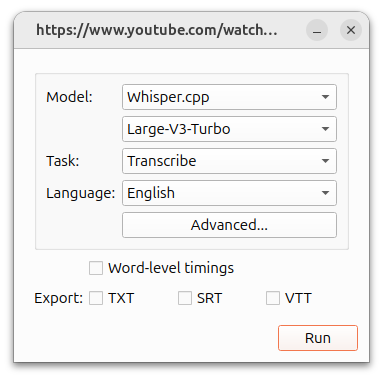
| Setting | For this exercise | Reason |
|---|---|---|
| Task | Transcribe | Keep Korean speech as Korean text |
| Language | Korean | Supply the known spoken language |
| Backend/model | A local multilingual model | Distinguish it from external API use |
| Size | Begin with a small suitable model | First check that the workflow completes |
| Export | TXT and SRT | Inspect text and timed captions |
| Word-level timings | Off for the first pass | Avoid initially producing one subtitle per word |
Whisper and Whisper.cpp are documented local options. For Korean, avoid Whisper’s English-only models ending in .en. The official Whisper guide explains the language/model distinction. Whisper documentation
The selected model may need downloading. Record that separately from transcription time. After one successful run, you can try another suitable multilingual model on the same input if needed. That is a test to perform, not a promised quality improvement.
5. Run and open the result
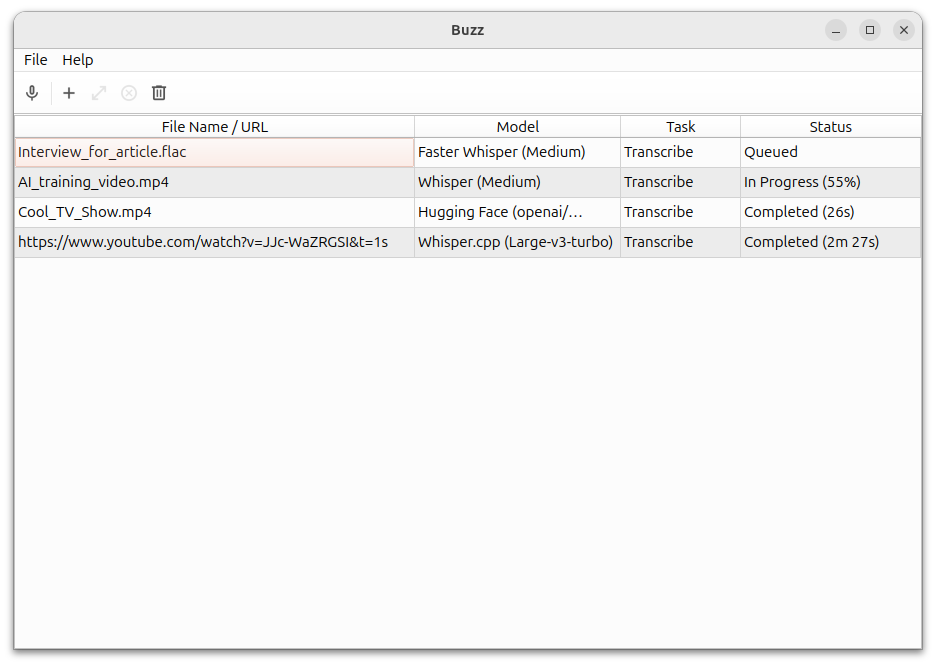
Select Run. Watch the main list for Completed, then double-click the row to open the transcript. Queued means waiting; In Progress means the job is running. Documented sequence

Keep the original recording. You need it for corrections and timing checks.
6. Check the names and numbers
Listen while reviewing the transcript. “커뮤니티실 비” refers to Community Room B. The amount is 30,000 won and the count is six. A written-out number and digits can mean the same thing; a changed amount cannot.
If a specific name keeps being misspelled, the official import guide describes Advanced → Initial prompt for relevant vocabulary. Start from a concrete observed mistake rather than changing every advanced setting before the first run. Advanced input
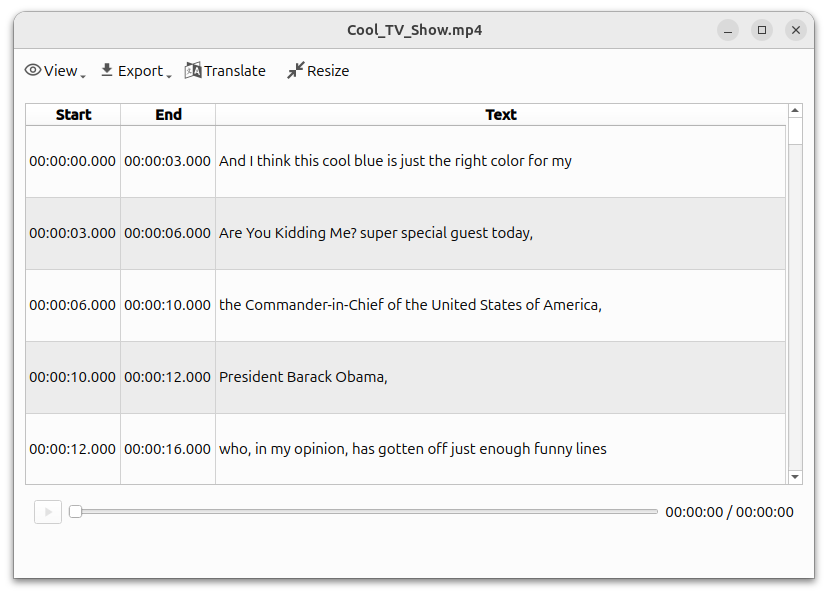

7. Export and reopen both formats
Use Export in the viewer for the formats you need. Open TXT in a text editor and check Korean characters and content. Load SRT in a subtitle-capable editor or player with the same recording. Viewer and export
SRT contains numbered blocks, start/end timestamps and text. It is a subtitle asset, not a finished video. Set font, color and position in the video workflow where you will use it.
If segments are too long, inspect Resize. The options differ depending on whether word-level timings were generated. Check your existing output before changing segmentation settings. Editing and resizing
Finish with a playback check
Both files should exist and reopen. The place, amount and count should match the audio. Check caption timing at the beginning, middle and end rather than only the first line.
| Problem | First check |
|---|---|
| Installer cannot find data | EXE and both Windows BIN files together |
| Korean became English | Transcribe task and Korean language |
| Processing is too demanding | Smaller multilingual model and a shorter sample |
| Text is correct but captions are awkward | Segment duration, line length and actual playback |
| Words appear that were never spoken | Listen to that section and inspect silence/noise |
Once this short sample works, move to a longer recording. Keeping the original audio beside corrected captions makes later changes much easier.
Continue with this tool
Sources & further reading
- https://github.com/chidiwilliams/buzz/releases/tag/v1.4.5
- https://github.com/chidiwilliams/buzz/blob/aaf98634cd354be207e00cc5aaa1bfbd9e19cf22/README.md
- https://github.com/chidiwilliams/buzz/blob/aaf98634cd354be207e00cc5aaa1bfbd9e19cf22/LICENSE
- https://github.com/chidiwilliams/buzz/blob/aaf98634cd354be207e00cc5aaa1bfbd9e19cf22/docs/docs/installation.md
- https://github.com/chidiwilliams/buzz/blob/aaf98634cd354be207e00cc5aaa1bfbd9e19cf22/docs/docs/usage/1_file_import.md
- https://github.com/chidiwilliams/buzz/blob/aaf98634cd354be207e00cc5aaa1bfbd9e19cf22/docs/docs/usage/2_live_recording.md
- https://github.com/chidiwilliams/buzz/blob/aaf98634cd354be207e00cc5aaa1bfbd9e19cf22/docs/docs/usage/4_edit_and_resize.md
- https://github.com/chidiwilliams/buzz/blob/aaf98634cd354be207e00cc5aaa1bfbd9e19cf22/docs/docs/usage/6_transcription_viewer.md
- https://github.com/chidiwilliams/buzz/blob/aaf98634cd354be207e00cc5aaa1bfbd9e19cf22/docs/docs/cli.md
- https://github.com/openai/whisper/blob/86098128c0b4f24f0e2aa2994de830614b474227/README.md