ArtCraft Launcher tutorial: install one app and verify its version
A documentation-based PhotoCraft installation exercise with platform, version, launch and saved-file checks.
Last updated
Menus and supported features can change. Compare the source-check date below with your current app version.
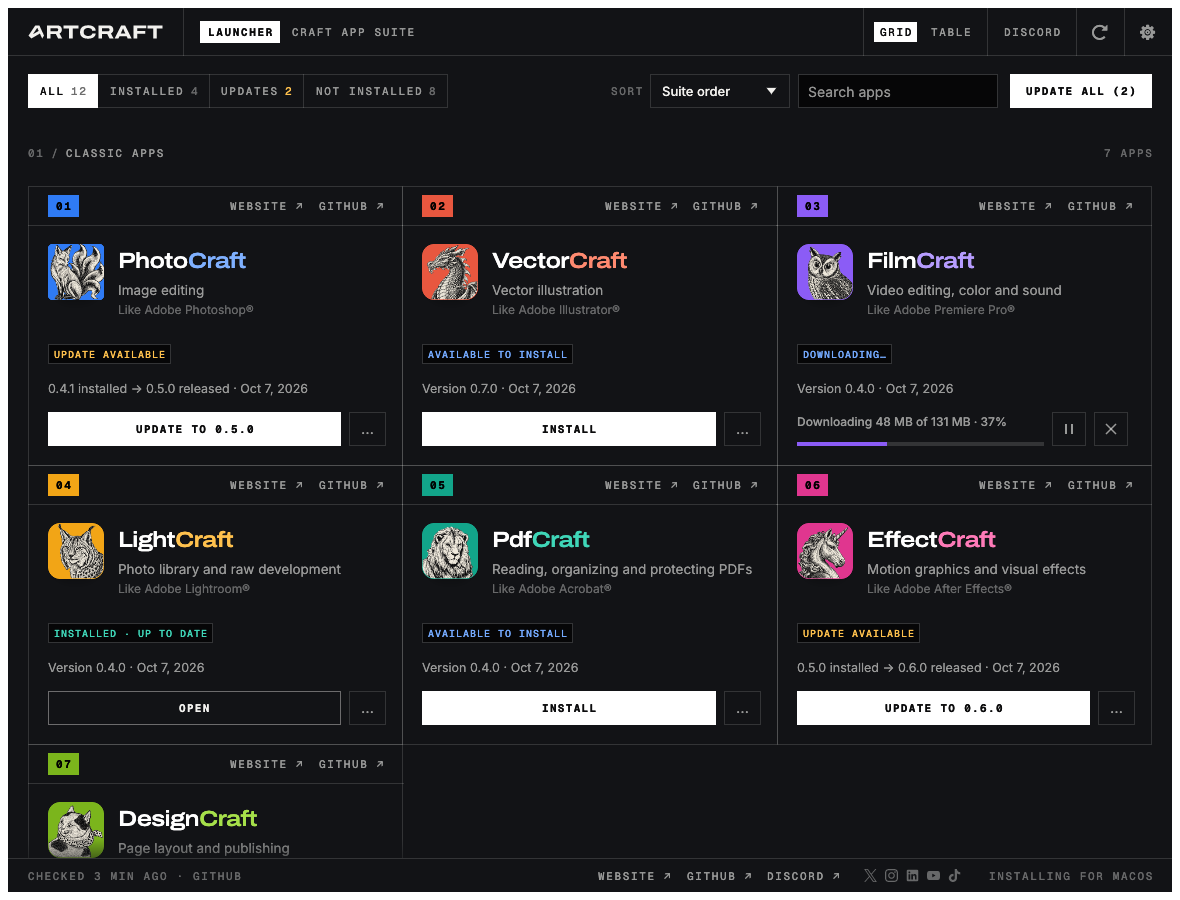
The goal is to install one PhotoCraft build and check its version through the official launcher. This is a small documentation-derived task, not a report of installation or update execution.
Prepare
Use releases from storytold/craft-launcher and match operating system and CPU. If PhotoCraft is already installed, record its version and save current work before inspecting how the launcher recognizes it.
| Item | Check |
|---|---|
| Manager | Official ArtCraft Launcher |
| Target | PhotoCraft only |
| Version record | Manager and editor separately |
| Test input | A small image copy |
| Completion | Installation state, real launch, save and reopen |
1. Match the release package
Read operating system and architecture in the asset name. Windows x64 and ARM64 are different packages. Record the launcher version and use its official release instructions rather than a similarly named community download.
2. Read the catalog state
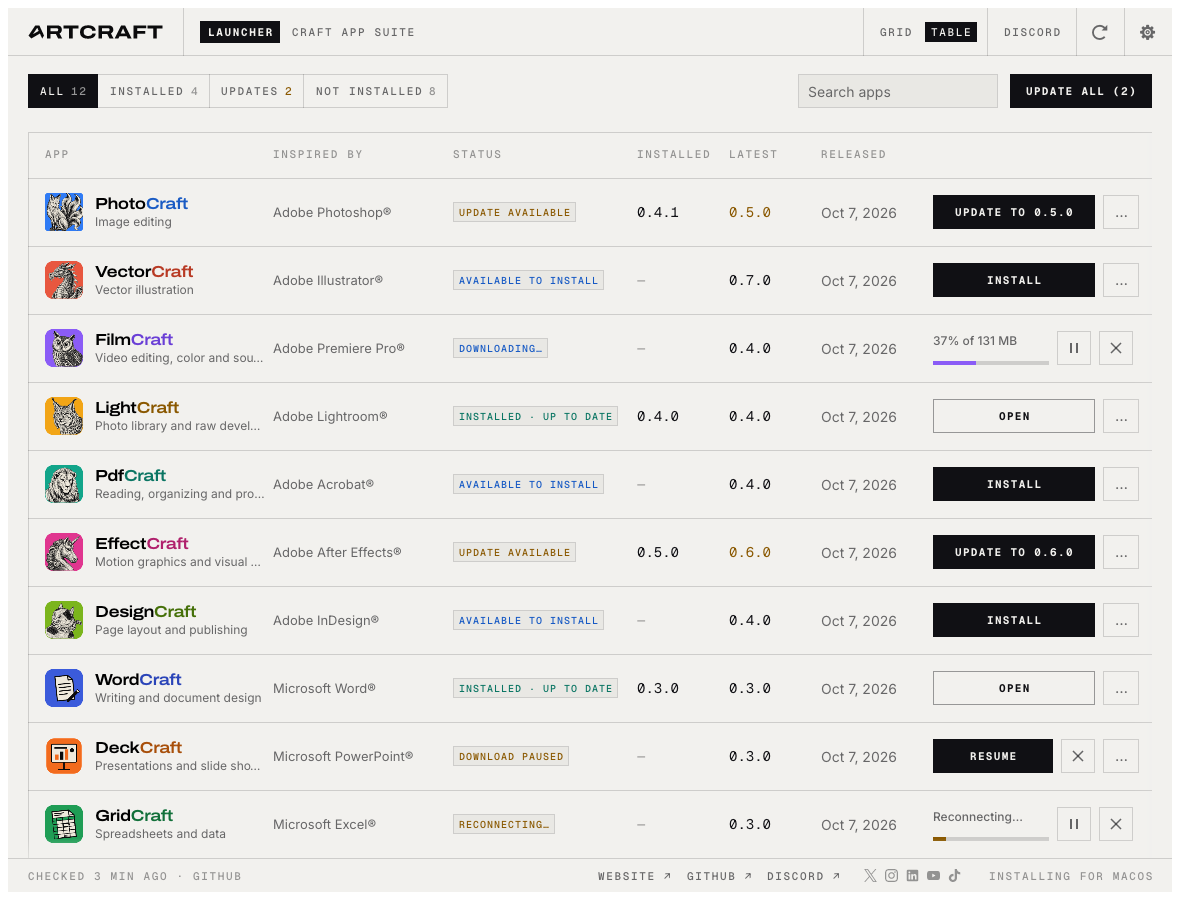
Find PhotoCraft in grid or table view. Inspect installed and latest versions separately. If an installation already exists, check recognition before reinstalling. A new release date does not mean that release is already installed.
3. Install one target
Use the documented Install workflow. Download and operating-system installation are separate stages. Preserve checksum or installation errors instead of repeatedly submitting the same operation or substituting an unrelated installer.
4. Open the actual editor
Use Open after installation and confirm that PhotoCraft itself starts. Read its version and compare it with the manager’s display. The launcher opening successfully is not the same as the target editor launching.
5. Save and reopen a small file
Open an image copy in PhotoCraft, save a separate test file and reopen it. Avoid a complex editing task at this stage. Installation management and the editor’s feature quality require different evidence.
6. Recheck the manager
Close the editor and reopen the launcher. Read its detected installation and version. If an update appears, review the release notes and preserve work before deciding to apply it. Installing an update is not required to complete this version-reading exercise.
Expected outcome and troubleshooting
Record the manager version, detected PhotoCraft version and actual editor version, together with saved-file reopening. These are checks for the reader, not successful outcomes observed here.
For failure, separate network download, checksum, package installer and editor launch. The official README supplies platform-specific log locations. A version mismatch may indicate multiple installations or recognition of a different path.
Do not delete working documents to resolve installation state. Keep editor data and application management separate so a package problem does not become a lost-file problem.
Sources and scope
Checked 19 October 2026. This introduction, tutorial and comparison use the primary sources below. They contain no claim of our own app execution or measured performance. Development builds may differ from the pinned source.
Sources & further reading
- https://github.com/storytold/craft-launcher/blob/7c7271e5f62975326d0add2dcf31f03096be4189/README.md
- https://github.com/storytold/craft-launcher/blob/7c7271e5f62975326d0add2dcf31f03096be4189/LICENSE-MIT
- https://github.com/storytold/craft-launcher/blob/7c7271e5f62975326d0add2dcf31f03096be4189/NOTICE
- https://github.com/storytold/craft-launcher/blob/7c7271e5f62975326d0add2dcf31f03096be4189/docs/brand/LICENSE-brand.txt
- https://getartcraft.com/apps
- https://github.com/storytold/craft-launcher/releases