Applying for AdSense: did you miss a connection step?
Check publication, ownership verification, ads.txt, consent, review and ad setup with ten illustrations, clear completion criteria and a final prompt to copy.
Last updated
Official sources checked:
An AI can edit the code while an account task or deployment remains unfinished. Code installation, site approval and actual ad display each need their own check. This guide covers a general website connection. The illustrations explain the settings; they are not account screenshots or evidence of approval. Menu wording can vary by account and language, so use the official link beside each step when following along.
This checklist follows official Google guidance. Ticking every box does not guarantee approval or revenue. Leave an item unchecked when you have not verified it.
CHECK 01 / 10Can a visitor open the published site?
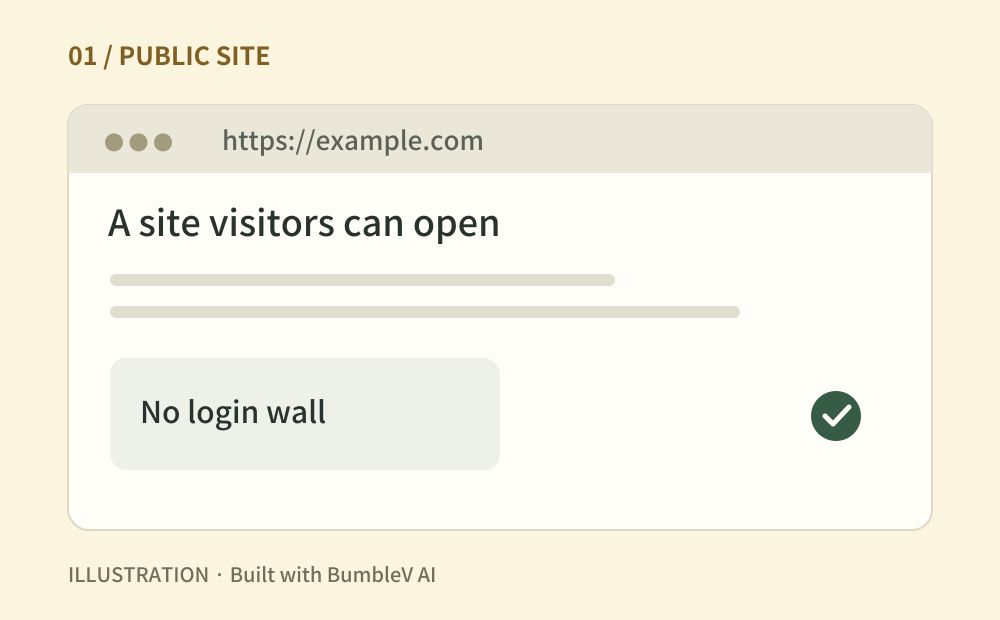
Open the real address in a private browsing window, then visit the home page and two representative articles. An AI saying the deployment succeeded does not show what a visitor receives. Check for a login wall, an expired certificate, an incorrect redirect or a preview address that only works for your team. The AdSense crawler also needs access to the pages it will review. Record the address you checked so a later code change is not mistaken for a verified deployment.
- Where to look
- Public URL · private browsing window · hosting access controls · robots.txt
- When to tick this check
- The home page and articles open without a login or certificate error, and the AdSense crawler is not blocked.
CHECK 02 / 10Does the site offer useful, original content?
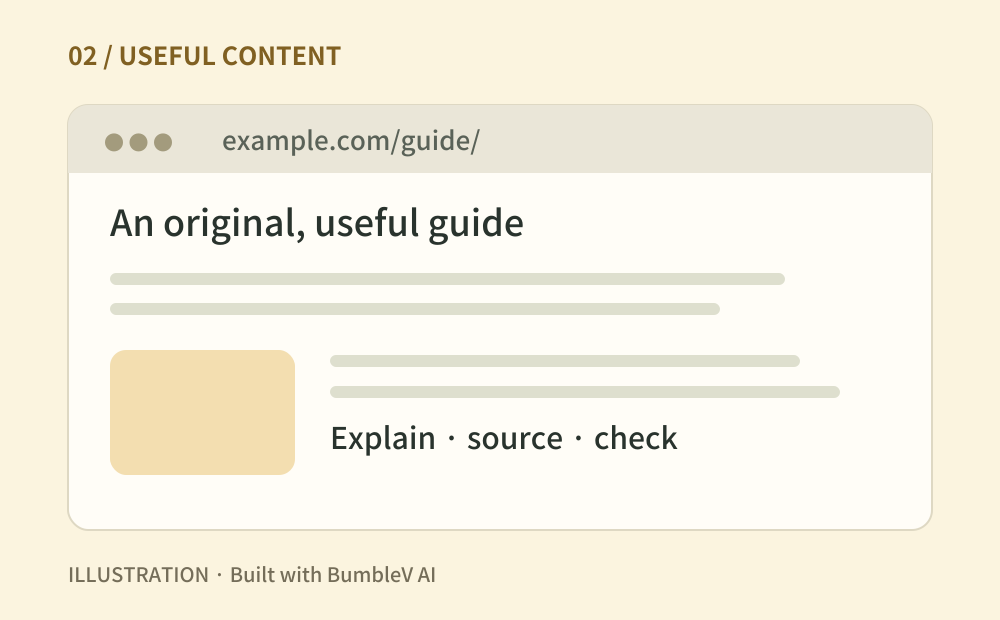
Read the site as someone arriving with a question. Replace sample copy, finish important pages and follow the navigation links. Check that examples, sources and any claimed test results match what you actually know. Google describes original, useful content and a good user experience as part of site readiness. A fixed number of articles is not a promise of approval. For your own review, pick a reader task and see whether the page gives enough detail to complete it.
- Where to look
- Home page · article text · navigation · image and research sources
- When to tick this check
- Readers can use the content and reach the next page, without placeholder copy or empty pages in the main navigation.
CHECK 03 / 10Does the privacy policy match your setup?
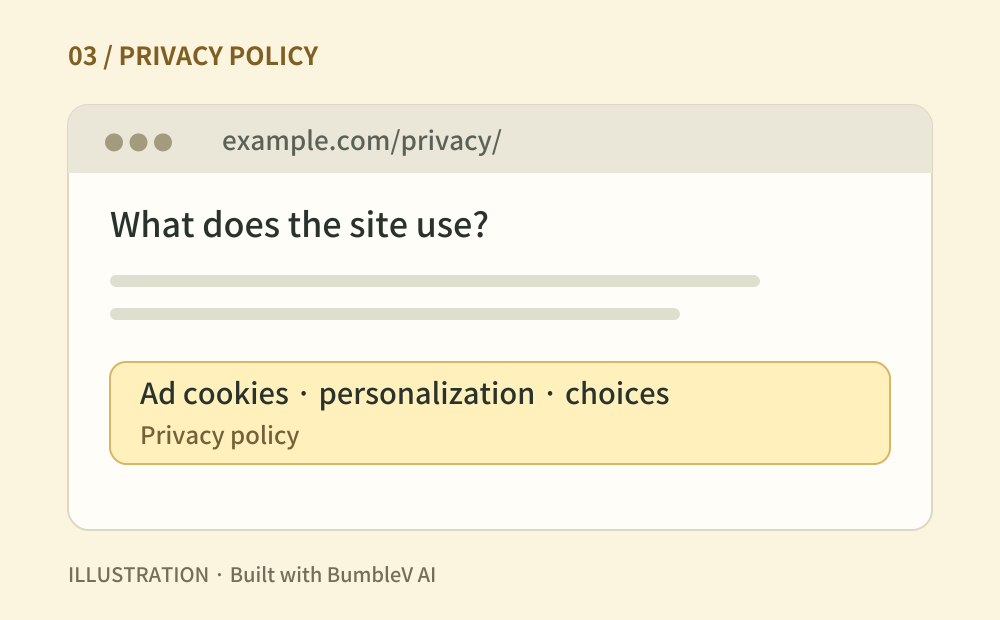
Follow the privacy link in your footer and read the page it opens. Explain the advertising cookies used by Google and other relevant vendors, personalized advertising and the choices available to visitors. Compare the wording with the advertising and analytics services you actually use. An AI-generated policy can describe services you never installed while omitting one you connected later. Start with your real service list, then review the wording and linked choices against it.
- Where to look
- Footer → privacy policy · the advertising and analytics services connected to the site
- When to tick this check
- The policy opens and its advertising-cookie and user-choice information matches the services in use.
CHECK 04 / 10Have you checked the account setup tasks?
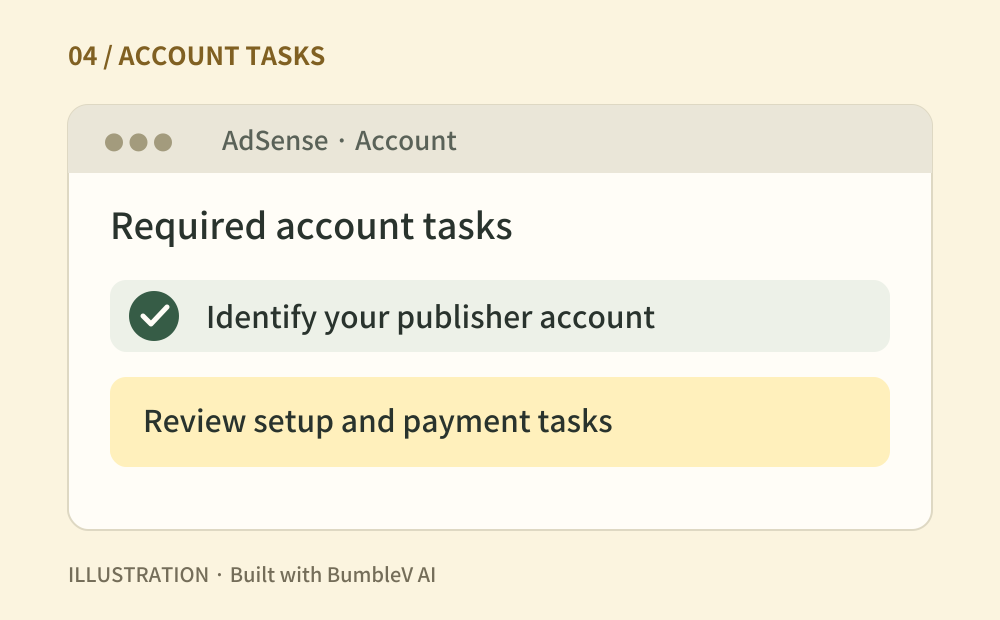
Sign in to Google AdSense and identify the publisher account you intend to use. If you already have an account, check that before creating another one. Applicants generally need to be at least 18. Review the required tasks shown on the account home page, including any payments-information task. Editing a site template does not complete an account form. You can tell your AI which task remains without pasting a password or private payment details into the conversation.
Open the Google AdSense start page
- Where to look
- Google AdSense sign-in → tasks on the account home page
- When to tick this check
- You have identified the account and completed, or clearly recorded, the required setup tasks shown there.
CHECK 05 / 10Did you add the site you actually publish?
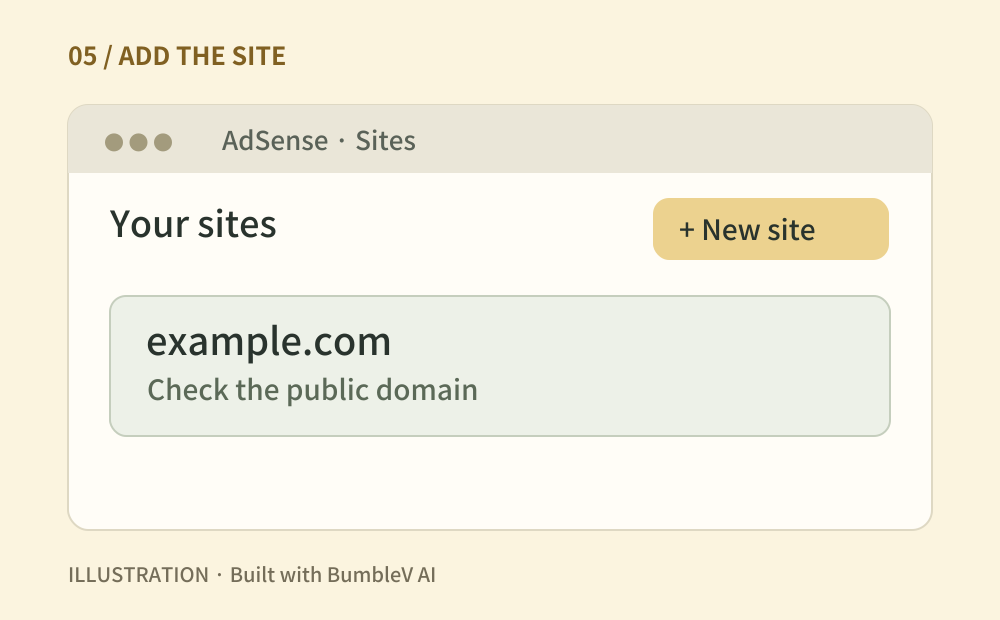
Open Sites in AdSense, add a new site and save the public address you intend to monetize. Check that it appears in the list. A temporary hosting address and your chosen domain can lead to different places, so compare the entry with the address a reader ultimately reaches. Review any www or domain redirect you use. Blogger, YouTube and other host partners have their own connection routes; follow the relevant service instructions when those apply.
- Where to look
- AdSense → Sites → New site
- When to tick this check
- The intended site is listed, and the entry matches the public site you want to show ads on.
CHECK 06 / 10Is the verification on the live site?
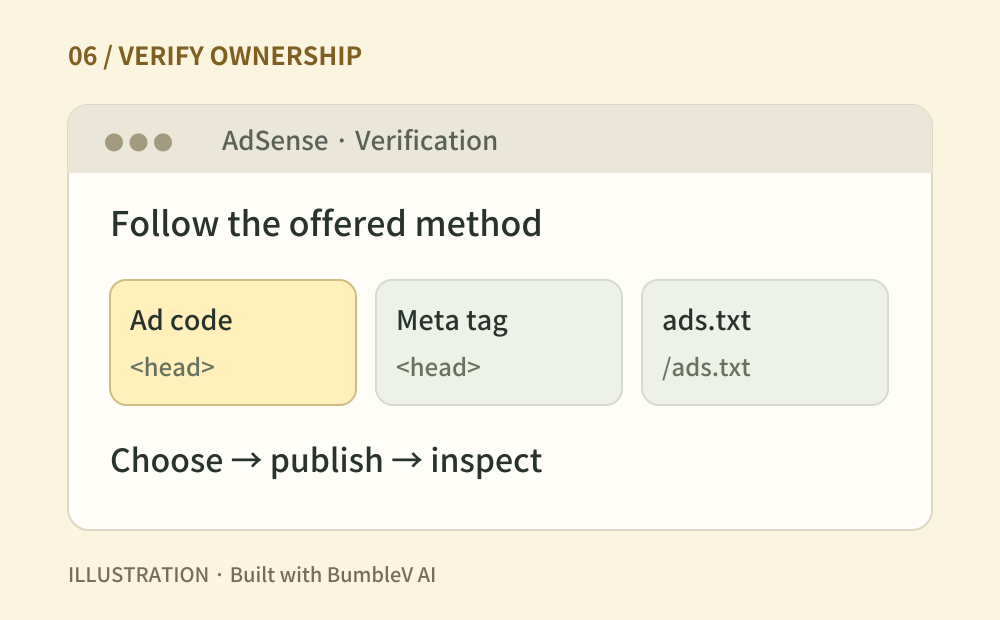
Follow the verification method offered in your account: an AdSense code snippet, ads.txt snippet or meta tag. These are alternative verification methods; you do not need all three merely to verify ownership. Put HTML snippets in the head as instructed, publish the change and inspect the live page source. A successful edit in a repository is not proof that the deployment finished. A verification meta tag alone does not place advertising on a page; ad serving still needs its own setup.
- Where to look
- AdSense connection instructions · shared site layout · published page source
- When to tick this check
- The selected method is visible on the published site and uses the publisher ID copied from your own account.
CHECK 07 / 10Does ads.txt open at the correct address?
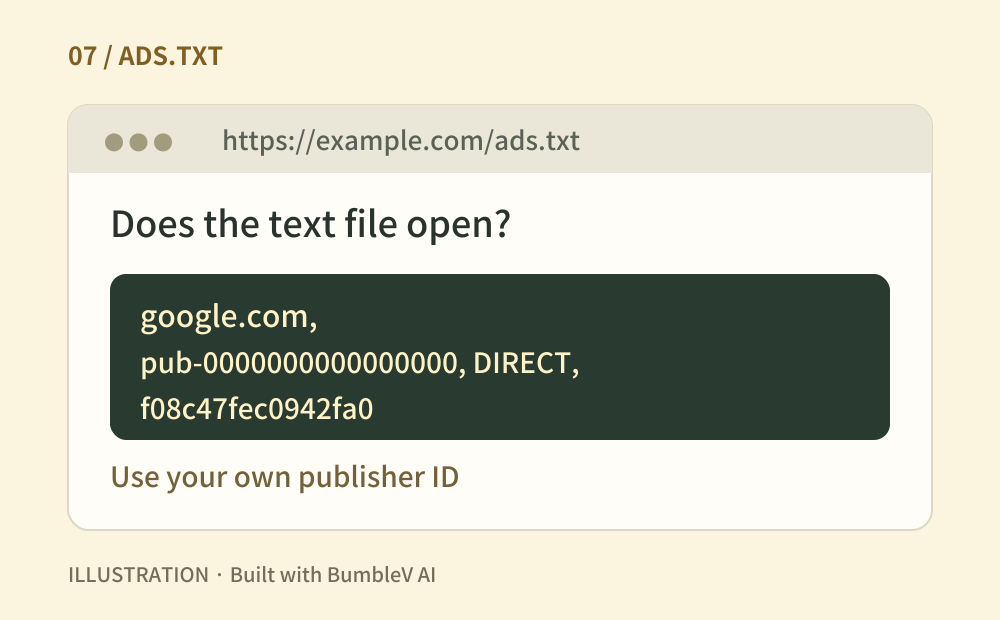
An ads.txt file identifies authorized sellers of your advertising inventory. Google strongly recommends it, while stating that its use is not universally mandatory. If you manage it yourself, copy your account’s line and open the domain-root URL, such as https://example.com/ads.txt. Check that it serves the text file, not a home page or an error. A file only at /blog/ads.txt is a different address. Replace the example publisher ID with yours. If a platform manages the file, check its instructions and the account status instead.
google.com, pub-0000000000000000, DIRECT, f08c47fec0942fa0- Where to look
- Your domain/ads.txt · AdSense → Sites → ads.txt status
- When to tick this check
- A self-managed file opens as text with the correct publisher ID, or you have confirmed the platform-managed arrangement.
CHECK 08 / 10Have you checked visitor consent settings?
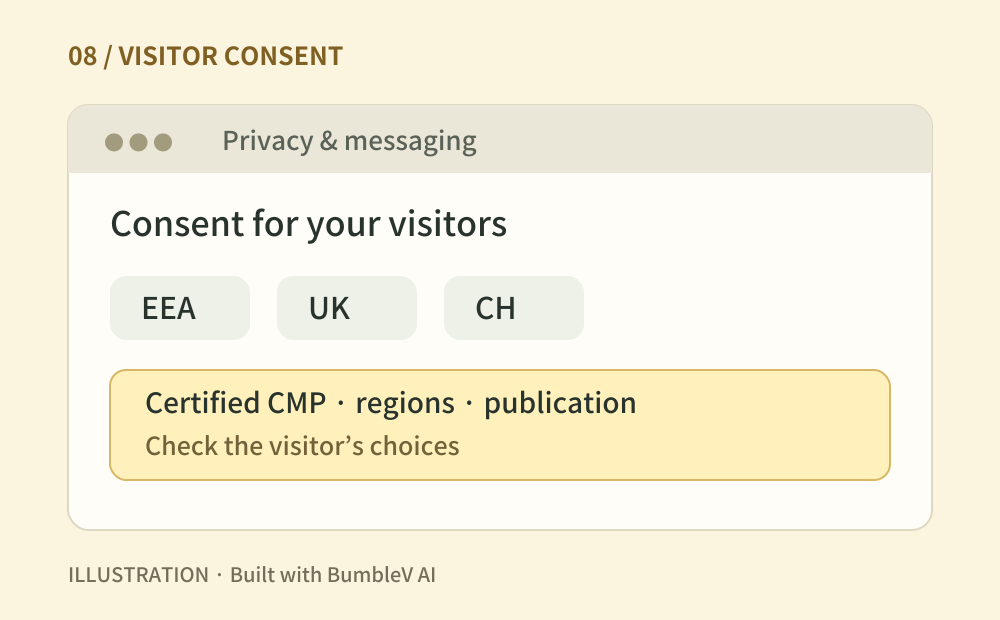
Consider where your visitors are, rather than only where you operate. Personalized ads served to users in the EEA, UK and Switzerland require a Google-certified CMP integrated with the TCF. You can configure Google’s message in Privacy & messaging or use a certified external CMP. A custom analytics-cookie banner is not evidence that advertising consent has also been configured. Review the intended regions, publication status and how visitors can revisit their choices. Document which setup applies to your audience.
- Where to look
- AdSense → Privacy & messaging · your chosen consent management platform
- When to tick this check
- You have reviewed the visitor regions and ad type, and checked the applicable consent message and its publication status.
CHECK 09 / 10Did you verify and request the review?
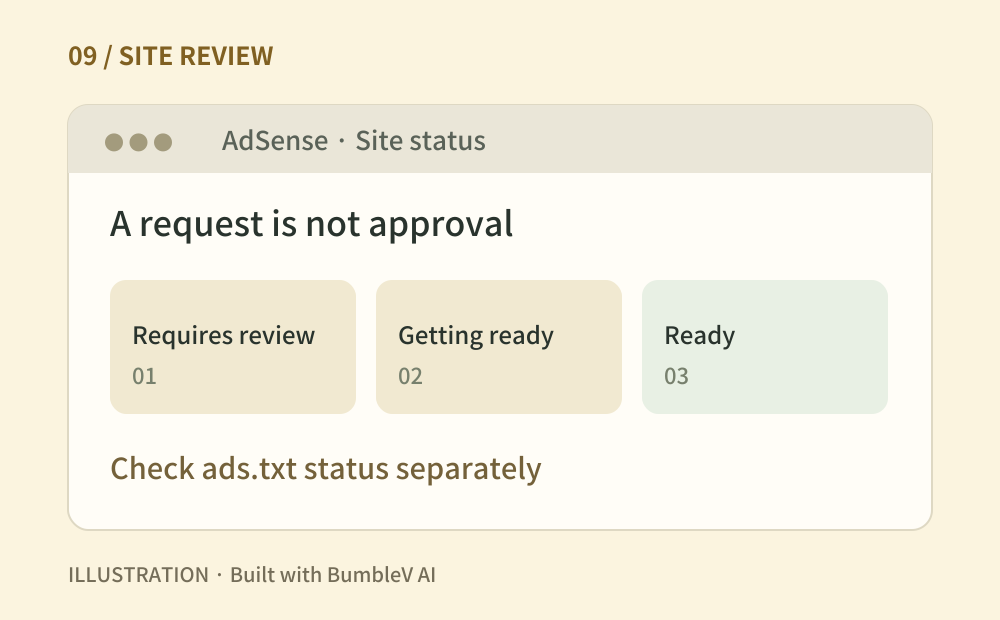
Complete verification, use Request review and check whether account tasks remain. Read the site approval status separately from the ads.txt status: Authorized for ads.txt does not mean the site itself is Ready. Requires review, Getting ready, Needs attention and Ready each describe a different stage. Google says checks commonly take a few days but can take two to four weeks. While waiting, avoid removing and resubmitting the site, which can delay the process. If a correction is requested, record the specific issue before editing.
- Where to look
- AdSense → Sites → site approval status and detailed instructions
- When to tick this check
- The review has been requested and you have recorded its current state. Any requested fixes remain visible; approval is tracked separately.
CHECK 10 / 10After approval, did you check ad placement?
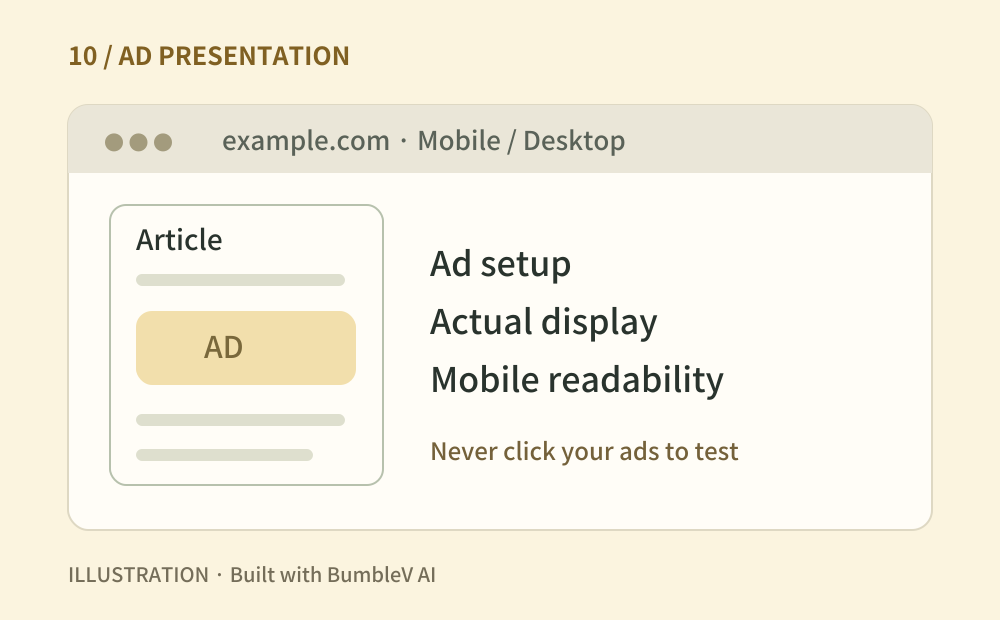
Once the site is Ready, configure Auto ads or manually placed ad units. If you used only a meta tag for ownership verification, check the ad-code setup too. Open mobile and desktop pages and review whether advertising obscures navigation or interrupts reading. When ads are absent, work through the account status, code, consent and display conditions; do not record an unseen ad as verified. Never click your own ads or ask someone else to click them as a test. Leave this check unfinished while approval is pending.
- Where to look
- AdSense → Ads · published mobile and desktop pages · Policy center
- When to tick this check
- After approval, the chosen ad setup and its actual page presentation have been checked. Unverified display is still recorded as unverified.
Official Google instructions ↗ · Click and placement policies
Copy this prompt and paste it into your AI
Fill in your public URL, tools and current stage. This asks for evidence and unfinished account tasks as well as code edits. Copy it into ChatGPT or the AI tool you use to work on your website.
Sources & further reading
- https://support.google.com/adsense/answer/7584263?hl=en
- https://support.google.com/adsense/answer/9724?hl=en
- https://support.google.com/adsense/answer/1348695?hl=en
- https://support.google.com/adsense/answer/12169212?hl=en
- https://support.google.com/adsense/answer/12171612?hl=en
- https://support.google.com/adsense/answer/13554116?hl=en
- https://support.google.com/adsense/answer/12170222?hl=en
- https://support.google.com/adsense/answer/7037624?hl=en
- https://support.google.com/adsense/answer/48182?hl=en
- https://support.google.com/adsense/answer/12176698?hl=en