Canva Craft guide: create a promotional image, edit the text, and export PNG
Create a fictional reading-meetup graphic through Dream Lab, targeted edits, separate text, optional Magic Layers, and PNG export.
Last updated
Menus and supported features can change. Compare the source-check date below with your current app version.
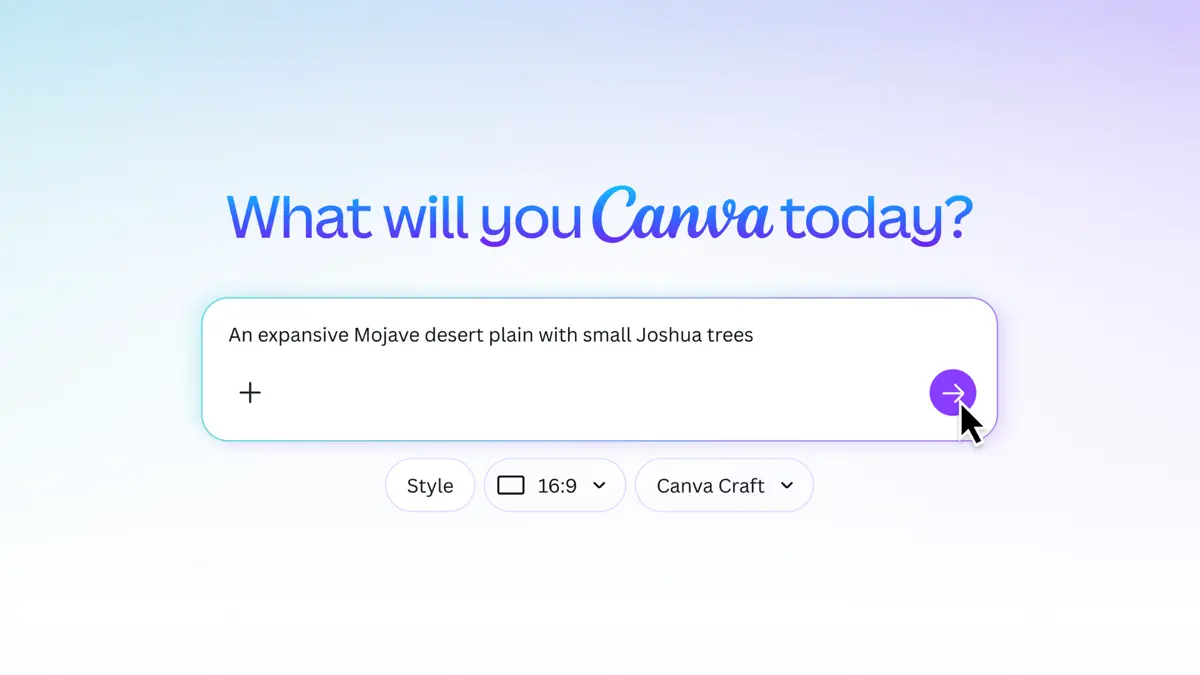
A promotional graphic needs both an appealing image and accurate information. This walkthrough creates one square graphic for a fictional weekend reading meetup, keeps the announcement text editable, and exports a PNG you can open on your device.
Canva’s Craft announcement directs users to Dream Lab. This guide connects that access route with the documented editing workflow. It is based on official sources checked on October 26, 2026, not a hands-on review or verification of the internal model used for a particular account. Craft announcement
Define the deliverables before generating
For this exercise, keep three things:
- A 1080 × 1080 practice graphic with the correct title and time.
- A Canva design whose announcement text you can change later.
- An exported PNG that opens correctly.
The dimensions are our practice choice, not a claim about every platform’s required format. Sign in at Canva, or create an account if needed. The browser workflow does not require installing a desktop application.
Check the AI allowance shown for your account. Image generation and Magic Layers have usage conditions, and access varies by plan. Use current account information and the pricing page rather than assuming a fixed number of free generations. AI allowance · Plans
1. Write the information that must be correct
Here is our original practice brief. It describes a fictional event, not an actual invitation.
Keeping this brief separate gives you something to compare with the final image. Start with a title, one short description, and essential logistics. You can judge the reading order more easily when there are only a few information blocks.
2. Generate the first concept in Dream Lab
From the home screen, open More → Dream Lab, enter a description, and select Generate. Choose a result to continue. The Craft announcement also links directly to Dream Lab. Documented generation route
For the first attempt, generate an illustration with room for a headline. You will add the exact announcement text separately. Try this original prompt:
Create a square illustration for a small reading meetup announcement.
Use a cream background, one deep navy book, and a small yellow bookmark.
Place the book in the lower right. Leave generous empty space in the upper left
for a headline. Use simple shapes, clear edges, and a quiet, welcoming mood.
Do not include text, logos, people, or decorative watermark-like marks.
Choose a square ratio if the ratio control is available. Canva’s image-generation page describes style and aspect-ratio options; this guide does not assume a separate Craft model selector exists in every interface. Image-generation options
The purpose of this attempt is a usable visual foundation. If the image adds lettering anyway, do not treat it as finished announcement copy. Remove it, choose another result, or simplify the composition before adding your own text.
3. Change one thing at a time
Select the generated image, use Edit image, describe the change, and generate an update. Image-editing instructions
If the result is too busy, try:
Keep the book and bookmark, but remove all surrounding decorations.
Leave the upper-left headline area completely clear.
After an edit, inspect the parts you wanted to preserve too. A request to remove decorations does not make the previous book shape or color a guaranteed invariant. Choose the result against a small set of criteria:
| Check | What this exercise needs |
|---|---|
| Headline space | An uncluttered upper-left area |
| Recognizable subject | A book that remains clear at a small viewing size |
| Color balance | Navy and cream dominate; yellow stays an accent |
| Unwanted details | No meaningless lettering or unfamiliar logo |
Do not keep generating simply because another result might be prettier. Once you have a suitable background, the remaining task is communication: readers need to understand the announcement.
4. Place it in a correctly sized design
First save the selected background as reading-meetup-background.png. Use a PNG download option if offered. If Open in editor is offered instead, choose it; Canva’s general image-generator guide documents this route, although Dream Lab’s exact output labels are not specified. This opens the full design editor, distinct from the prompt editing in section 3. Image output options
Once in the full editor, use Share → Download → PNG to save the background. Editor download Then transfer that saved file into an explicitly sized canvas:
- On the home page, choose Custom size, use px, enter 1080 for both dimensions, and select Create new design. Custom dimensions
- In the new editor, choose Uploads → Upload files, then select reading-meetup-background.png.
- When the upload appears, click its thumbnail to add it to the page. Upload and placement
If you downloaded the PNG directly from the result, start with step 1. Check that you transferred the chosen version and that its empty headline area remains usable.
Add the announcement as separate text elements. Canva’s Text tools let you add text and adjust the selected text’s font, size, color, and alignment. Editing a design · Text formatting
For this exercise, use four blocks:
One Page on Saturday
Bring a sentence that stayed with you
Saturday, November 21 · 2 p.m.
Little Bookshop Practice Room · Fictional practice event
Make the event name the clearest entry point. Give the time and location enough space to remain readable. Then compare every word with your original brief. Keeping text separate means a date change does not require asking the image generator to redraw the whole composition.
5. Use Magic Layers only when separation is useful
If an object inside the image needs to move independently, select the image and try Edit → Magic Layers. Inspect what actually separates. The documented input is a single-page PNG or JPG; complex or photographic imagery may not separate cleanly. Magic Layers
Our headline is already a separate text element, so it needs no layer conversion. To move the book, first confirm that selecting it does not also select the entire background. If the separation is unsuitable, keep the simpler background-plus-text design or return to the original concept.
A reusable layout is the useful result here. Using more AI features does not make the announcement more complete if you still cannot correct its time easily.
6. Confirm saving, then download a PNG
Canva saves edits automatically, but check the save status before closing the design. Give it a name such as reading-meetup-square-v1 and note where you keep it in Projects. Saving and organization
Use Share → Download, choose PNG, select the required page if there are several, and download. If premium content causes a payment prompt, inspect the named element; for this exercise you can replace it with an image you own or an available element. Download instructions
Open the saved image outside Canva. Check its edges, title, date, location, and fictional label. View it small enough to approximate how someone might encounter it in a feed. Finally reopen the Canva design and confirm that you can select and edit the headline independently.
The PNG is your distribution copy. The Canva design is what you return to for further editing. Keep both easy to find.
Solve the specific problem
Dream Lab is missing: Team or education settings may restrict it. Check the account and workspace, then ask the relevant administrator about access. Access restrictions
Separated text or objects look wrong: Use a simpler composition with clear boundaries. Keep exact announcement wording in ordinary text elements so you can correct it directly.
The download is blocked: Open the issue indicator in the download panel and address the actual reason, such as an unfinished upload or a limit. Download troubleshooting
For your next practice graphic, change only the event title and date. If the style stays consistent and the new information is easy to verify, you have a useful starting layout for recurring announcements.
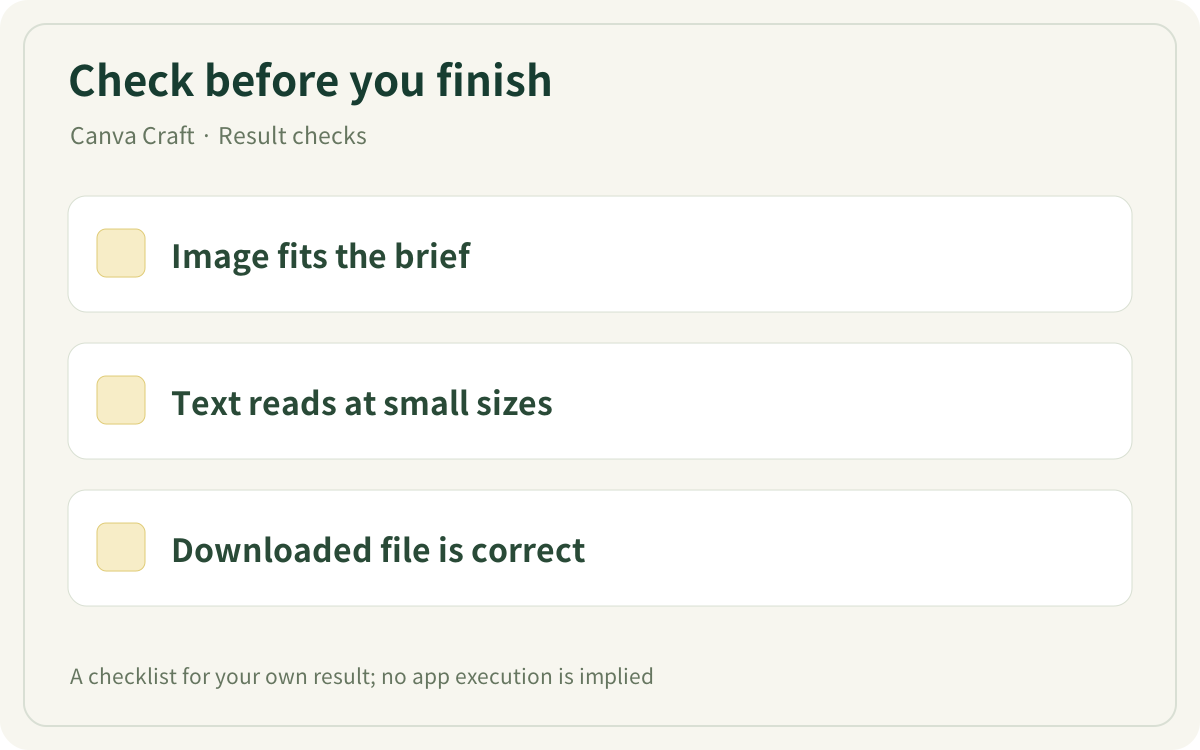
This original checklist helps you inspect your own result. It is not an app screenshot or a generated result.
Sources & further reading
- https://www.canva.com/newsroom/news/canva-craft/
- https://www.canva.com/
- https://www.canva.com/help/ai-access/
- https://www.canva.com/pricing/
- https://www.canva.com/dream-lab/
- https://www.canva.com/help/generate-with-dreamlab/
- https://www.canva.com/ai-image-generator/
- https://www.canva.com/help/design-from-scratch/
- https://www.canva.com/design-school/resources/using-and-customizing-templates/
- https://www.canva.com/help/format-text/
- https://www.canva.com/help/editable-magic-layers/
- https://www.canva.com/design-school/resources/sharing-collaborating-and-downloading/
- https://www.canva.com/help/download-or-purchase/
- https://www.canva.com/help/dreamlab-access-restrictions/
- https://www.canva.com/help/upload-media/