Canva Craft: plan a promotional graphic you can revise
Understand Canva Craft, the documented Dream Lab route, and how to choose a first graphic with a clear revision plan.
Last updated
Menus and supported features can change. Compare the source-check date below with your current app version.
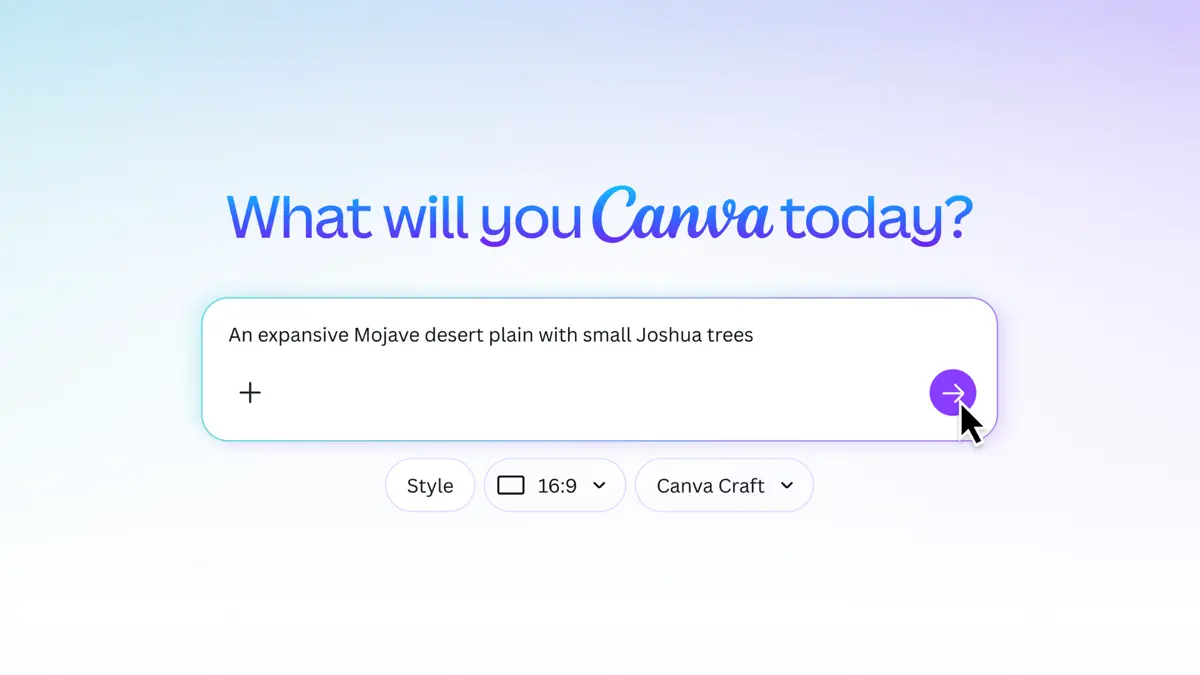
“I just need one image for a reading meetup” can turn into a surprising number of decisions: subject, colors, layout, wording, and export. When considering Canva Craft, look beyond an attractive first result. Ask whether you can communicate the actual information and make the next correction without starting over.
This introduction follows official announcements and help checked on October 26, 2026. It does not report measured generation speed or a hands-on assessment of language quality.
Craft is an image model within Canva
Canva introduced Craft as its own image-generation model and directs users to Dream Lab to start. This series follows that browser workflow through Canva and Dream Lab. Craft announcement
You do not need to approach this as a developer project involving an API key or a separate application. The task here is making and editing a graphic in the existing product.
Choose a small, concrete first deliverable
“Create an entire brand” is difficult to evaluate. “Make a square meetup graphic with the correct date” has a clearer finish line. These are suggested starter assignments:
| Assignment | Decide first | Inspect afterward |
|---|---|---|
| A reading meetup notice | Title, time, and place | Correct logistics and readable text |
| A blog cover | Topic, colors, and headline space | Whether it represents the article honestly |
| A fictional product concept | Purpose, shape, and mood | Whether people might mistake it for a product photo |
| An event background | Ratio, empty space, and atmosphere | Whether the later text has room |
If you make a realistic-looking concept, prepare wording that distinguishes an imagined design from a photograph of an actual product or event. The exercises in this series use fictional events so there is no real invitation to misinterpret.
Separate making the visual from completing the announcement
Dream Lab’s documented workflow starts with a description, then a chosen result and targeted edits. Dream Lab help
For a first exercise, consider generating a simple background with empty space, then adding the event title and date as separate text in the editor. This recommendation keeps the revision task small. It is not a claim that the model can never render text well.
Separating the factual wording from the illustration also makes the editing responsibility clear. If the event date changes, you know which content must change. If the illustration changes, you can compare the information with the original brief instead of assuming it remained intact.
Check what is actually editable
Magic Layers separates flat images into editable elements. Magic Layers documentation
For your exercise, inspect what actually separates. After reading the feature description, select the part you intend to change and check whether the result supports that change.
If moving the book also moves the background, the image has not separated in the way your task needs. If your headline was already a normal text element, it needs no image separation. Begin with “What must I be able to change later?” rather than “How many features can I use?”
This question is especially useful for recurring graphics. A design you can update deliberately may be more useful to you than a visually impressive result whose wording you cannot conveniently correct.
Inspect access and allowance before a larger project
Generation and editing features have account-specific conditions. Check your actual plan and remaining allowance using current official information. AI usage · Plans
After the first result, write one sentence about what is missing: “The headline needs more space” or “The background distracts from the date.” That gives the next attempt a defined purpose. It also helps you evaluate whether additional paid functionality would solve a recurring problem you actually have.
Team and education settings can restrict Dream Lab. If it is missing, check the account and organization context before assuming an installation problem. Access restrictions
Four questions to decide whether the graphic is finished
Can someone identify the announcement from the headline? Do the time and location match the brief? Is the essential text readable at a small viewing size? Can you find the editable original when the next event changes?
These are proposed review criteria, not a promise of improved clicks or sales. Exporting a PNG is only one part of the exercise. Reopen the Canva original and make a small correction so you know how to continue.
Continue with one complete graphic
The promotional-image walkthrough follows a fictional reading meetup from first access through generation, editing, text placement, and PNG export. It includes original copyable prompts and wording.
The workflow comparison helps you choose between generating the whole visual, generating a background for a layout, and working with separated elements. In each case, judge the final graphic by the information it communicates and the next revision you need to make.
Sources & further reading
- https://www.canva.com/
- https://www.canva.com/dream-lab/
- https://www.canva.com/newsroom/news/canva-craft/
- https://www.canva.com/help/generate-with-dreamlab/
- https://www.canva.com/help/editable-magic-layers/
- https://www.canva.com/help/ai-access/
- https://www.canva.com/pricing/
- https://www.canva.com/help/dreamlab-access-restrictions/